
Importing Recipients from a Text File
Recipients can be added to a distribution list by importing recipient data from a text file. This functionality facilitates importing distribution lists that are stored in other applications or databases. A list of addresses can be exported from another application, formatted so that it will be accepted by TC/Web, and then imported into a TC/Web distribution list. When a text file is imported, all of the addresses in the text file are imported as recipients into the same address book as the distribution list. The text file has a simple format. The first row is a header row defining the fields that are included in the file, and each following row holds the data for one address.
Text File Format Specifications
The file must either be comma separated (.csv) or tab separated (.tsv). This means that each item in each row must be separated by a comma or a tab.
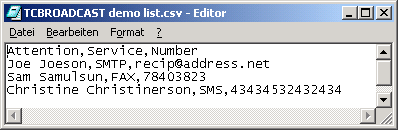
Picture 89: Text file to import list
The file encoding must be like the following:
| Encoding | BOM bytes | Unicode supported |
|---|---|---|
| UTF-8 with BOM | EF BB BF | Yes |
| UTF-16LE with BOM (little-endian) | FF FE | Yes |
| ANSI (standard code page on the system) | none | No |
-
Answerback values (such as for TELEX) can be appended with a "-" after the address in the "Number" field.
For example, to specify a number of 3348, and an answerback of 9987, use the following syntax: 3348-9987.
-
The RecipientID field will be required only in an import mode if the Update import mode is being used.
Header Row
-
The first row indicates which fields are included, and the order of the fields.
-
Here is a list of the fields that can be included (Required fields are in bold): Attention, Service, Number, RecipientID, UserID, Type, Freetext, DelTypeDef, Company, Department, UserBelongsTo, Active, DirsyncAllowed
Data Rows
-
Each following row in the text file is an address. Each address row must have the same number of fields as the header row.
-
The name of the Service must be an available service on the TC/Web system.
-
The “Attention” field in the text file will be imported to the “Full name” of the recipient.
-
If the text file contains no “RecipientID”, the “Attention” data in the text file will be imported to the “RecipientID” of the recipient as well.
Performing the Import
The Import form can be opened in two ways.
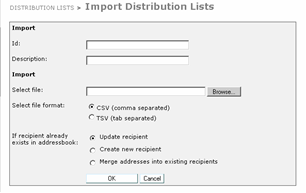
Picture 79: Import form
-
Clicking the Import List button on the Distribution Lists tool which will create a brand new list.
-
First opening a Distribution List and then clicking the Import button will import a list of recipients into an existing distribution list. Note that when importing to an existing list, all existing recipients will be removed before the new recipients are imported.
Handling Existing Recipients:
The import form has a field called “If recipient already exists in address book:”.
This field determines how an address will be imported if a recipient with the same RecipientID already exists in the address book where the list is being imported. There are three possible import modes. A system administrator can configure which modes will be available to the user.
-
Update Recipient – When an existing recipient in the address book has the same recipientID as a row in the import file, the data of the existing recipient is updated with the data contained in the text file.
-
Create New Recipient – When an existing recipient in the address book has the same RecipientID as a row in the import file, a new recipient is created with the data in the text file. The RecipientID of the new recipient is the RecipientID with a “~00001” appended to it.
-
Merge Addresses into Existing Recipients – When an existing recipient in the address book has the same RecipientID as a row in the import file, the address data from the text file will be added to the existing recipient, but the recipient data itself (such as company and department) will not be changed.
Import File Validation:
When importing the file, TC/Web will perform a validation on the text file to ensure that it is in the format described above. If a problem is found with the file, TC/Web will not perform the import and the user will be notified by a text message describing the problem.
All importing processes are running in the background. The user submits an import file to TC/Web, which is placed in an import query. It is possible to run from 1 to 5 imports at the same time (per server). The user can disconnect from TC/Web but the import file which he has submitted will be imported.
By opening the Import Distribution Lists view, the user can see distribution lists which are currently in import query, importing or already imported, anytime.
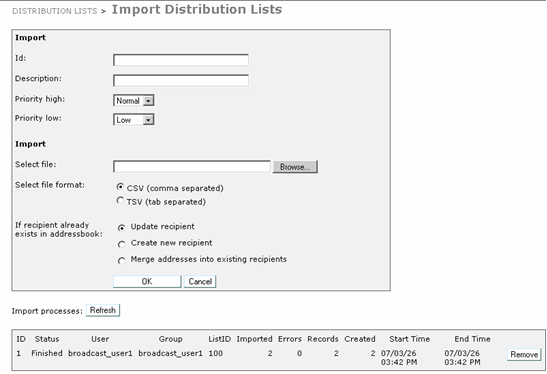
Picture 80: Import Distribution List
The user can refresh this list by clicking Refresh. When the import process has finished, it is possible to remove it from the list by clicking Remove. Columns in this list contain the following values:
| Column | Description |
|---|---|
| Imported | Number of recipients added to distribution list |
| Errors | Number of errors |
| Records | Number of processed records in input file |
| Created | Number of recipients created |

Picture 81: List of imported distribution lists
Each import process can have one of the following statuses:
| Status | Description |
|---|---|
| Waiting | import process is in query (set when import process is added to query) |
| Importing | distribution list is importing |
| Stopped | distribution list import was stopped (not currently used) |
| Finished | distribution list import is finished |
| Paused | distribution list import is paused (not currently used) |
| Terminated | distribution list import is terminated (only when service was stopped and import process was not finished) |