
Filter
A user can reduce the number of items in a list by applying a filter on one or more columns. This is an effective way to search for specific items.
Filters can be set in two ways:
-
Master Filter: The Filter button at the top of the tool displays a form with a control for every column in the tool.
-
Column Filter: A small button below each column name displays a small window with the filter control only for that particular column.

Picture 17: Filter button
Filtering/searching in Message folders:
Filtering with a text field (except Archive folder) in Message server provides the following different filtering options:
| Search Description | Results |
|---|---|
| The filter is not case sensitive. | “greetings”, “GreEtinGs”, “GREETINGS” will all return “greetings” |
| Only items with an exact match are returned. | “tings” will not return “greetings”
“greet” will not return “greetings” “greetings” will return “greetings” |
| The * can be used as wildcard at the beginning, end, or beginning and end. | “greet*”, “*tings”,”*etin*” will all return “greetings” |
Filtering in Archive folder:
For filtering/searching in Archive, user always have to specify the beginning of a word. The exceptions of this are fax and telephone numbers which are extracting from the normalized address field, so that, it is possible to search also for parts on these number. For example, if a received fax has a “from” field like “+4318635320”, a search for “86353”, “35320”, “1863532”, etc. will be successful.
Filtering can be done using individual column filters or using the ‘Search for text:’ field.
Filtering using ‘Search for text’ field:
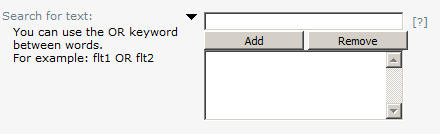
Picture 18: Search for text
Following content is searched for this field:
-
Text content of message (includes OCR text blocks)
-
Subject
-
TCOSS user ID or queue of recipient
-
TCOSS user ID or queue of originator
-
Document number and page number
-
Original message name
“Search for text” field provides the following different filtering options:
| Search Description | Results |
|---|---|
| The filter is not case sensitive. | “greetings”, “GreEtinGs”, “GREETINGS” will all return “greetings” |
| The filter specify the beginning of a word that must be in the searched fields. | “gree” matches “greeting”, “my green car” but not “agree” |
| A dot “.” can be used to match for whole words. | “do.” matches “Do we” and “I do” but not “does” |
| If the text string is not having * at its end, * is internally added at end of string but it does not change behavior. | “gree” and “gree*” will return the same results. |
| The * at begin of string is not supported. It will return no result. | “*gree” does NOT match “gree”, “agree” and “green” |
| Keyword OR can be used while filtering by text in Archive (OR must be in uppercase.) | “fax1 OR fax2” will return “this is fax1” or “fax23” |
| For multiple text
search, the texts are internally combined by a logical AND.
You can use this by adding multiple texts and clicking the Add button to add the texts. The maximum number of texts that can be added to this search box is 9. |
Search of “very” and “picture” matches the messages containing both “very” and “picture”. It returns “very big picture” but not “big picture”. |
Filtering using other fields in Archive:
This search is used to search messages using particular fields, such as, Originator, Recipient and so forth.
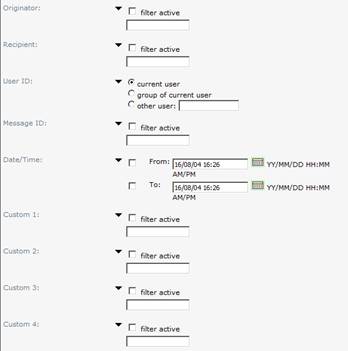
Picture 19: Individual field search
All fields except “Search for text” field provide the following filtering options:
| Search Description | Results |
|---|---|
| The filter is not case sensitive. | “greetings”, “GreEtinGs”, “GREETINGS” will all return “greetings” |
| The filter specify a word that must match the beginning of a word that must be in the searched fields. | “do” matches “Do we”
and “I do” but not “does”
“gree” matches “greeting”, “my green car” but not “agree” |
| A wildcard “*” can be used to match whole words. | “gree” and “gree*” will all return the same results. |
| The * at begin of string is not supported. It will return no result. | “*gree” does NOT match “gree”, “agree” and “green” |
Date/Time filters behave in the same way as in the TCfW client application.
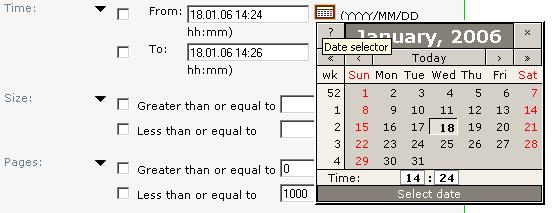
Picture 20: Popup calendar control
All filters with date/time values have popup calendar control, so the date can be entered from this control.
Filter Permissions
If the current user does not have the right to set a specific filter (e.g. filtering for the inbox of another user) the following error message will appear:
“This user doesn’t have sufficient rights to view mails of his group”
“This user doesn’t have sufficient rights to view mails of user XXX or the user filtered for does not exist!”
Filter Saving
Whether the filter settings are saved when the user leaves a tool or logs out can be configured by the user in the tool.