
Create a new solution
The Kofax TotalAgility Quick Capture allows you to create a capture solution without the need for using Transformation Designer or TotalAgility Designer.
-
Click
Create new solution on the Home page.
The Solution designer opens.
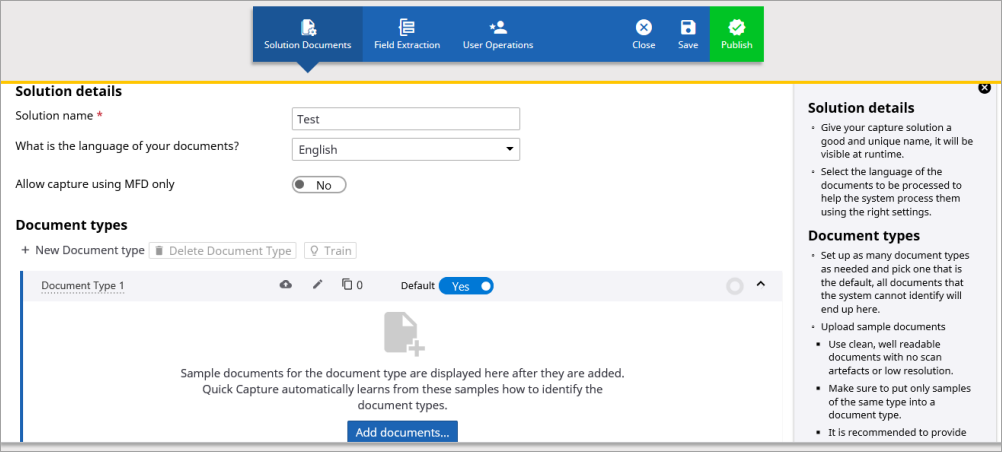
The solution designer consists of the Action bar and the Designer area.
By default, the Solution Documents tab is open.Item Description Action bar
The action bar consists of the following:
-
Solution Documents: See Solution Documents
-
Field extraction : See Field extraction
-
User Operations : See User Operations
-
Close: Closes the solution without saving it.
-
Save: Saves solution changes and creates a minor version of the solution.
-
Publish: Publishes the solution, and creates a major version of the solution.
Designer area
Allows configuring a solution.
-
-
Configure the different tabs.
Note If you find a red dot on any on the tabs, it indicates the configuration is invalid.
-
Do either of the following:
-
To save the solution, click Save.
The solution is saved in the current user's working category with the version 0.01.
-
To publish the solution, click Publish.
The solution is published with a major version 1.0.0 and the following items are created and released.
-
Document types and extraction groups
-
A process map with all the steps configured
-
Forms - Scan create new job form or Device create new job form.
Note You can publish your solution immediately after classification without configuring other activities. -
-
-
To close the solution, click
Close on the Action bar.
On confirmation, the solution is closed.