
Image Processing
With image processing, you can easily perform individual image processing for a specific page, document, or folder.
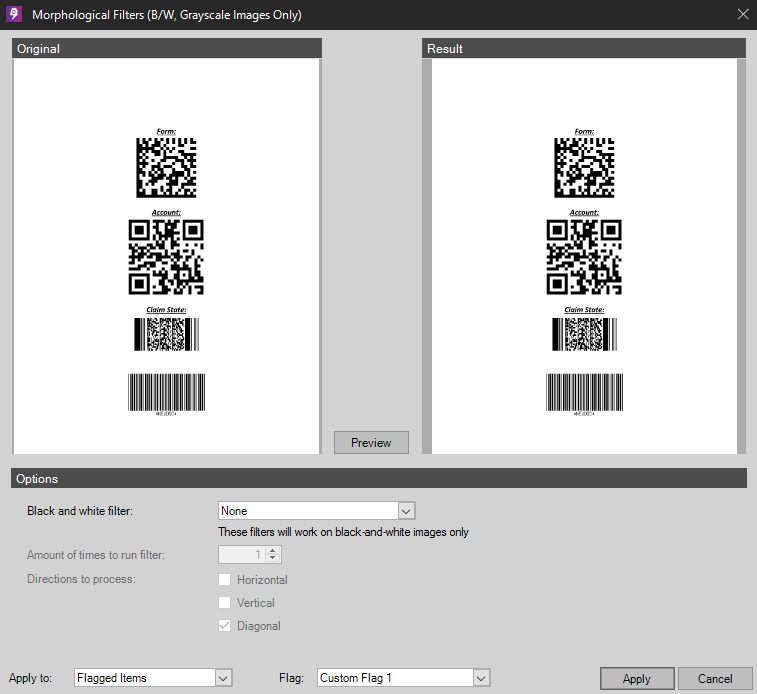
Selecting any of the processes opens a preview dialog box showing the original image and the new image. With the Apply to list, you can apply the process to the current page, document, folder, entire batch, or flagged items. To accept the new image, click Apply.
The following example shows morphological filters (dilation) applied to all items with Custom Flag 1.
Composite image processing
Composite image processing is useful if you want to perform multiple processes at a time. Combinations of processes can be saved for later use in different profiles.
- Run Image Processing Profile
-
Runs previously saved image processing profiles. Shows original image, new image, all saved profiles and their functions.
- QA Auto Processing
-
Sets up automatic processing commands on index values.