General settings
Displays the values of all interpreted character, object, and mark fields.
Displays field help text that was specified in field definitions.
Verify waits for more forms from Interpret instead of stopping when there are no more forms to verify. (More info.)
Verify displays an original image rather than the form template plus snippets.
Verification display
Divides the verification screen into two separate windows.
Select to verify data using a custom verify view.
When mark fields are mass verified  Warning
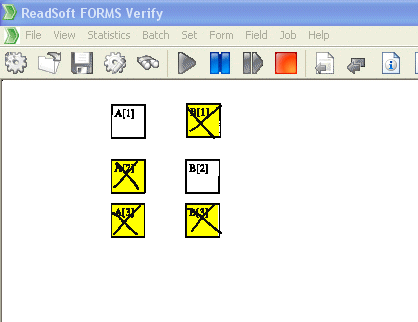
Show in context on the form
Verify displays any forms containing mark fields that have Mass verify status, with filled-in fields highlighted in yellow. (Show me what it looks like.)
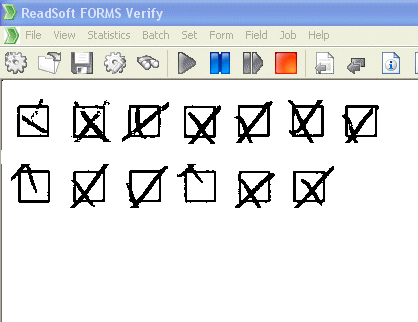
Show in group
Verify displays all filled-in mark fields that have Mass verify status. (Show me what it looks like.)
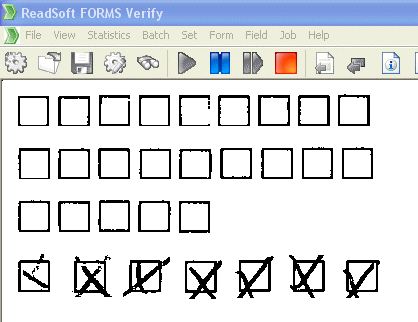
Show in group, including empty fields
Verify displays all mark fields (empty fields followed by filled-in fields) that have Mass verify status. (Show me what it looks like.)
Used when mass verifying image fields. Adjusts the size of the images that are displayed.
Retype entire form if
Forces the Verify operator to retype entire forms under certain conditions.
The default, 0 (zero), means that you accept field values that FORMS is comparatively sure of, no matter how many other fields FORMS failed to interpret and validate.
Enter entire field
See separate topic.
Change verify font
Opens the dialog, where you can specify how you want Verify to display text.