Add documents to signing package
To add documents to the signing package, you can upload one or more document files, or you can drag and drop them into the package.
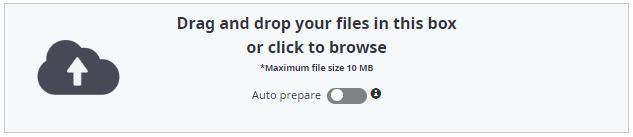
Auto prepare a document
If set, the document is automatically prepared with one mandatory signature field for each signer when the upload is completed. The signature field is added to the first page of the document. The field can be manually moved anywhere within the document using the document editor. See Prepare documents.
Document title
The document title is automatically filled with the file name. The document title can be edited.
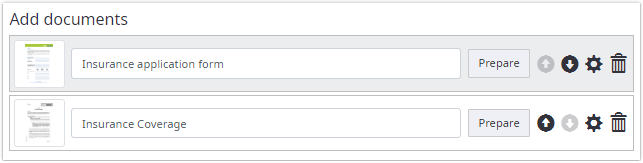
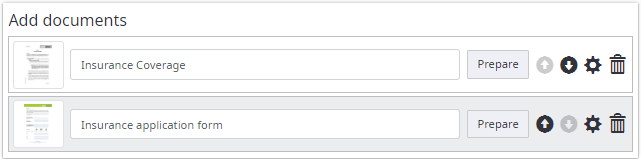
All uploaded documents are listed in the order they were uploaded. The
documents can be reordered using the up or down icons

 .
.
Document settings
Clicking the settings icon
 opens the advanced
recipient settings. For each document, you can add a description and message.
opens the advanced
recipient settings. For each document, you can add a description and message.
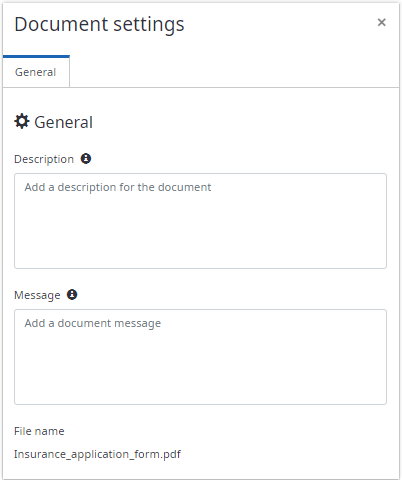
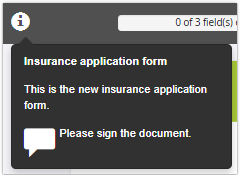
A description and a message will be shown when clicking on the info icon while signing the document.
Remove a document
To remove a document, click the delete icon
 , and then click
Delete when prompted to
confirm removal.
, and then click
Delete when prompted to
confirm removal.
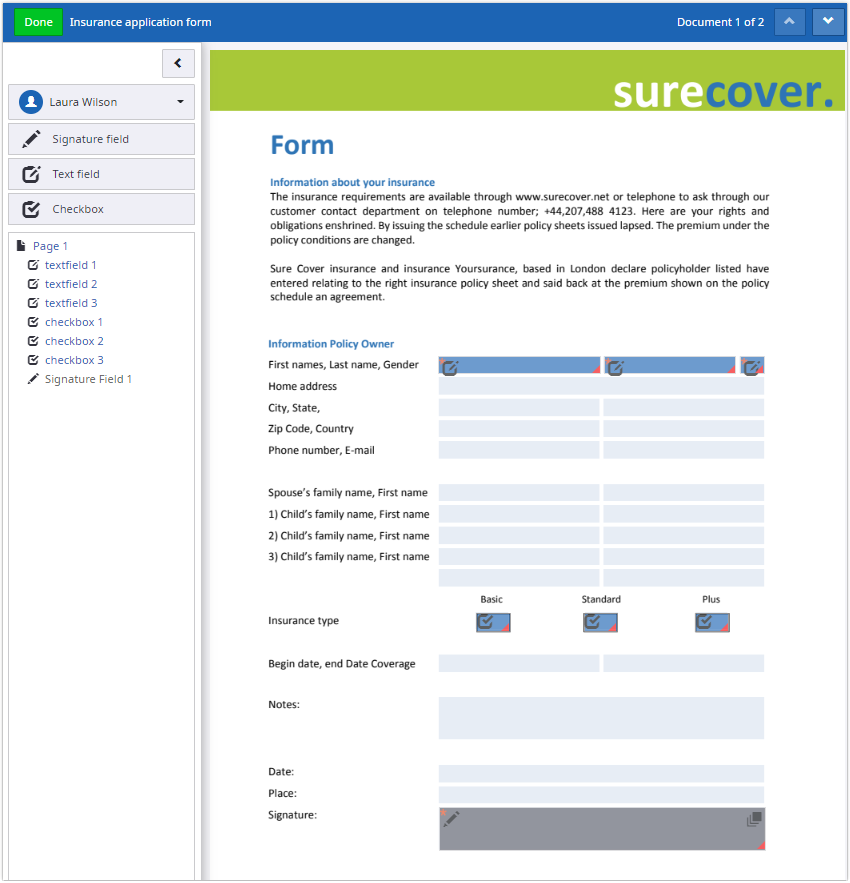
Manually prepare document
You can view the PDF document by clicking Prepare to open the document editor. See Prepare documents.