
TSP signatures in the signing process
TSP signatures can be required for documents and signature fields.
TSP signature required for a document
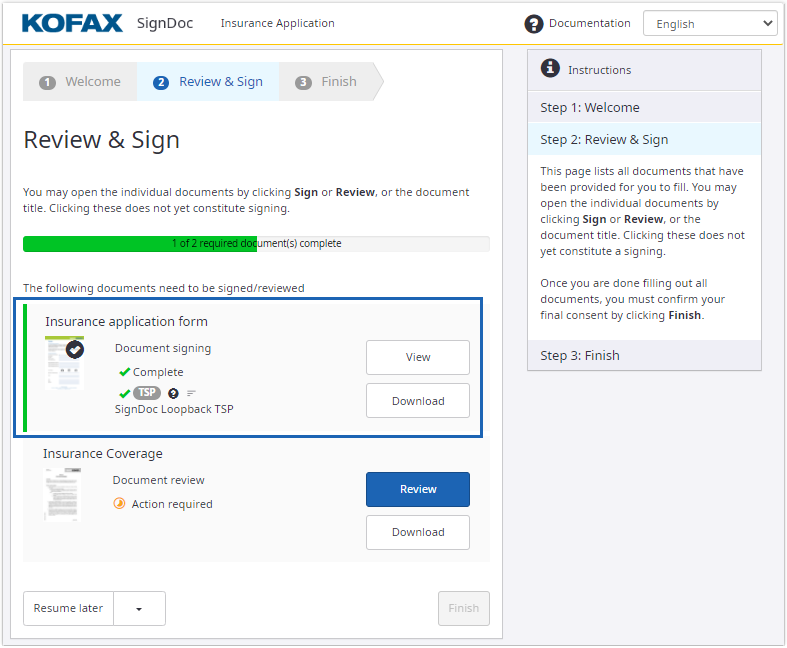
On the signing process, the recipient can see when a TSP signature is required for a document.
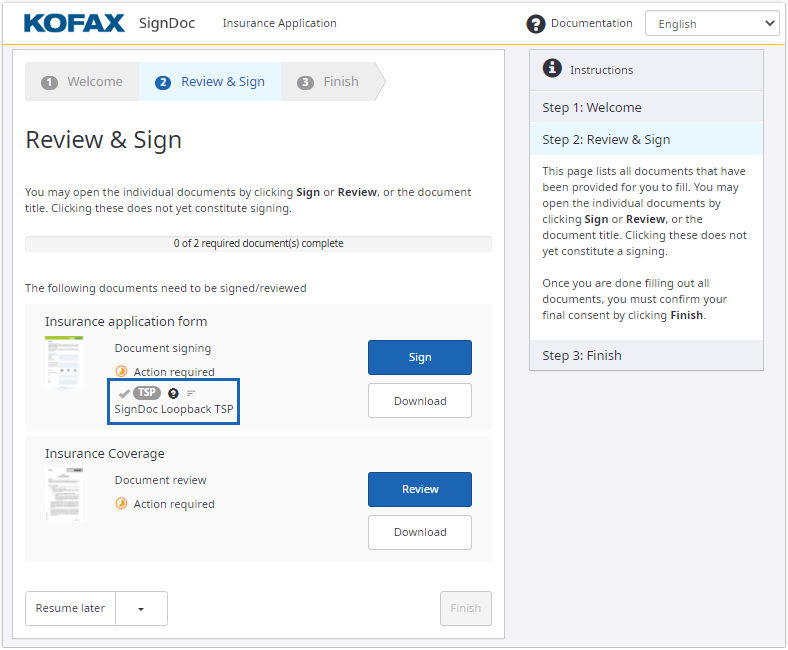
To proceed to the TSP signature process, all the required fields must be completed.
Complete all required fields and click Done. A dialog with TSP information is displayed. Click Proceed to redirect the browser to the TSP website to complete the TSP signing process.
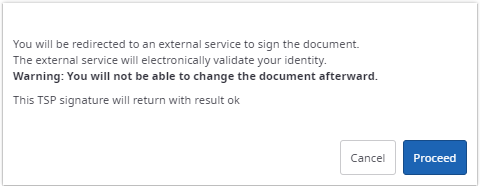
To reopen the TSP dialog box and initiate the TSP signing process,
click the reopen icon
 .
.
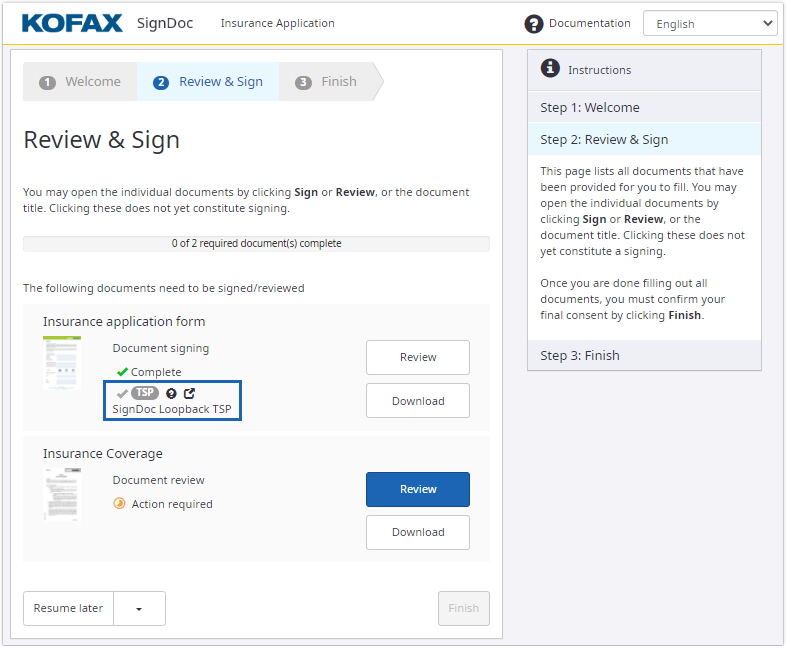
The document is not finished until the TSP signature is completed.
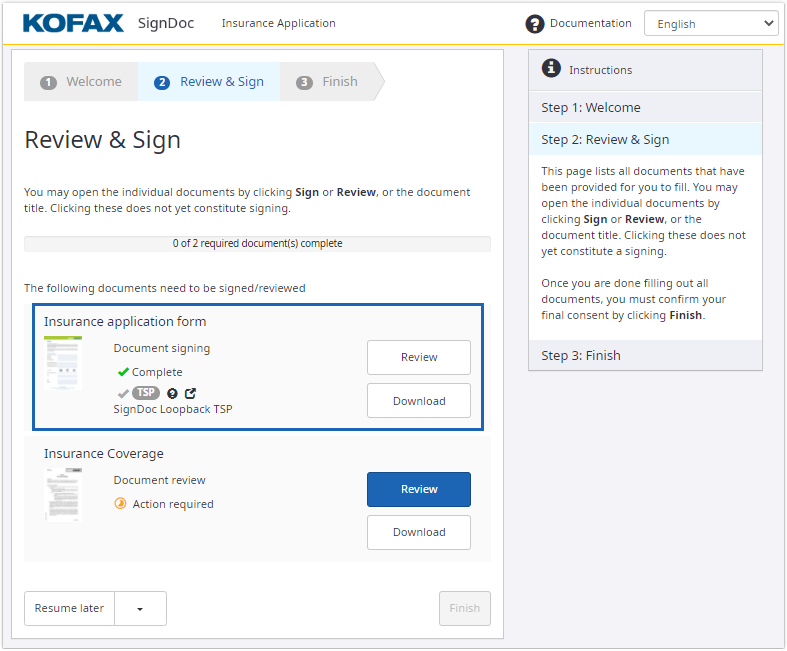
After the TSP signature is completed, the document is set to read only mode, none of the fields can be changed.
TSP signature for a signature field
When a TSP signature is possible among other signing methods for a signature field, the signer can select the corresponding signing method when clicking on the signature field.
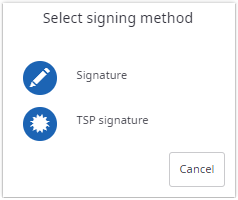
After selecting the TSP signature signing method a dialog with TSP information is displayed. Click Proceed to redirect the browser to the TSP website to sign the signature field.
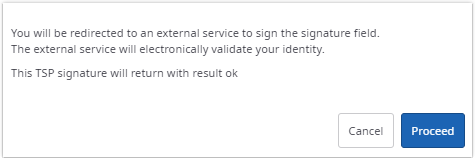
In case a TSP signature is required for the signature field (TSP signature is the only signing method), the dialog with TSP information is displayed after signer clicks on the signature field.
If confirmation for signing signature fields with TSP is disabled via configuration, the redirect to the TSP website is done without displaying the dialog with TSP information.
If an overlay image is configured and a TSP signature is required for a signature field, the overlay image is displayed instead of the normal signature field style. An administrator can also configure to display the overlay image when TSP signature is an optional signing method of a signature field. See "TSP signature overlay image" in Prepare documents section.
After the TSP signature is completed the signer can continue his signing session as usual.