
Quick AI Agent user interface
When you open Quick AI Agent from the TotalAgility Apps, the following is the default web page that loads.
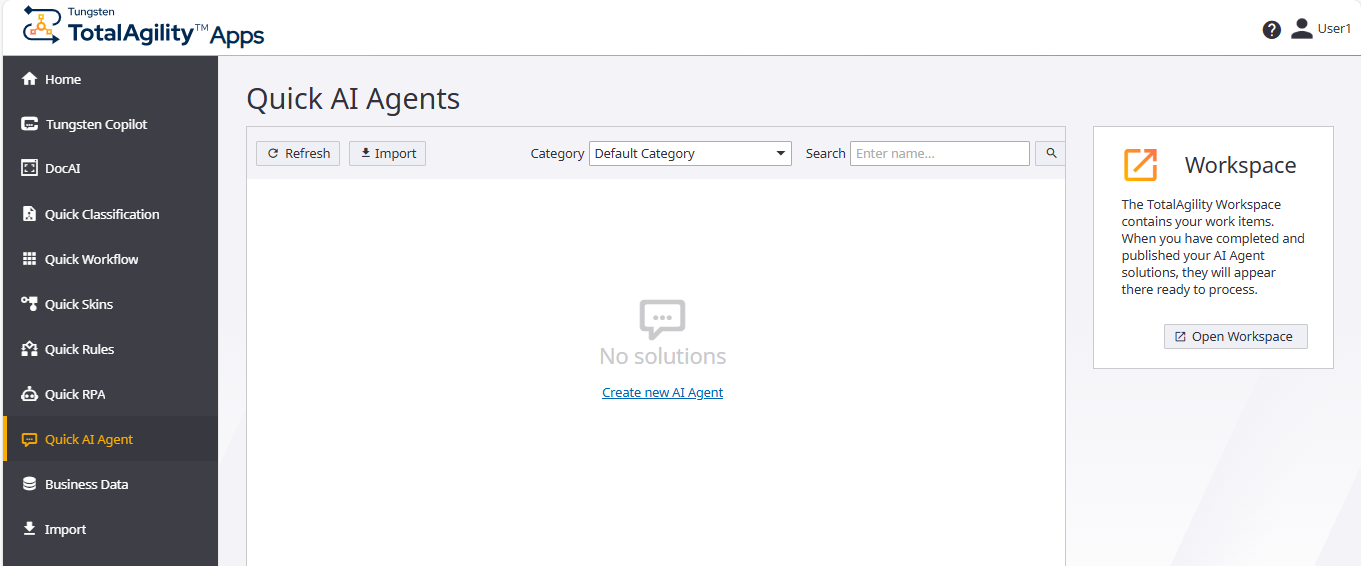
The initial view of Quick AI Agent includes the following elements.
- Tungsten TotalAgility logo
-
The Tungsten TotalAgility logo. You can click this logo to return to the Home page from anywhere in the application.
- Quick AI Agent
- The application name.
- Logged-on user's name
-
Click to display the following options:
-
Profile: Allows you to edit your profile.
-
Logout: Logs you out of Quick AI Agent.
-
- Help button
-
Click to open the Quick AI Agent help.
- Refresh button
-
Click to refresh the window and display the newly added or modified items.
- Import
- Allows you to import a workflow.
- Category list
-
Displays the list of categories that the logged-on user has access to. The user's working category is selected by default.
- Search field
-
Lets you locate an item by name.
Enter the item name and click . Items belonging to the criteria are displayed. If no items related to search criteria exist, an empty list is displayed. On clearing the search criteria, all the items from the working category are displayed.
- Open Workspace button
- Click this button to open the TotalAgility Workspace in a new browser tab.
- Create new AI Agent button
-
Allows you to create a new AI Agent.
If any AI Agents already exist, the initial view of the
Quick AI Agents page displays the following
buttons.
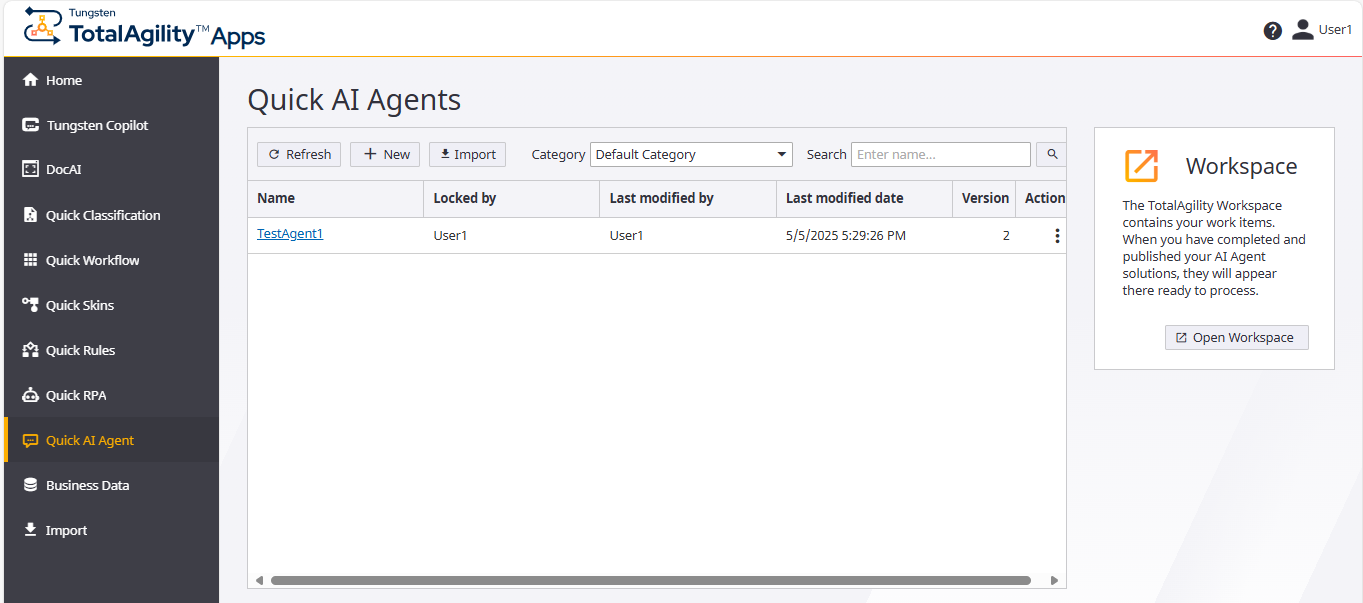
- Refresh button
-
Click this button to refresh the window and display the newly added or modified items.
- New button
-
Click this button to create a new AI Agent.
- Import button
- Click this button to import a process into the AI Agent workflow.
How to:
See also: