
Multipage Export plugin
The Multipage Export plugin is a custom plugin available for Tungsten Transact.
This plugin runs in the Export module and generates multipage PDF and TIF files in the final drop folder for each document type in a batch. The Multipage Export plugin is a refactored version of the Create Multipage Files plugin. It removes inefficiencies, leading to the following improvements and changes:
- Improved OCR quality
- Improved output PDF quality
- A larger selection of output file size options
- Reduced processing time
Here is a high-level overview of the steps to deploy the Multipage Export plugin:
-
Import the Multipage Export plugin to Transact.
-
Add the plugin to your batch class.
-
Restart Transact.
-
Configure the plugin according to your workflow requirements.
Prerequisites
To use the Multipage Export plugin, the following prerequisites must be in place:
- You need to download the Multipage Export plugin from the Transact Customer Support Portal Downloads page.
- You need a batch class with a document type configured. For detailed steps, see Add new document type.
You need to remove the CREATE_MULTIPAGE_FILES plugin and its dependencies from the batch class. You can control plugin dependencies from . See Workflow Management for more information.
Import the plugin
For on-premises environments, you need to import the plugin into Transact. See the "Importing Custom Plugins" topic in the Tungsten Transact Developer's Guide and follow the steps listed there.
This plugin is automatically available in Transact Cloud environments.
Add the Multipage Export plugin
To add the Multipage Export plugin to your batch class, perform the following steps:
- From the Batch Class Management page, select your batch class and click Open.
- Go to .
- If you have not done so already, remove the CREATEMULTIPAGE_FILES plugin and its dependencies.
- Add the MULTI_PAGE_EXPORT plugin from the Associated Plugins to the Selected Plugins column. This should be the first plugin in the Export module.
- Click Deploy.
- Restart Transact.
Configure the Multipage Export plugin
Perform the following steps to configure the Multipage Export plugin.
-
In your batch class, go to
.
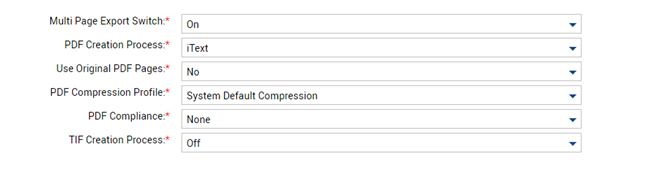
- Set the Multi Page Export Switch to On.
-
Configure the remaining properties according to your workflow requirements.
See the following table for more information.
Configurable property Options Description Multi-Page Export Switch
-
ON
-
OFF
This switch enables the plugin.
PDF Creation Process
-
iText
-
System Default
-
OFF
This property determines the underlying technology to create PDF files.
System Default uses RecoStar. This plugin can create both TIF and PDF files. When this property is set to OFF, Transact does not create PDF files.Use Original PDF Pages
-
NO
-
When EText Detected
This property determines whether Transact uses a transformed image when a text layer is detected, or uses the originally uploaded PDF.
PDF Compression Profile
-
System Default Compression
-
Higher Quality / Low Compression
-
High Quality / Medium Compression (recommended)
-
Medium Quality / High Compression
-
Lower Quality / Max Compression
This property determines the compression profile for the created PDFs. Based on your selection, this property balances file size against the expected quality of images, text, and other file content. System Default Compression uses a single-stage compression method. All other profiles use a dual-stage compression method.
PDF Compliance
-
None
-
PDF/A (for use with iText created PDFs)
This property determines if the exported PDF files are PDF/A-1b compliant.
To select PDF/A, the PDF Creation Process must be set to iText.Documents do not go through PDF/A-1b transformation if:
-
Use Original PDF Pages is set to When EText Detected.
-
PDF Creation Process is set to System Default.
TIF Creation Process
-
OFF
-
ON
This plugin can create both TIF and PDF files. When this property is set to OFF, Transact does not create TIF files.
The Multipage Export plugin can create both PDF and TIF files for export, depending on your configuration. See the following table as a guideline for determining your output file types.Output file types PDF creation process TIF creation process PDF only
iText or Default
OFF
PDF and TIF
iText or Default
ON
TIF only
OFF
ON
-
- Click Apply to update the batch class.
- Click Deploy to update the workflow.
Remove the Multipage Export plugin
When installing a newer version of a custom plugin, you need to remove the existing version and import the updated custom plugin.
- Remove the existing plugin. See "Remove custom plugins" in the Tungsten Transact Developer's Guide for steps.
- Add the updated version of the plugin. See "Import custom plugins" in the Tungsten Transact Developer's Guide for steps.
Limitations
- In a new batch class, the values manually configured in the MULTI_PAGE_EXPORT plugin for the previous batch class are displayed instead of default plugin configurations.
- Upgrading the plugin may result in duplicating .jar files in <Tungsten Transact_Directory>\SharedFolders\customPluginJars. This may lead to unexpected results. Remove duplicates manually.
Release notes
|
Release versions |
Release date |
Notes |
|---|---|---|
|
2.0.4 |
September 12, 2023 |
Compatibility release for Transact 2023.1.00. |
|
2.0.2 |
November 29, 2022 |
Fixed batch XML output related to <override-existing> tags. |
|
2.0.1 |
July 18, 2022 |
Fixed log4j security vulnerability. |
|
2.0.0 |
November 9, 2021 |
Transact for Linux support added. Certified with Transact 2020.1.06 for Linux. |
|
1.0.0 |
March 16, 2021 |
Certified with Transact 2020.1.03 for Windows. Incompatible with Transact for Linux. |