
Robot step enhancements
The following enhancements are available for Robot steps.
Browse
In the Browse step, the following options are now available.
- Download to
-
Load Page and Create Page actions now have a new Download to option.
This optional parameter controls how downloads and Print to PDF action are handled in the browser.
Two modes are available:
-
Application: This mode is default for RPA versions 2025.2 and newer.
In this mode, the operation runs in the background. A download tab opens when the download has either completed or failed. The <cef-download> tree node contains the download details.
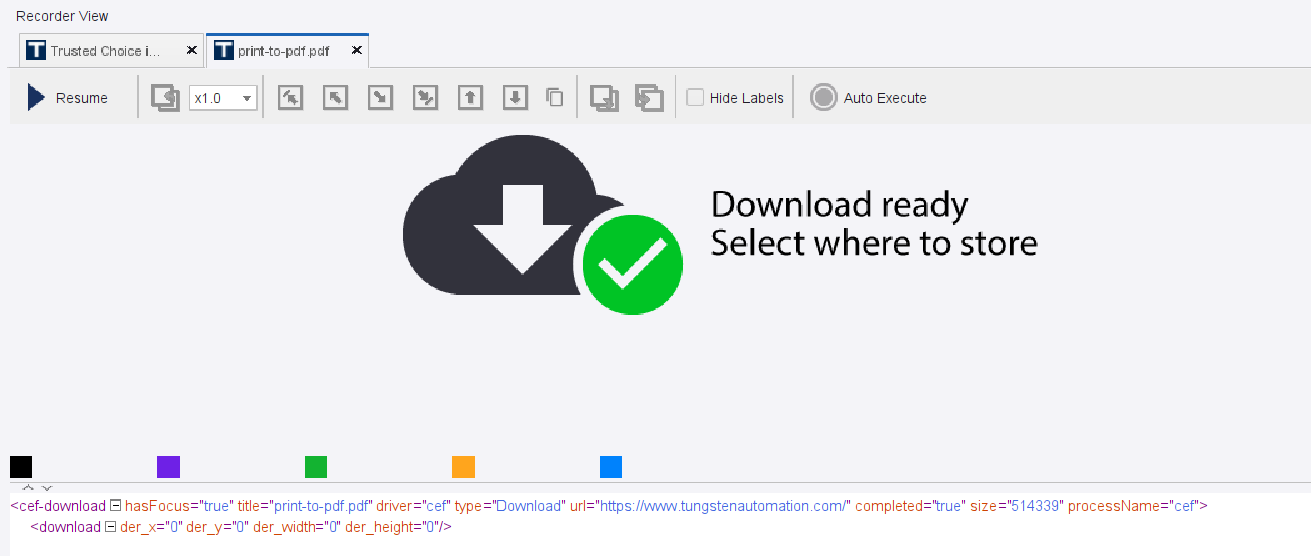 The downloaded
data is kept in memory. The Robot can use the following application actions on the download tab.
The downloaded
data is kept in memory. The Robot can use the following application actions on the download tab.
Application action
Description
Store in File
Stores the downloaded data in the specified file, either on the local file system or using Robot File System.
Store in Variable
Copies the downloaded data into the variable.
Close Download
Closes the download tab.
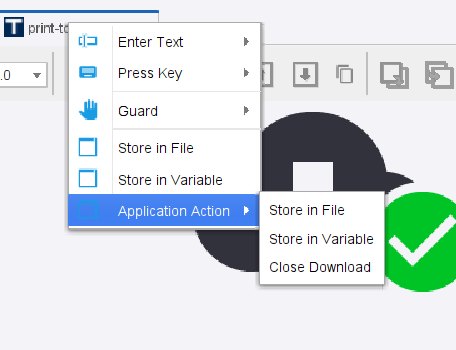
Because the download is kept in memory, be aware that the maximum download size is constrained by memory settings on the host system.
-
Dialog: This mode is default for earlier RPA versions. It opens a Save As dialog and the download is written directly to the local file system or using Robot File System.
-
- Include Shadow DOM
-
Load Page and Create Page actions now have an option to include Shadow DOM in the application tree view.
- PDF Settings
-
Create Page action now has an option to configure PDF Settings.
Refer to Browse in the Tungsten RPA Help.
Cloud AI
Use a JSON parse function to convert the resulting text output into JSON value and use new JSON steps.
Refer to Cloud AI and Work with JSON in Robots in the Tungsten RPA Help.
For Each Loop
To the Recorder View Loop menu, a new For Each <tag name> Tag submenu is added. Use it to insert a For Each Loop step that loops over all elements with a given tag on the entire HTML page.
The four submenus are available.
|
Submenu |
Description |
|---|---|
|
Plain |
Loops over all elements with a given tag with no further conditions. |
|
With class: <class name> |
Loops over all elements with a given tag that have a certain class. |
|
With classes: <class_name1>, <class_name2> |
Loops over tags with certain classes from the selected element. |
|
All classes above |
Loops over tags with all possible classes. This submenu appears if more than three classes are present. |
The submenus are dynamic and may vary depending on the availability of classes.
Refer to For Each Loop in the Tungsten RPA Help.
Write File
In the Write File step, the two new actions are available.
|
Action |
Description |
|---|---|
|
Append |
Adds new content at the end of an existing file. This action is supported only for the Direct Access files. |
|
Create Directories |
Creates new directories on the file path before creating a new file. |
Refer to Write File in the Tungsten RPA Help.