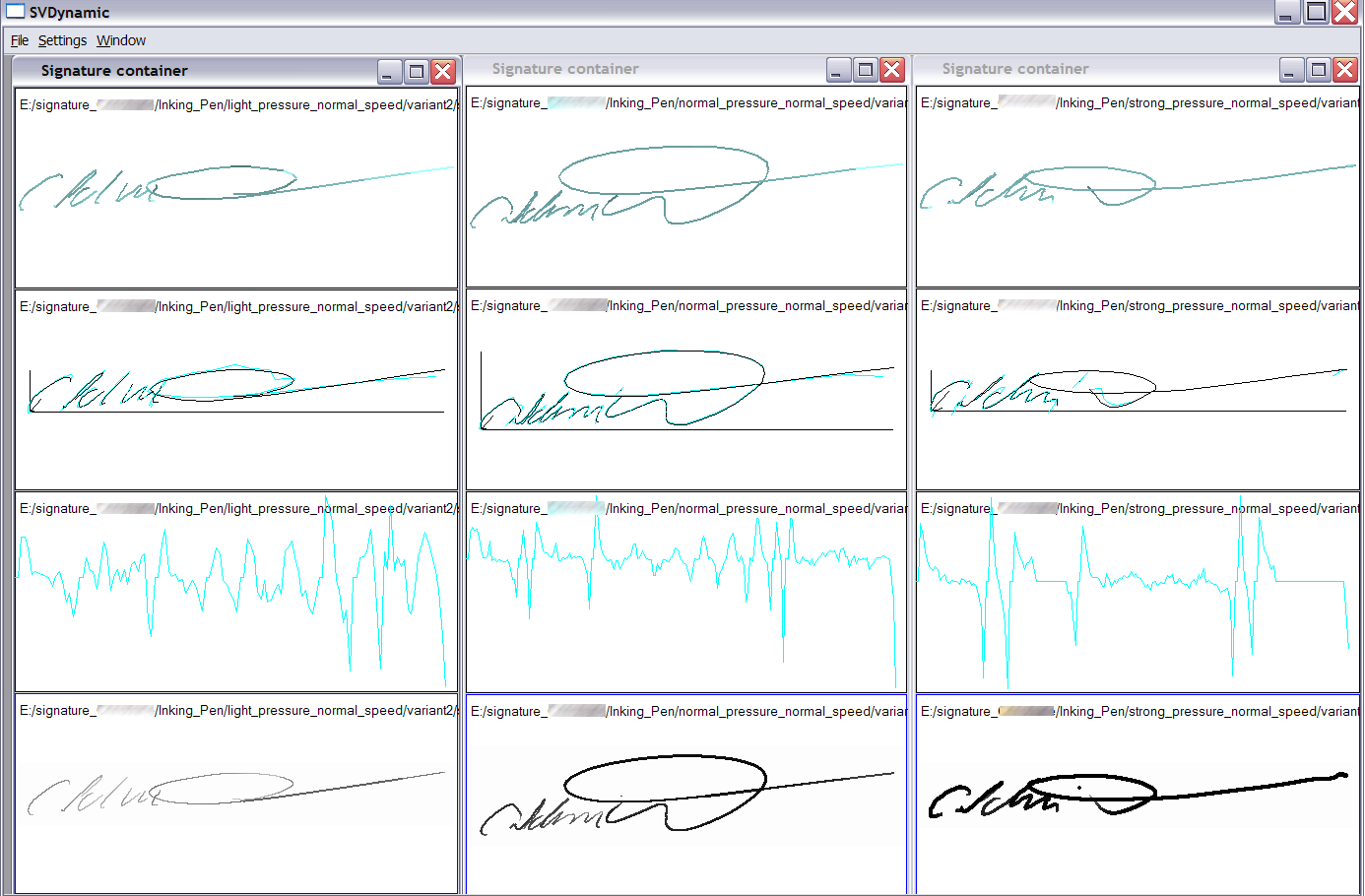
Sample signature views
This topic includes:
- View of the same signature
- Visualization with different pressure levels
View of the same signature
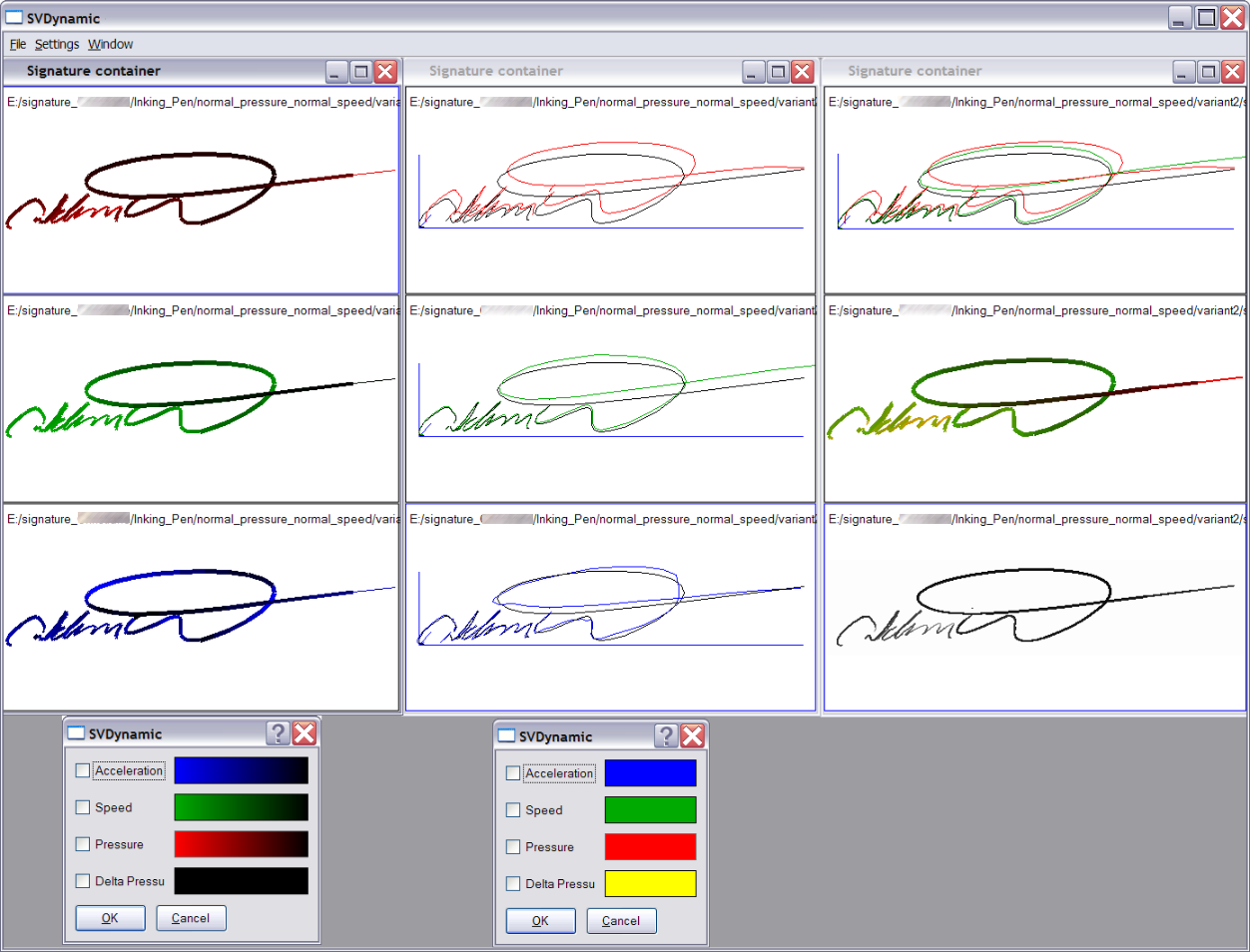
The following sample uses the same signature:
- The left view displays the signature features in different colors, separated by pressure, speed and acceleration. The color coding is displayed in the lower border (feature = {min_value = color_x,max_value = color_y}). All colors are user-defined, see the according settings dialogs, the sample uses pressure = {red, black}, speed = {green, black} and acceleration = {blue, black}).
- The center container displays a 3D projection, separate for the dynamic signature features. The distance of the colored line to the signature line (black) is proportional to the value of the feature.
- The right container displays in the upper view an overlay of pressure and speed in a 3D projection, in the center view an overlay of pressure and speed in 2D projection, and in the lower view the signature as it would be displayed e. g. in a document.
You can load several signatures into the same container or in different containers by clicking Open on the File menu . Right-click a signature view within a container to select the view or the views settings.
Visualization with different pressure levels