
SDPlugin
Overview
SDPlugin for SignAlyze validates signatures in PDF and TIFF documents and extracts biometric data of handwritten signatures for analysis with SignAlyze.
To open a document with SDPlugin in SignAlyze, click Open document on the Documents menu. The Open a document dialog box appears.
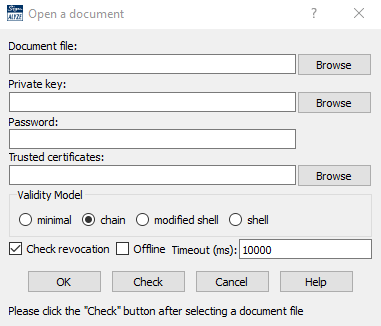
Open a document
First, you have to enter the pathname of the PDF or TIFF document file in the Document file field. You can use the Browse button next to that field to find the file interactively.
Next, you should click the Check button to find out if a private key or a password is needed for decrypting any biometric data. If the biometric data is encrypted with RSA, a private key is needed. In that case, enter the pathname of the private key file in the Private key field. You can use the Browse button next to that field to find the file interactively. The file must be in DER or PEM format. If the private key is encrypted or if the biometric data is encrypted symmetrically (which is unsafe), the correct password needs to be entered in the Password field.
You may have to provide additional trusted root certificates (trust anchors) to be able to successfully validate the certificate chains of the signatures, time stamps, and HTTPS servers. Enter the pathname of a file containing one DER-encoded certificate or one or more PEM-encoded certificates in the Trusted certificates field. You can use the Browse button next to that field to find the file interactively.
Four Validity Models are available:
- minimal: The signing certificate must be valid at signing time.
- chain: Each certificate in the chain (except for the root certificate) must have been issued during the validity time period of its issuer certificate. The signing certificate must be valid at signing time.
- modified shell (also known as hybrid model): All certificates in the chain must be valid at signing time.
- shell: All certificates in the chain must be valid at verification time and the signing certificate must be valid at signing time.
If the document contains a valid document time stamp for long term validity (LTV), SDPlugin automatically uses the shell model for signatures covered by that document time stamp. (The messages for each signature tell what validity model was used for validation of that signature.)
SDPlugin checks if certificates have been revoked when the Check revocation check box is selected. If the Offline check box is selected, only revocation information embedded in the document is used, otherwise, CRL and OCSP servers are contacted as necessary. The timeout in milliseconds for each such online transaction can be specified in the Timeout (ms) field.
After clicking OK, the document is loaded and all signatures are validated. For signatures having biometric data of handwritten signatures, the biometric data are rendered as image. You can switch to viewing the validation result and other information by selecting Show Message or Display messages in the context menu for the signature. For other signatures, the validation result and other information are displayed immediately.
Click Cancel to close the dialog.