
IMAP mailboxes
-
To start
Capture Plug-In
configuration, do one of the following:
-
On a Tungsten Capture Network Server remote site, go to .
-
On other Tungsten Capture installations, start Tungsten Capture Administration and select .
-
- Connect Capture Plug-In to a Message Connector or edit an existing connection. See Add a connection.
-
In the
Connection configuration window, click
Add and select
Mailbox Import.
The following screen is displayed.
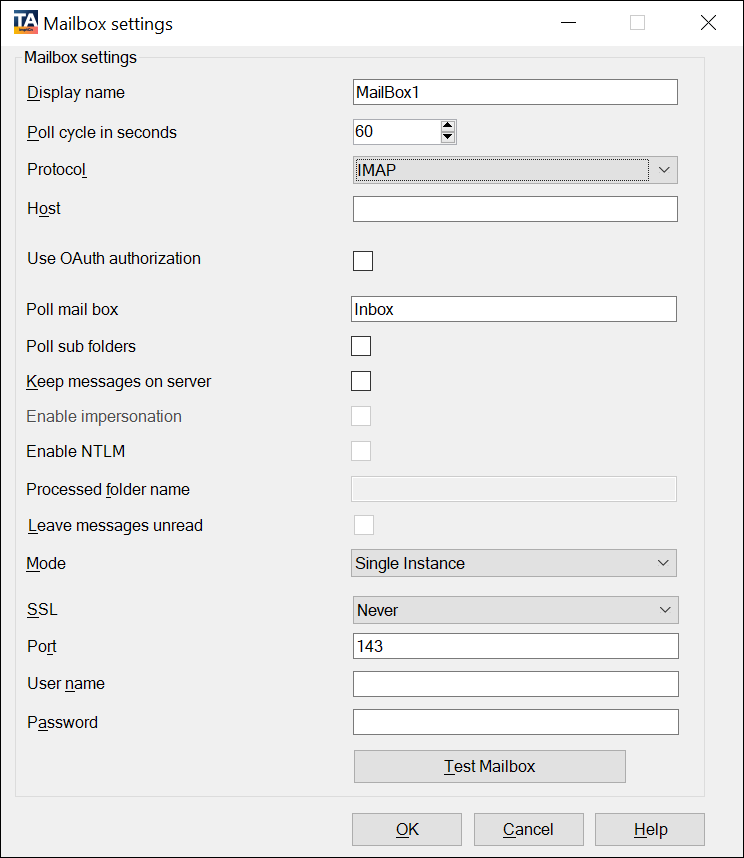
- In the Display name field, enter a descriptive name.
- In the Poll cycle in seconds field, specify how often the mailbox is checked for new messages. (Maximum = 86400 seconds (24 hours), Minimum = Five seconds)
- Select IMAP on the Protocol list.
-
Configure the settings for IMAP.
Setting Description Host Enter one of the following: -
Host name or IP address of the IMAP.
- For Microsoft Exchange Online mailboxes, enter outlook.office365.com.
Use OAuth authorization Select this check box to use OAuth authorization. Specify the User name and click Configure OAuth to configure the OAuth server settings. For more information about configuring the OAuth server, see OAuth settings.
Poll mail box The mailbox folder name to poll messages. Poll sub folders Select this check box to poll messages from all sub folders of the selected mail box folder. -
You can configure the level for polling of nested subfolders by modifying the MaxFolderIdViewNum parameter in the Create_Config.xslt file available at C:\Program Files (x86)\Tungsten\Import Connector\MC\xcd (for default installation path on a 64-bit operating system.) For example, if you set MaxFolderIdViewNum 25, subfolders up to 25 levels are polled.
- Polling nested subfolders can result in lower performance.
- The delimiter in a mailbox folder path may vary with the protocol selected and the mail server in use. Use the path delimiter applicable to your environment. For example, Gmail, Microsoft Exchange Online mailboxes, and Exchange server use slash "/" (Inbox/Subfolder1/Subfolder2) and Lotus Notes uses backslash "\" (Inbox\Subfolder1\Subfolder2).
-
Polling of subfolders in a multi-instance mode is not supported.
Keep messages on server Select this check box to configure how processed messages are handled and specify a Processed folder name. If you use this option, the processed messages are not deleted from the server.
Processed folder name Enter the name of the folder where the processed messages should move if the Keep messages on server option is selected. This folder must exist at the same level as the Inbox folder or can be an existing sub folder.
Mode Determine whether the same inbox can be polled by multiple Message Connectors simultaneously:
-
Single Instance: To poll this mailbox with only one Message Connector. Using the single instance mode and running multiple connections parallelly might import the same message to Tungsten Capture multiple times.
-
Multiple Instance: Select this option to allow multiple connections to a single mailbox, without risking duplicate imports.
-
Multiple instance mode is not supported for polling Microsoft Exchange Online mailboxes.
-
When using OAuth authorization, multiple instances of Message Connectors can poll the same mailbox only when they are installed on different computers.
-
SSL Enable SSL if the mail server supports it. SSL is always enabled when Use OAuth authorization is selected.
Port Enter one the following port number as applicable:
-
IMAP - 143
-
secure IMAP (IMAP4-SSL) - 585
-
IMAP4 over SSL (IMAPS) - 993
-
IMAP using OAuth - 993
User name Configure the mailbox user name. In case of IMAP using OAuth, use the following format to access the shared mailbox using Authorization code grant and Client credentials grant: SharedMailbox@domain.com
In case of IMAP using OAuth, if a shared mailbox is configured, the username to be entered in the browser pop-up that displays when you click Authorize on the Configure OAuth screen must be a member of the configured shared mailbox.Password The password of the mailbox user. This field is disabled when you select the Use OAuth authorization check box. -
Do not use the following characters for your mailbox server password as it will lead to a connection failure with the mailbox: <, >, &, ', ".
-
By default, the "Password" field is displayed as blank.
When editing the mailbox settings, provide the password only if it is changed. Once you enter the new password and save the mailbox settings, the password provided here overrides the stored password.
-
When you change the password for your mailbox which is configured for polling documents, make sure that you also update the password here. Polling a system with old or wrong passwords can result in a locked account.
-
- Click Test Mailbox to verify the connection. Click OK to save and close the mailbox settings window.
- Click OK to close the connection configuration window. Restart the Capture Plug-In service.
To disable polling IMAP, in the Security Options tab of the Message Connector configuration, select Disable POP3/IMAP.