
Biscom fax server
In addition to configuring the connection to the Biscom fax server in Capture Plug-In, ensure the following requirements are met:
- Configure Biscom server to create a user/extension for use with Tungsten Import Connector.
- Biscom client software is installed.
Work with your fax server administrator to complete the following steps.
Configure Biscom server
- On the Biscom fax server, start the FAXCOM Administrator tool.
- Create (or reserve) a user/extension for use with Tungsten Import Connector.
- Enable the network share connection to the Biscom server and note the service path.
- Close the tool.
Install FAXCOM Client
- On the Message Connector computer(s), install the Biscom client software, the FAXCOM Client.
-
If the computer where the FAXCOM Client is installed belongs to a Windows domain, run the following command:
Net Use <Biscom_service_path> /USER:<Biscom_user> <password>This step is only required if the domain user does not have necessary access rights to the Biscom share. - On the Windows Start menu, in the FAXCOM group, click FAXCOM Client.
-
Type the login information and click
OK. You must be able to connect.
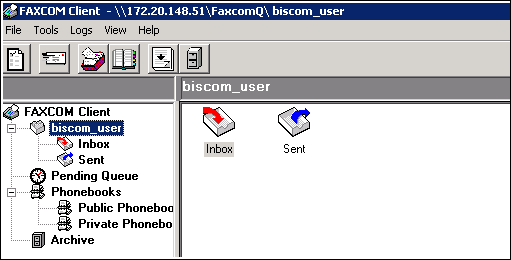
On successful login, the FAXCOM Client window is displayed.
- Close the client.