
Add an Application Server
-
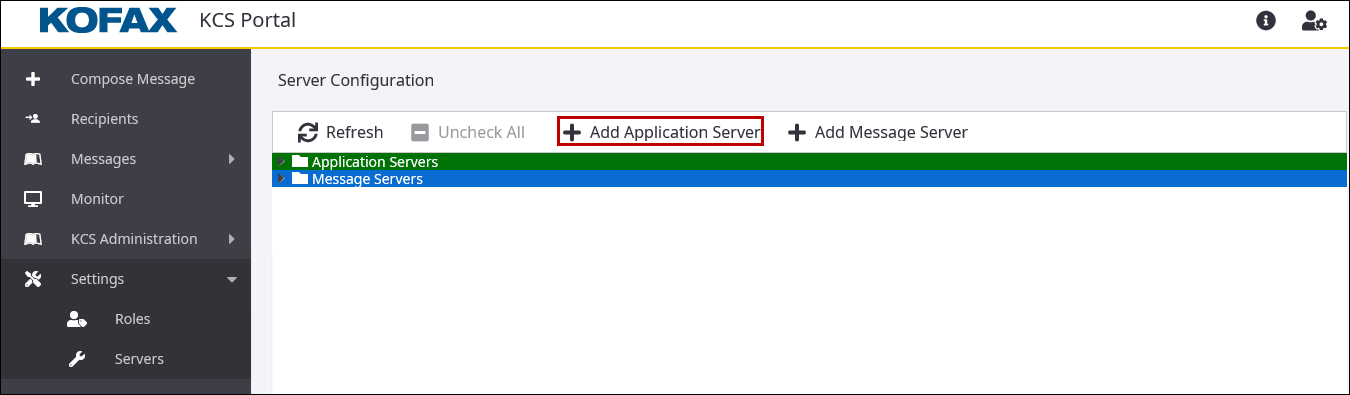
Log in to the KCS Portal as the
root administrator, go to
Settings > Servers, and click
Add Application Server.
The Add Application Server screen is displayed.
-
Specify the following values.
Parameter Description Server Name Any appropriate name can be selected for a particular server, such as MyLocalApplicationServer. This name must be unique server-wide as it is also used as a unique reference for the server's configuration data. Server Host Name Valid server hostname or IP address (localhost or 172.20.148.240) Password Application server password that is set in the application server's registry value in HKLM\Software\TOPCALL\Boot\Default. If this registry value is empty, the Password field should also be empty. Note that, this is the same server password used by the KCS Monitor. This password is used to control applications running under the TCSRV service (start/stop/restart application).
Administrator Administrator Windows user account on the (remote) application server , it can be either a domain account with administrator rights (member of the Administrator's group) or a local built-in administrator.
If using a local user with administrator rights who is not a built-in administrator, and the UAC is activated on the remote server, then this user will not be able to start/stop/restart the remote application server. Please refer to: https://docs.microsoft.com/en-us/troubleshoot/windows-server/windows-security/user-account-control-and-remote-restriction.In such cases, this can be resolved by deactivating remote UAC restrictions by creating the following DWORD registry value on the remote server and setting it to 1, and rebooting the removed server:
HKEY_LOCAL_MACHINE\SOFTWARE\Microsoft\Windows\CurrentVersion\Policies\System \ LocalAccountTokenFilterPolicy
This account is used for start/stop/restart of the remote application server (TCSRV service). It is not required to control the local application server.
The account must be in the format: domain\username (for domain user), or <computer> \username (for local users on the remote application server), where <computer> is the computer hostname or IP address.
For example, add the application server 172.20.148.240 with the administrator account being Administrator and then add 172.20.148.240\Administrator.
Admin password Remote administrator password -
Click
Save.
The application server is added to the list of Application Servers.
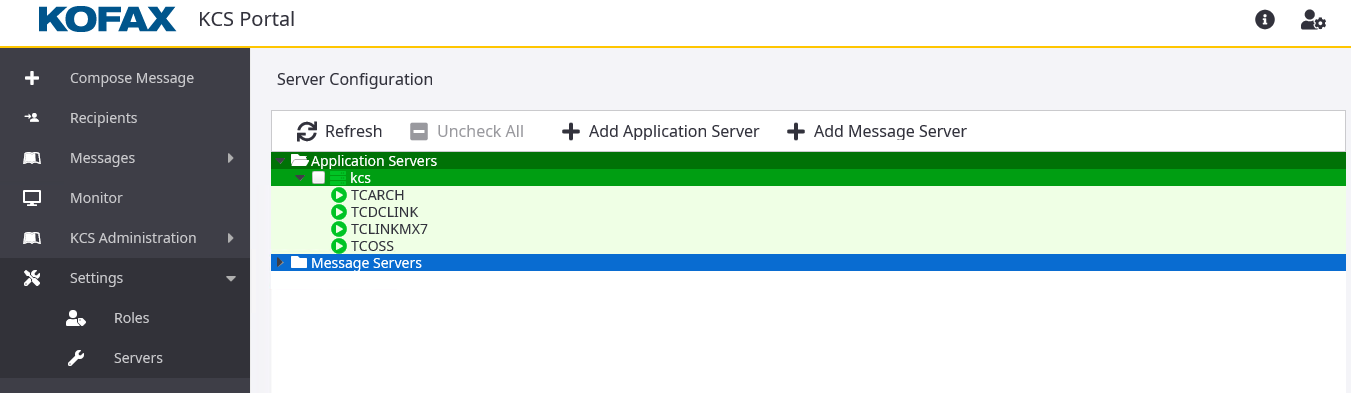
Until the server is added successfully, the status of the newly added server appears as "Initializing". Click Refresh to update the status. If the server is added, it is listed in the Application Servers. Expand a server to view the list of components in it.
You can drag and drop an application server to rearrange the application server list. Similarly, you can also rearrange the application list in each application server.