Search for an item
Use this procedure to search for an item in the archive.
-
Click
Search on the
menu bar.
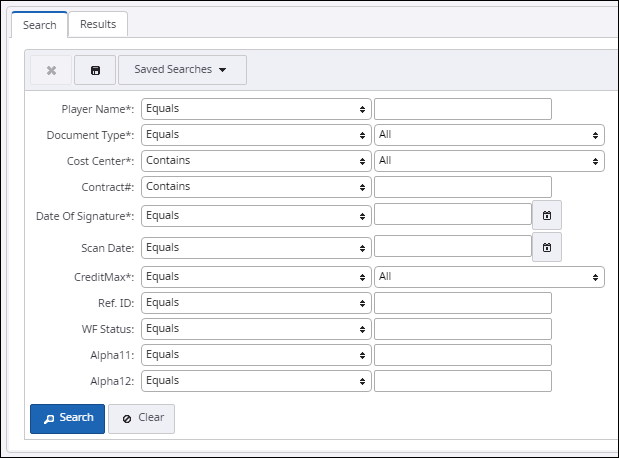
The Search page appears.
-
Enter the search criteria in the fields provided. You can use the drop-down menu in the fields to filter your search
criteria.
Example: If you enter 'abc' in the text box,
-
Select Equals to fetch the items whose name matches with the characters entered in the text box.
-
Select StartsWith to fetch the items whose name starts with the string entered in the text box.
-
Select EndsWith to fetch the items whose name ends with the string entered in the text box.
-
Select Contains to fetch the items whose name contains the string entered in the text box.
Note Fields on the Search page depend upon the fields set by admin for the selected group. Hence, the fields may not be similar between the groups in the application.Field examples
Field Description Document Type Type of documents such as invoices, contract agreements, and legal notices. Scan Date The date on which the documents were uploaded into the application. WF Status Workflow status of the document such as unprocessed, delete, or hold. Ref.ID Unique ID given to the document uploaded. Player Name Name of the user who uploaded the document. -
-
Click
Search.
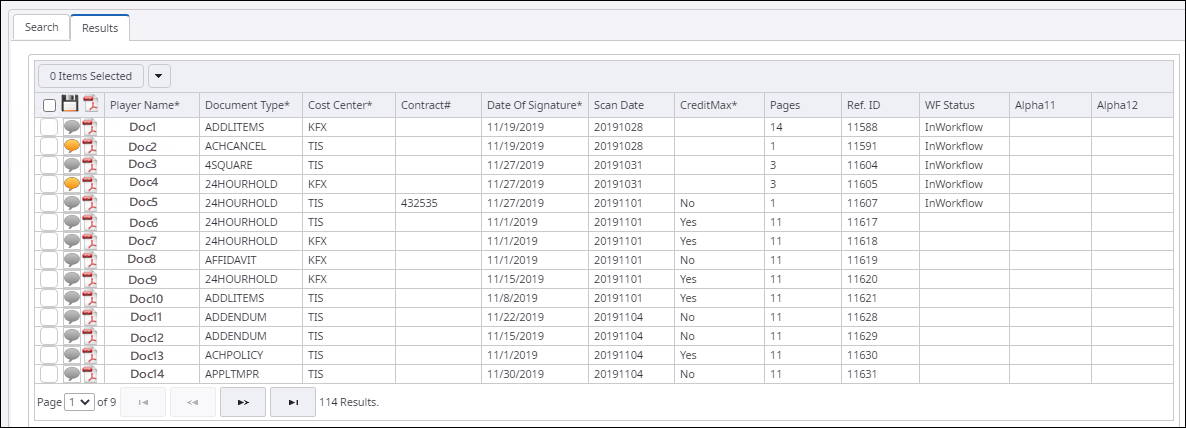
The Results page appears.