
Document search results screen and functions
The Document Search Results screen enables you to perform various functions via right-click on the document within the
search results pane, or by clicking the
Down Arrow
 and selecting one of the functions listed
in the table.
and selecting one of the functions listed
in the table.
| Right-Click and Menu Function | Description | |
| Open Folder | Opens the parent folder. | |
| Delete | Deletes the document, if the user has Delete security rights. | |
| Lock and Unlock | Locks or Unlocks a document. For more information, see: Lock and Unlock. | |
| Suspend and Unsuspend | Suspends or Unsuspends a document. For more information, see: Suspend and Unsuspend. | |
| Information | Opens the Information window for the document. For more information, see: Information. | |
| Edit Document Data | Opens the Edit Document Data window for a document. For more information, see: Edit Document Data. | |
| Preview and Preview Window | Opens the Preview or Preview Window for a document. For more information, see: Preview and Preview Window. | |
| Trace | Opens the Trace window for a document. For more information, see: Trace. | |
| Checkout, Undo Checkout, and Checkin | Adjusts the checkout of a document accordingly. For more information, see: Checkout, Undo Checkout, and Checkin. | |
| Download | Downloads the selected document. For more information, see: Download content from PSIsafe Web. | |
| Notes | Opens the Notes window on the document. For more information, see: Notes. |
Line Item Editing within Search Results
Select the + / - symbol next to a document within the search results to display Line Item data within the search results pane. This allows for easy viewing of Line Item data, as shown below.
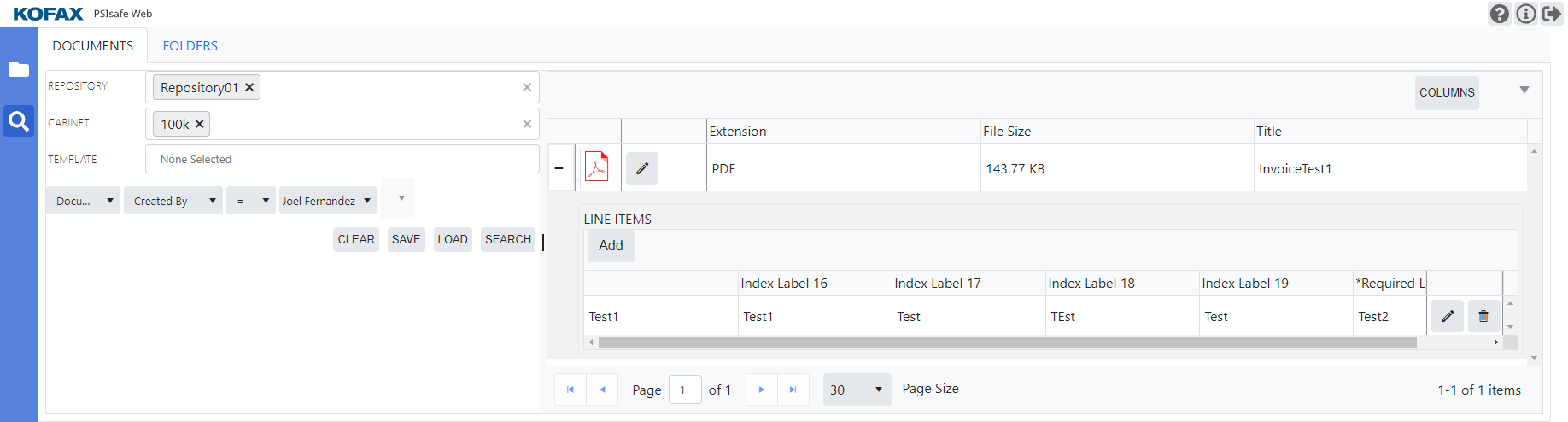
For more information on Line Items, see Types of document records.
The Column chooser is also available on the document search results screen. For more information, see Column Chooser.