
Drag content from Windows File Explorer
PSIsafe Web has a built-in drag-from-explorer pane on the left side of the import window, as shown below.
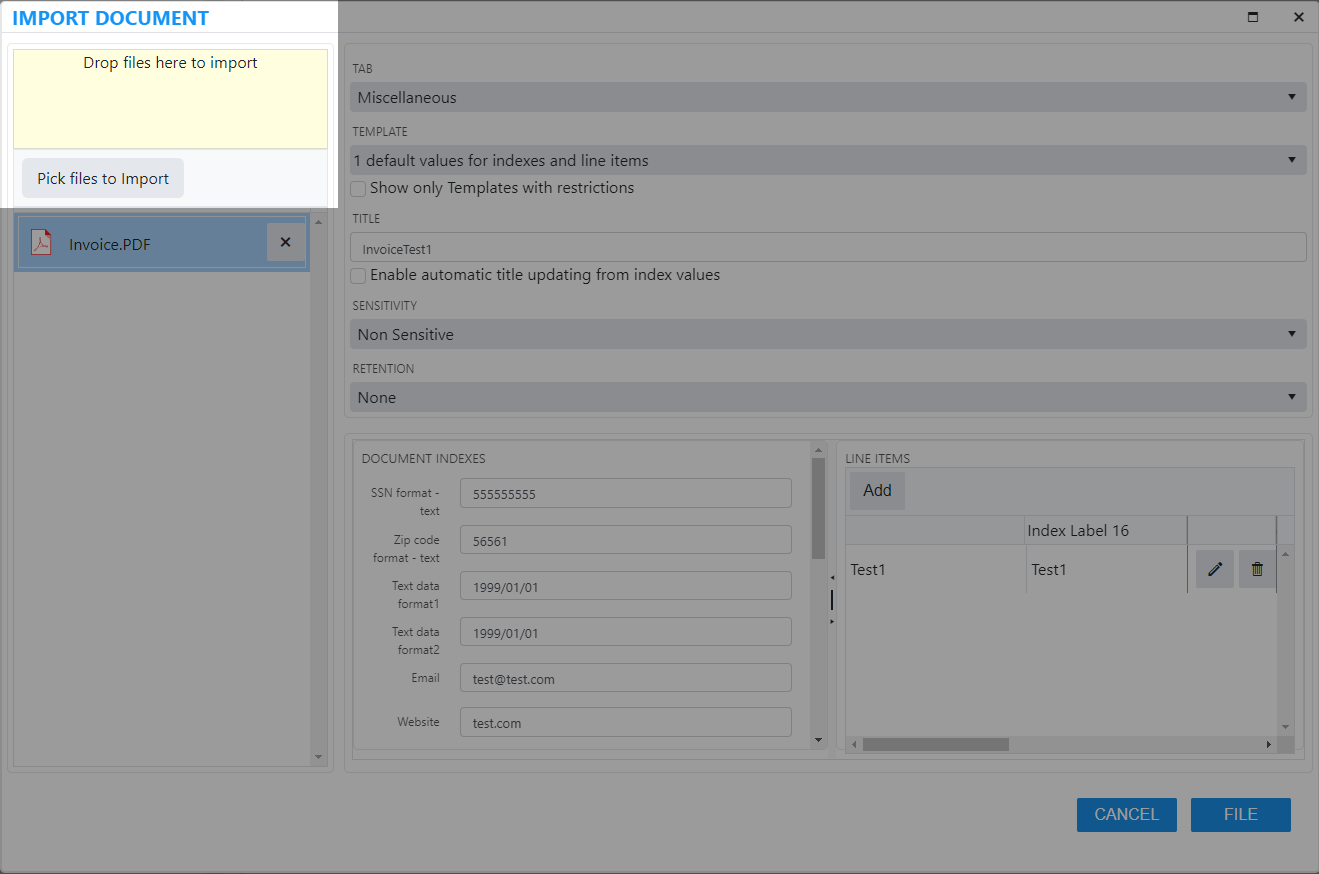
This import window can be clicked within the Drop files here to import area to open a File Explorer window, allowing you to browse to the files you wish to upload. Alternatively, you can click the Pick Files to Import button to open the same File Explorer window. As an additional alternative, you can drag importable content right from a File Explorer window into this screen's Drop files here to import box to initiate an import of the file.
To drag and drop content to this window, follow these steps:
-
Open Windows File Explorer in your Windows operating system, either by clicking on a shortcut or opening it manually.
Press Windows + R to open a Run window, and type in "explorer.exe" to open Windows File Explorer manually.
- Browse to the content you wish to upload and left-click to select it.
- Left-click and hold the content to begin dragging. Then, drag it into the PSIsafe Web window of your Web Browser, or drag it down first to the icon of the Web Browser on the taskbar and then into the Drop files here to import box.
- The file then appears in the list of imported files on the left-hand side below the Drop files here to import box.
- After dragging the appropriate content, fill out the title, location, and document records panes as needed. For more information, see Types of document records.
- After you complete the metadata fields required, click File, and the content will appear in the designated location.