
Connecting fields to master data
An administrator can connect fields to master data, which is used to suggest and validate field values during verification and coding. This approach makes it easier to work with invoices because you can select values from an autocomplete box rather than remembering and typing entire values.
Suggesting field values (autocomplete)
When you type a field value in a field that is connected to master data, an autocomplete box appears below the field with suggested values to choose from. The suggested values come from the master data and are filtered as you type. During verification, for example, the Supplier box can be populated with suppliers from master data. If you type the letter S, only suppliers that contain the letter S appear, making it easier to find the supplier you are looking for. We call this feature field suggestions or autocomplete.
Autocomplete displays the most relevant results first: exact-phrase matches, followed by matches that begin with the search phrase, and finally fuzzy matches. For example, if you type "food supply" in a supplier field, the first result would be a supplier named "food supply". After that, suppliers beginning with "food supply" would appear in the autocomplete list, for example "food supply depot" and "food supply central". Finally, suppliers containing only the word "food" or "foods" or "supply" may appear, for example "Foods Mart" or "Part Supply".
You can also use master data to specify which values appear for selection in coding field boxes.
Validating field values
Connecting fields to master data
To connect master data to a field for field suggestions and validation, complete the following steps:
- Create an XML file that defines the master data. You can use predefined master data types for general-ledger accounts or generic master-data objects for other fields.
-
Locate the field you want to connect to the master data in the Field view, and select
 . In
the dialog box that appears, specify your
settings.
. In
the dialog box that appears, specify your
settings.
- Use master
data to suggest field values - Determines whether the
system uses master data to suggest field
values for this field.
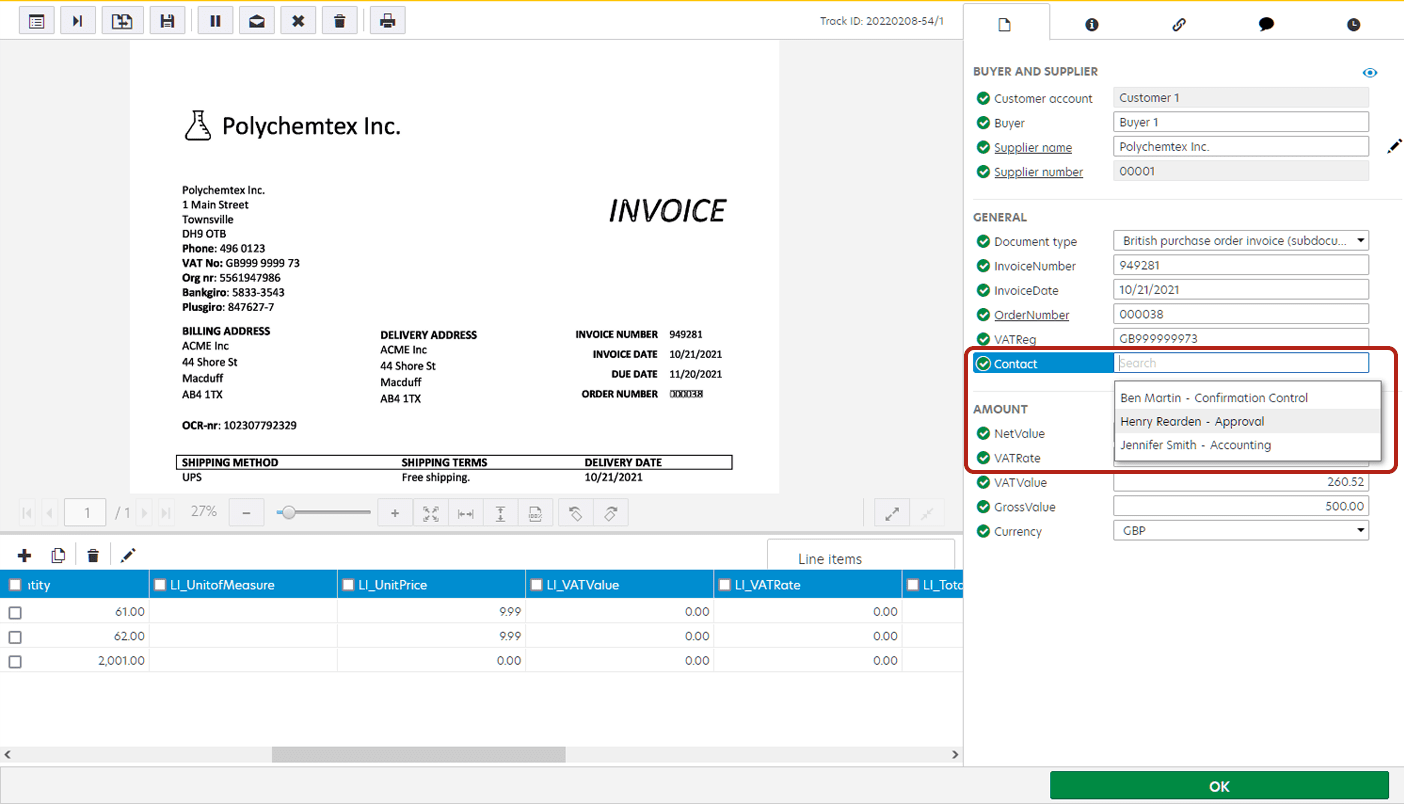
The master data appears in the drop-down list.
- Use master data to validate the field value - Determines whether the system uses master data to validate the field value.
- When using generic master-data objects, note
the Type name of the field.
In the next step, you must specify the Type name as the Master
data type. The Type name tells Tungsten AP Essentials
which fields and master data correspond to each other.
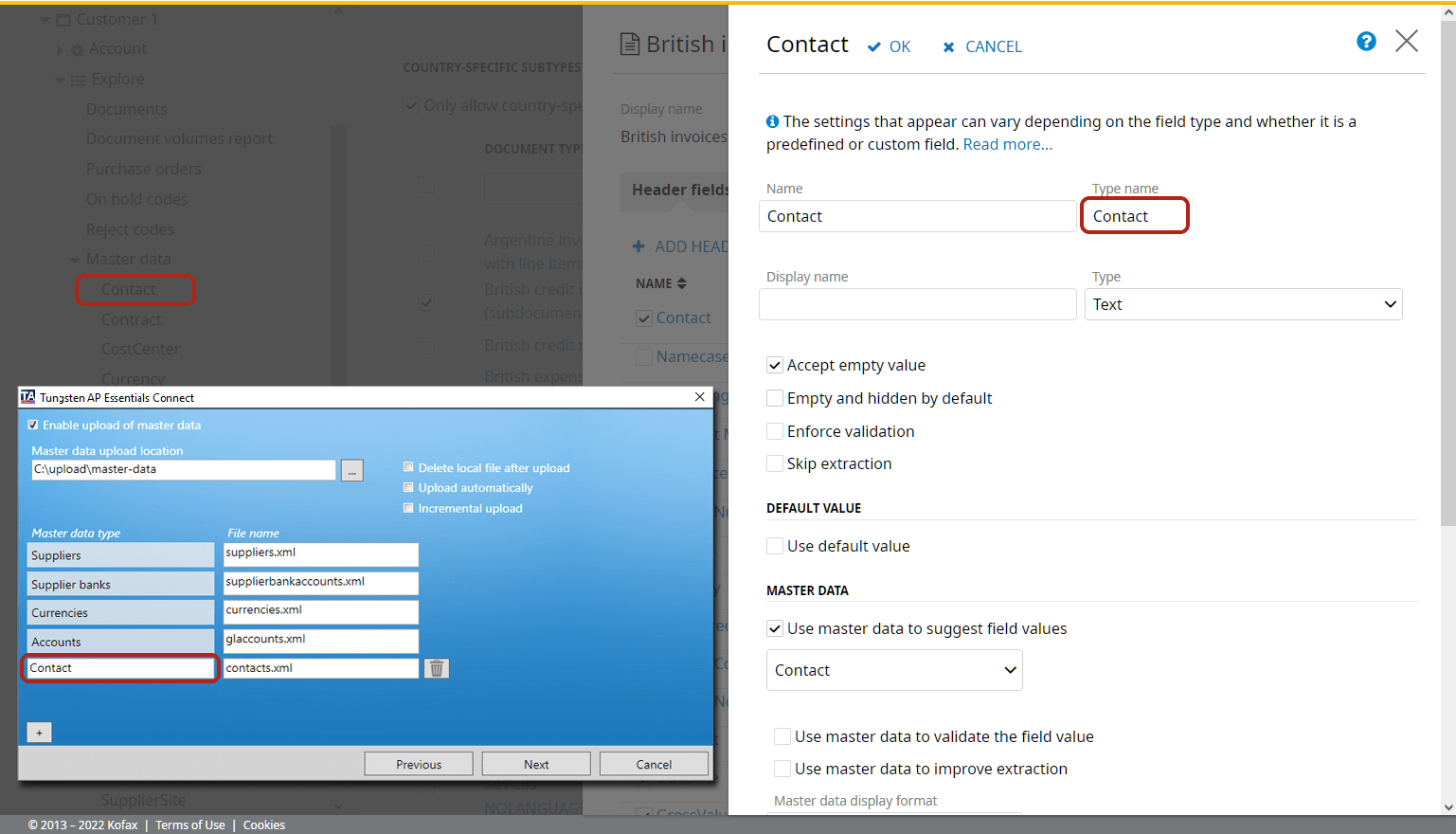
The Type name connects the field to the master data.
- Use master
data to suggest field values - Determines whether the
system uses master data to suggest field
values for this field.
- Use AP Essentials Connect to upload the master data to Tungsten AP Essentials.
Troubleshooting
Master data items must have unique values; otherwise, extraction issues can occur.