Purchase order services
Purchase order services enable the sharing of purchase-order information between Tungsten AP Essentials and your financial system. When Purchase order services are enabled, you can:
- Validate purchase order numbers in the invoice header. Invoices must have a purchase order number (in the invoice header) that matches an order number for the supplier to pass validation.
- Match line items with purchase-order data from your financial system when verifying line items.
- Enable 2-way and 3-way matching field validations.
The Microsoft Dynamics AX 2012 integration and the NetSuite integration automatically synchronize purchase-order information between the target system and AP Essentials. For other financial systems, you must export the purchase-order data from your financial system to an XML file, which you upload to AP Essentials using AP Essentials Connect.
Purchase-order information from your financial system is visible in the Purchase orders view, the Copy purchase order lines dialog, and the Search purchase orders dialog.
Line-item pairing
Line-item pairing is the process of matching invoiced line items to line items in your financial system. AP Essentials has features to automate line-item pairing and make manual pairing easier.
Sometimes a purchase order contains many items, but the supplier sends an invoice for only some of the items. When this happens in traditional financial systems, line pairing can be problematic, especially if the PO contains many items. Often, the line numbers on the invoice are missing, or if they do exist, they are merely row counters that do not match the line numbers in the purchase order. This makes line pairing even more difficult because the line number is vital to identifying PO lines in a financial system. To solve this problem, AP Essentials offers automatic and manual line pairing.
Depending on the settings you choose, you can use AP Essentials to match PO information manually, automatically, or both.
How automatic line-item pairing works
If Automatic line-pairing is enabled, AP Essentials tries to automatically match line items on the invoice with PO lines, so the correct line number and other field values are sent to your financial system. For each line item on an invoice, AP Essentials tries to match a unique purchase order line from your financial system using these fields:
- Supplier number (Header field)
- Order number (Header or line-item field)
- Article number
- Supplier article number
- Unit price
- Quantity
If the order line numbers on the invoice reliably match the line numbers in your financial system, consider enabling the Include order line number setting. When Include order line number is enabled, the order line number on the invoice is checked first, before the fields above. If it matches exactly one purchase order line, that line is used, even if the article number, unit price, or quantity on the invoice does not match. If the order line number is empty, or it matches no line or more than one line, AP Essentials falls back to the fields above.
After AP Essentials successfully matches a line item, the values for the line-item fields below are automatically updated with the values from your financial system:
- Order line number (LIT_RowIdentifier) Unless Include order line number is enabled, the line-number field is not captured on the invoice. The value of the line-number field is the result of the line-pairing feature.
- Order number (LIT_OrderNumber)
- Article number (LIT_ArticleIdentifier)
- Description (LIT_ArticleName)
Example
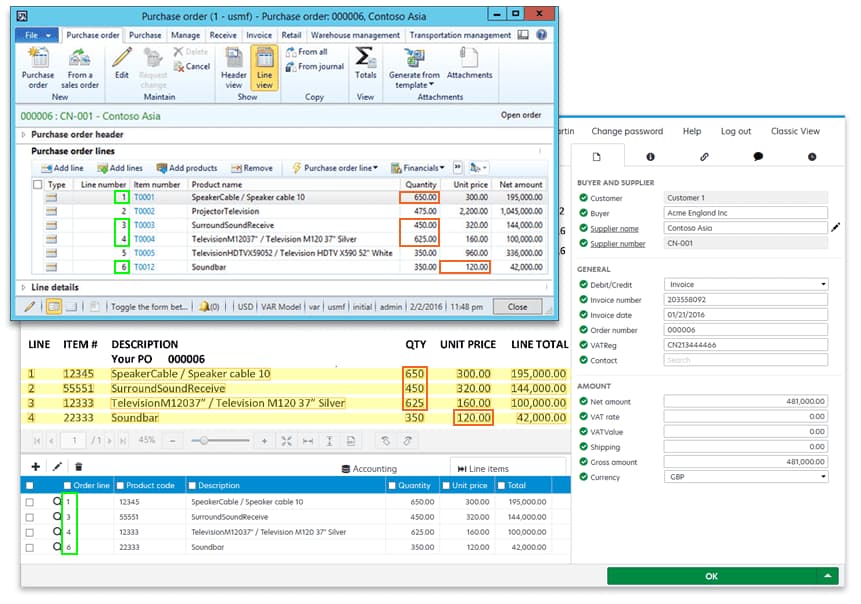
The image below depicts a typical scenario where you can benefit from automatic line pairing. In this example, you can see a purchase order in Dynamics AX and an invoice in AP Essentials. The PO contains six items, but the invoice only contains four. The invoice also uses different line numbers and article numbers than the financial system, Dynamics AX. AP Essentials identifies rows 1, 3, and 4 because their quantities are unique. Rows 5 and 6 on the PO have the same quantity, so AP Essentials looks at the unit price to determine the correct line. The result of the comparisons appears in the line-item table in AP Essentials, where you can see the correct line numbers and other field values are displayed.