
Preview a message
Use this feature to preview a message without opening it. From the Preview pane, you can upload attachments, configure send options, and send the message. You can drag the Preview pane from the bottom or right side of the folder window.
-
From the navigation pane, go to
Messages and select the message folder that contains the messages you want to preview.
The folder grid with the list of messages is displayed.
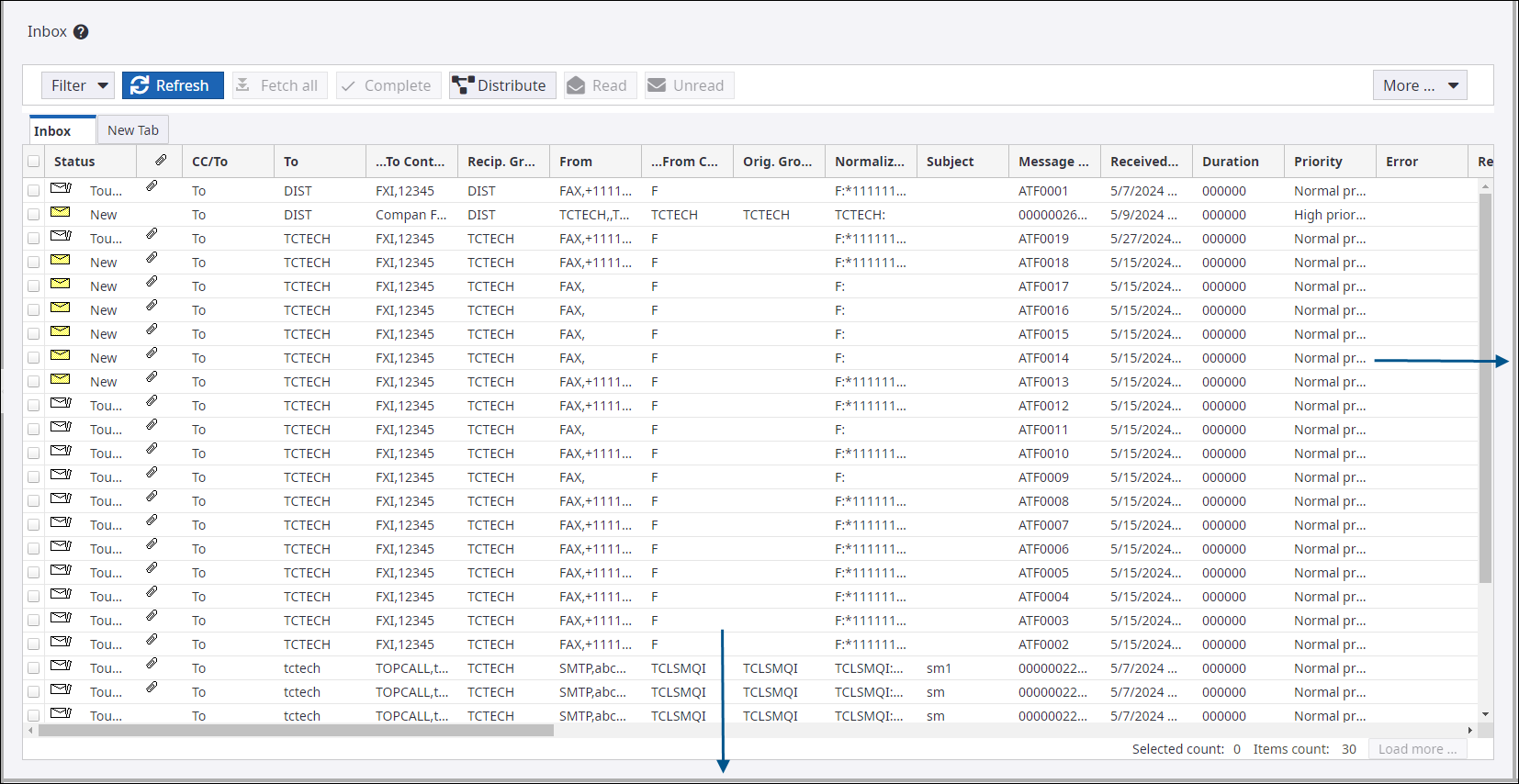
-
Do the following to enable the Preview pane.
-
On the bottom of the window
-
Move the cursor to the lower end of the folder window so that the splitter icon
 is displayed.
-
Drag the splitter upwards to view the Preview pane on the bottom.
-
-
On the right side of the window
-
Move the cursor to the right side of the folder window so that the splitter icon
is displayed.
-
Drag the splitter from right to left to view the Preview pane on the right side.
-
The preview pane is displayed.
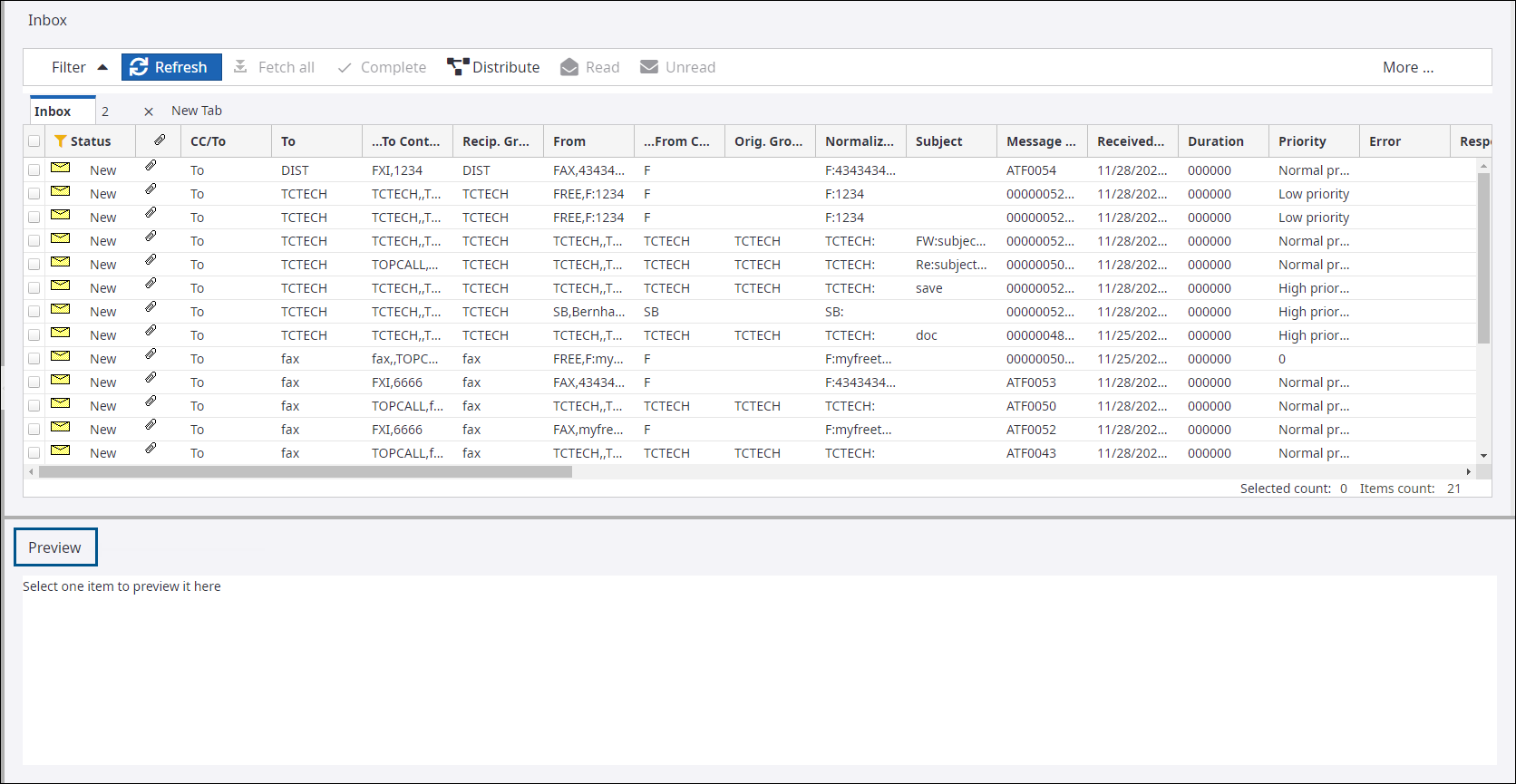
-
-
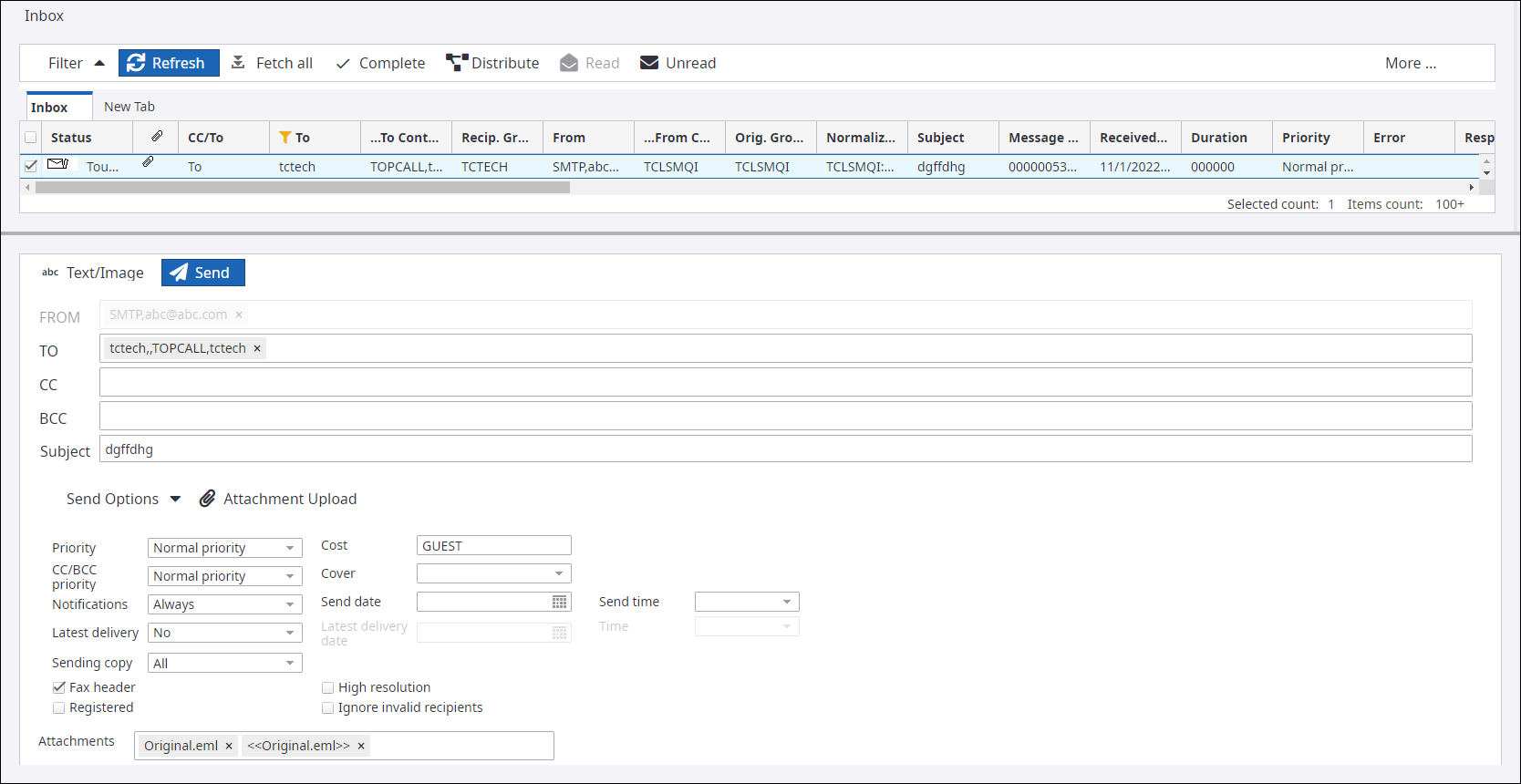
Select the message to preview.
Previewing a message does not change the status of the message to read or unread.
-
You can do the following from the
Preview pane:
- Click Send Options to configure the send options as required.
-
Click Attachment Upload to select and upload a file.
-
Click Send to send the message.