
Process
Use this view to analyze the Kofax Capture and MarkView conventional workflow in real time. Identify invoice processing bottlenecks and take action to clear them. View the processing statistics to address issues that impact productivity.
Diagram
The view represents a simplified block diagram of the Kofax Capture and MarkView conventional workflow.
The numeric value on each block shows the number of invoices that are currently on the corresponding processing stage.
Click any component of the process diagram to view invoice detailed information. Use the invoice action to take action on the invoice.
|
Component |
Description |
|---|---|
|
SCAN |
Starting point for invoice processing in the process diagram. May display invoices that the Kofax Transformation Modules operator redirects to SCAN and invoices awaiting scanning. |
|
EXTRACTION |
Kofax Transformation Server module. Displays the information about invoices that are ready for field recognition and extraction in the Kofax Capture system. |
|
VALIDATION |
Kofax Transformation Validation module. Displays the information about invoices awaiting processing in the Validation module or already opened in Validation, but not yet released. |
|
EXPORT |
Export module. Displays invoices in the Kofax Capture system that are ready for export to MarkView. |
|
QUALITY CONTROL |
Quality Control module. Displays information about invoices moved to the Quality Control module in the Kofax Capture system. Documents with errors also appear in this module. |
|
DELETED IN CAPTURE |
Deleted documents. Displays invoices for the current day if an invoice is deleted from a batch but the batch for the current day is not deleted. |
|
IMPORT |
Invoices are successfully exported from Kofax Capture but are not yet imported as AP Invoice work items in MarkView. |
|
ENTRY |
Invoice Entry is a combination of the Entry queues for PO, Non-PO and Pre-Approved invoices in the MarkView system. The Invoice Entry component includes:
Note The Invoice Entry component is a starting point for invoices that proceed to
MarkView
from different sources. The step may also include non-Capture invoices.
|
|
APPROVAL & CODING |
Displays invoices awaiting coding and approval in the MarkView system. The Approval & Coding component includes:
|
|
COMMENT REQUEST |
Displays the information about invoices in the Comment Request queue in the MarkView workflow. |
|
RESOLUTION |
Represents process resolutions or verification that the Accounts Payable process is complete. The Resolution component includes data from the following MarkView queues:
|
|
PENDING PAYMENT |
Displays the information about invoices awaiting payment. |
|
COMPLETED |
Displays the information about invoices successfully paid in the ERP system and moved to the Completed or Archive queue in the MarkView workflow. The block shows the data only for the current day. |
|
WORKFLOW ADMIN |
Displays the information about invoices that cannot be processed and moved to the Interface Processing Error queue because an error occurred. The component is also used to view the work items in the Workflow Administration queue from the connector. |
|
CANCELLED |
Displays the information about cancelled invoices for the current day. The component is also used to view the work items in the External Processing Terminated queue. |
|
RECYCLE BIN |
Provides the information about invoices moved to the recycle bin in MarkView for the current day. |
|
RESCAN |
Provides the information about rescanned invoices for the current day. |
|
RETURNED |
Provides the information about invoices returned in MarkView for the current day. |
|
REDIRECTED |
Provides the information about invoices redirected in MarkView for the current day. |
Paths
The Process paths view shows the invoice processing workflow in Kofax Capture and MarkView, which is presented as a swim lane flowchart.
Horizontal lines divide the chart into Kofax Capture and MarkView workflow processing stages. See a more detailed description for processing stages in Diagram.
Each vertical line displays a unique path of an invoice. The numeric value for a vertical line displays the number of invoices that are processed through the corresponding path. Click a vertical line of the swim lane flowchart to view invoices detailed information. Use the invoice action to take action on the invoice.
The color of an arrow defines if a work item moves through the workflow correctly.
-
Gray: Correct transition from a work item to the next queue in the workflow.
-
Orange: Partially correct transition from a work item to the next queue in the workflow. The process corresponds to the scheme but some steps are missing.
-
Red: Incorrect transition.
Additionally, the Process paths view displays multiple and consecutive transitions through the same queue. Parenthesis and numeric characters show the minimum and the maximum values of the transitions through the queue. Click the workflow to open the Invoice details table to check the number of transitions for the selected invoice in the Invoice History table.
Right-click a lane to access more options.
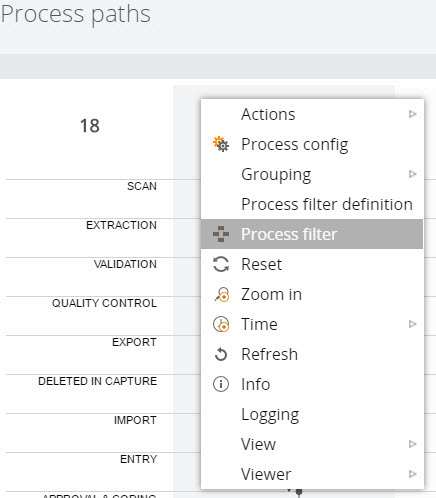
For example, select Process filter to set the process state, timing, and attributes. On the Process state tab, the "Completed processes" value (paid or removed invoices) is selected by default. For more information about additional options, see the Kofax Insight documentation.