
Viewer screen layout and navigation
At the top of the page, the Kofax Analytics for MarkView header is displayed. This header is available on all pages throughout the system. You cannot interact with the header area.
The Kofax Analytics for MarkView header displays:
-
The Kofax logo and the Kofax Analytics for MarkView product name
-
User name
-
The date and time until which your current (ongoing) data was successfully loaded
-
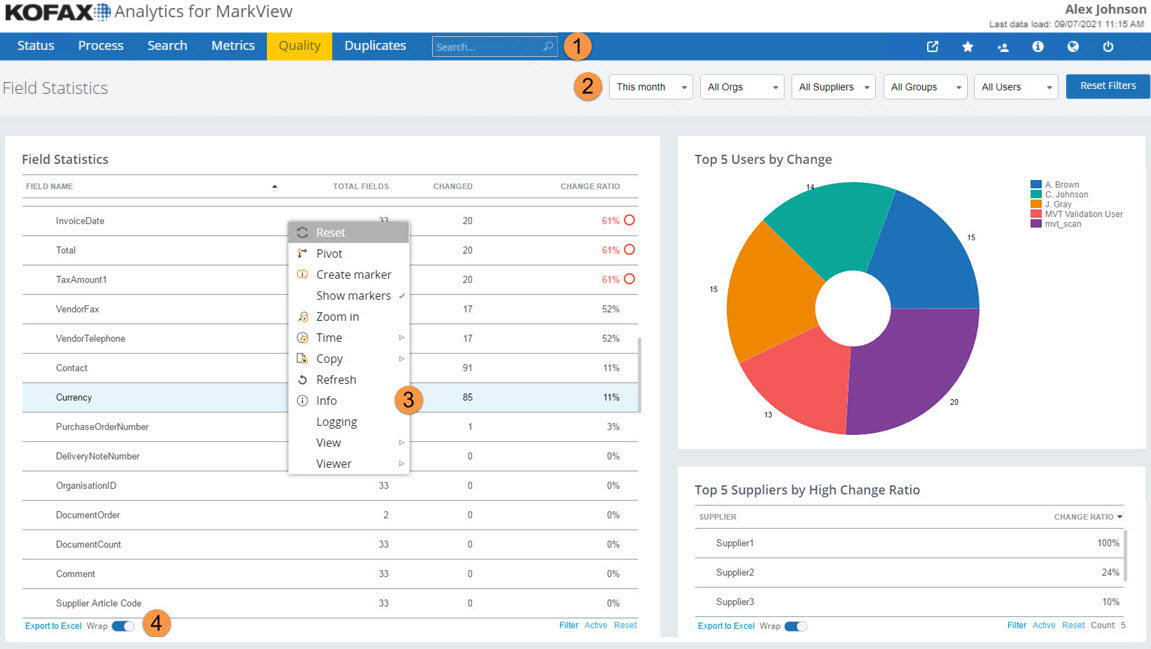
Toolbar menu: Use the menu to access views and administrator features, including Status, Process, Search, Metrics, Quality, and Duplicates.
Use additional user-level items to bookmark frequently used views, define group settings, study version information, and log out.
Use the Help tab
 to access help for the current view.
The Export tab
 lets you set preferences to export the content of the view to Microsoft Excel or Adobe Acrobat Reader.
-
Filter pane: Use the pane that appears under the toolbar menu to select customizable options such as organizations, suppliers, invoice types, currency, and time range.
Use the Reset Filters option to return the data selection to the default settings.
The pane may include view-specific information such as invoice summary data.
-
Context menus and chart options: Right-click a chart or grid to access more options such as Reset, Pivot, Zoom in, View, and the Metric grid format. The options vary, based on the chart type or area where you right-click.
-
Chart and grid footers: Additional options are available on some charts and grids.
Features may include filter and reset options, Export to Excel, or text wrap settings. Footers may also include chart or grid specific summary data such as total amount.
Click a chart bar or graph to view invoice details table that includes the invoice number, supplier, amount with the currency, invoice data, due date, queue, and owner with the invoice history and summary. The Summary list displays the invoices count and total amount for each currency, the total invoices count, and the discount amount. Click the header of the column to sort the list by a specific column.
Click the
Open in MarkView Viewer icon
 to review an invoice in
MarkView
Viewer that lets employees see the captured image of an invoice and perform the needed processing through
MarkView. The
Out of date icon
to review an invoice in
MarkView
Viewer that lets employees see the captured image of an invoice and perform the needed processing through
MarkView. The
Out of date icon
 notifies you if any action was taken on invoices. The
"Out of date" icon remains until the next data load. In the Chart and Grid Footers
area, use the
Multiselection option if you need to take an
action on multiple invoices.
notifies you if any action was taken on invoices. The
"Out of date" icon remains until the next data load. In the Chart and Grid Footers
area, use the
Multiselection option if you need to take an
action on multiple invoices.