
Checkout, Undo Checkout, and Checkin
The PSIsafe Web Checkout and Undo Checkout functions are available in the Cabinets browser and Search product areas.
Checkout
Checking out content is a good way to prevent the content from being modified, moved, deleted, or even previewed. Content can only be checked out by a single user at a time, allowing that user to be confident that their changes will be implemented and not affected by the actions of others. All users have access rights to check out and undo the checked out content. When content is checked out, only the user who has checked out the content can modify it. Other users cannot interact with the content before first waiting for it to be checked back in (undo checkout or checkin) by the user who checked out the content initially. Follow the steps below to check out a document within the Cabinets browser or Search screens.
-
First, left-click on the content you wish to check out within the document list of a Cabinets browser or Search areas.
-
Then, hover over the down arrow
 and click
Checkout. You can also Right-click on the content and click
Checkout.
and click
Checkout. You can also Right-click on the content and click
Checkout.
-
Add any Checkout Notes for the checkout as appropriate, then click Checkout.
-
The content is now checked out. The file is automatically downloaded.
Undo Checkout
The Undo Checkout feature is the inverse of the function above, allowing normal access to the content once the content is checked back in. Follow the steps below to undo the checkout of a document within the Cabinets (Browser) and Search screens.
-
First, left-click on the content you wish to check in within the document list of a Cabinets browser or Search areas.
-
Then, hover over the down arrow
and click
Undo Checkout. You can also Right-click on the content and click
Undo Checkout.
-
Add any Undo Checkout Notes for the undo checkout as appropriate, then click Undo Checkout.
-
The content checkout is now undone.
Checkin
The Checkin feature checks a document back in, allowing the user to upload a changed document that has been checked out. Once the content is checked back in, it can be viewed, checked out, and downloaded by other PSIsafe users with appropriate access. Follow the steps below to check in the document within the Cabinets browser and Search screens.
-
First, left-click on the content you wish to check in within the document list of a Cabinets browser or Search areas.
-
Then, hover on the down arrow
and click
Checkin. You can also Right-click on the content and click
Checkin.
-
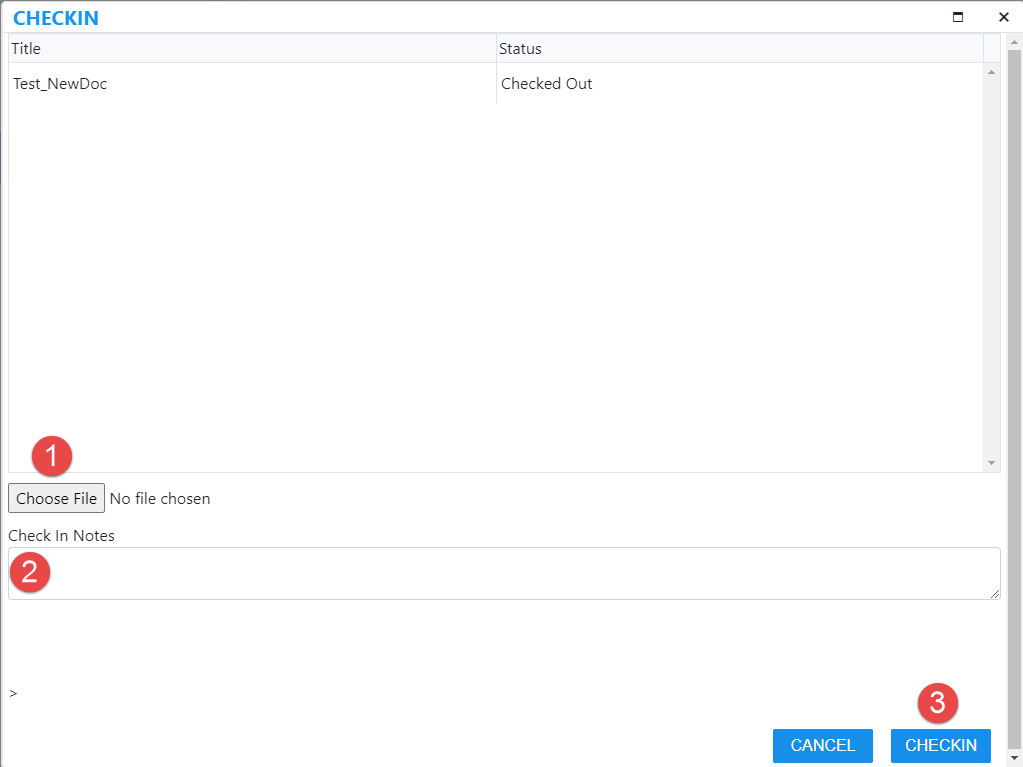
Select the content to upload as a part of the Checkin by clicking the Choose File button [1], as seen here:
-
Add any Check In Notes [2] as appropriate, and click the Checkin button [3].
-
The content is now checked back in.
PSIsafe Web does not control where in the file system your files are checked out to. Typically, this is controlled by your browser's default download location setting. Therefore, take steps to ensure that you can recall where your checked out documents reside on your file system, and be sure to upload the edited or updated version appropriately when performing a Checkin.