Step 1: Create a process map to handle import events
Use the following procedure to create a process map that, when embedded into your main process map to identify whether the document is imported successfully and handle any unsuccessful document import.
- Navigate to and select New.
- Specify a Name for the process map such as Handle Import Events.
- On the Category list, select Default Category.
- Create a process variable, "ErrorMessage" of type String. See Create process variables.
- Create the following three process events: IMPORTRUN, IMPORTDUPLICATE, and CHECKEVENT. See Create a process event.
- Add the following three flows for the process map:
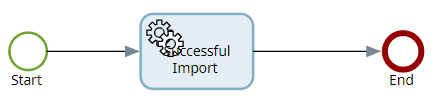
Create a flow for a successful import event
Use the following procedure to create a flow to signify whether documents are successfully imported.
-
Select the Start node and on the satellite,
select the Activity icon
 .
.
An activity node is added.
- Select the activity node and enter a Name as Successful Import.
- On the Type list, select Synchronization.
- In the Activity properties panel, select the Dependents tab.
- Right-click in the rule editor and select Process events.
- In the events list, select IMPORTRUN.
- In the rule editor, set the condition as IMPORTRUN > 0.
-
Select the Successful Import node and on the satellite, select the End icon
 .
.
The process map may look similar to the following.
Create flow for a duplicate document import event
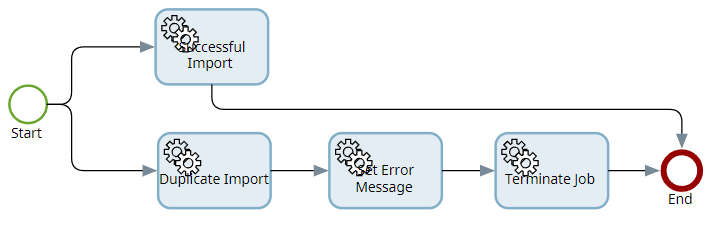
Use the following procedure to create a flow that triggers an event and prevents duplicate documents from being imported.
-
In the Handle Import Events map, select the
Start node and on the satellite, select the Activity icon
.
An activity node is added.
- Select the activity node and enter Name as Duplicate Import.
- On the Type list, select Synchronization.
- In the Activity properties panel, select the Dependents tab.
- Right-click in the rule editor and select Process events.
- In the events list, select IMPORTDUPLICATE.
-
Select the Duplicate Import node and, on the satellite, select the Activity icon
.
An activity node is added.
- Select the activity node and enter Name as Set Error Message.
- On the Type list, select .Net.
-
Select
Configure.
The Configure .Net activity dialog box is displayed.
- In the Assembly file path box, select Default Category.
- On the Category list, select System Category and then select TotalAgility.Sdk.dll.
- On the Class list, select TotalAgility.Sdk.JobService.
- On the Method list, select UpdateJobVariables.
- In the Value box of the sessionId parameter, select Server variable and then select Default Category.
- On the Category list, select System Category and then select SPP_SYSTEM_SESSION_ID.
- Select for UpdatedVariable[ ].
- In the Id parameter value box, select ErrorMessage.
- Select the Edit icon next to the Value box of the Variable Type parameter and enter 8.
- Select the Edit icon next to the Value box of the Value parameter and enter a custom error message as Terminated due to import duplicate error, and then select OK.
-
Select the
Set Error Message node and on satellite, select the Activity icon
.
An activity node is added.
- Select the activity node and enter Name as Terminate Job.
- On the Type list, select .Net.
-
Select
Configure.
The Configure .Net activity screen is displayed.
- Repeat steps 11 to 16.
- Select OK.
-
Select the Terminate Job node and, on the satellite, select the End icon .
The process map may look similar to the following.
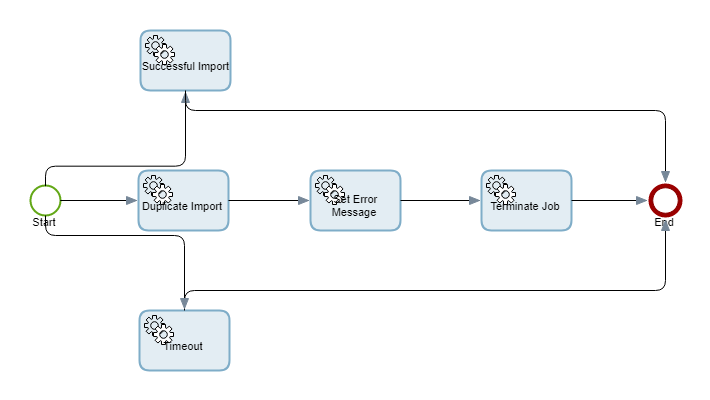
Create flow for a timeout
Use the following procedure to create a flow so that if no event (IMPORTRUN or IMPORTDUPLICATE) is triggered for a configured timeout, the process moves to the next node in the map.
-
In the Handle Import Events map, select the Start node and on the satellite, select the Activity icon
.
An activity node is added.
- Select the activity node and enter Name as Timeout.
- On the Type list, select Synchronization.
- In the Activity properties panel, select the Time and cost tab.
- In Triggers, select for Process.
- In Target duration, select After and set the value of Minutes to 30.
- On the Process list, select Raise Event For Duplicate Import. See Create map for raising event.
- Select OK.
- In the Activity properties panel, select the Dependents tab.
- Right-click in the rule editor and select Process events.
- In the events list, select CHECKEVENT.
- In the rule editor, set the condition as CHECKEVENT > 0.
-
Select the Timeout node and, on the satellite, select End icon .
The final process map may look similar to the following.