Home
On installing Tungsten TotalAgility Advanced Studio, Home is the default web page that loads when you log in to TotalAgility.
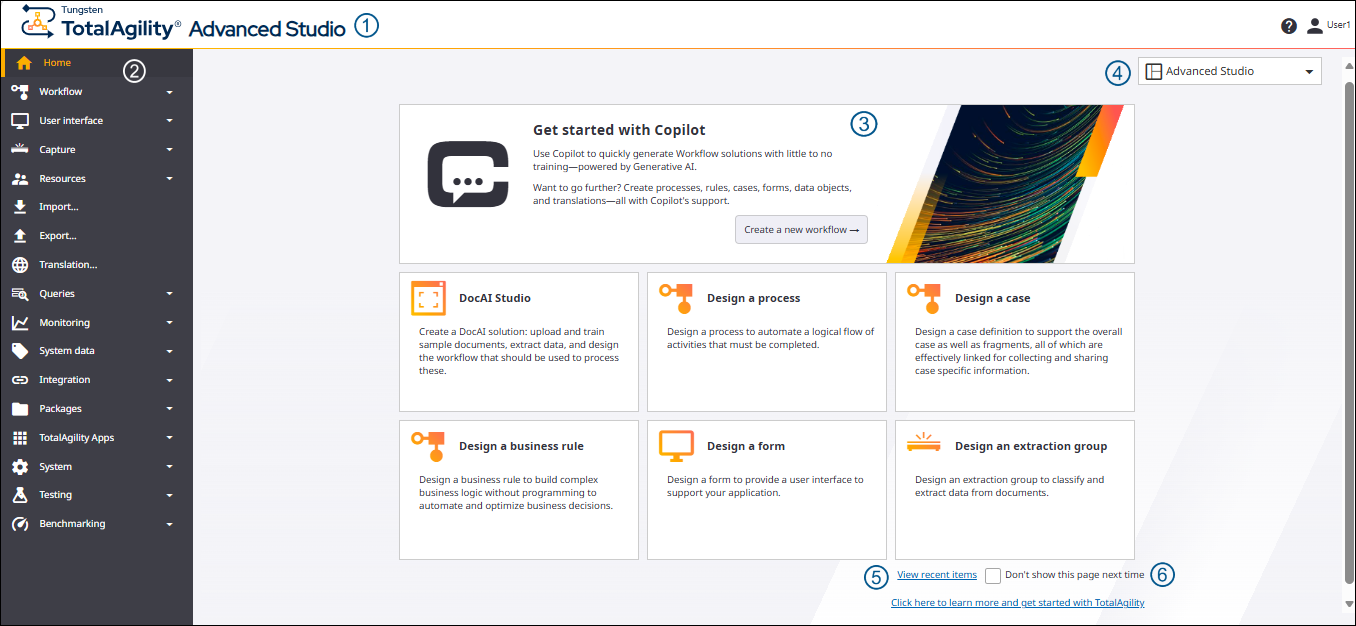
The Home page includes the following elements.
| S. No | Element | Description | ||||||||||||||||
|---|---|---|---|---|---|---|---|---|---|---|---|---|---|---|---|---|---|---|
| 1 |
Header bar |
The header bar contains the following items.
|
||||||||||||||||
| 2 |
Navigation bar |
A vertical list of links that appears on the left side of every interface window. The navigation bar includes menus and submenus to design, import and export, and manage items. |
||||||||||||||||
| 3 |
Cards |
The links to the items are available as cards for easy access. Select the following links to navigate to the required menu and configure the items, such as process, case and more.
|
||||||||||||||||
| 4 |
Design environment list |
A list of different design environments is available on the top right of the screen. You can switch between different environments as needed.
After opening a designer, if you switch to the other designer view, the latest designer is saved as your default designer. You must have access permissions to "Advanced Studio", to open the TotalAgility Studio. For more information, see "Access control list" in Access settings. |
||||||||||||||||
| 5 |
View recent items |
Opens the Recent items page. |
||||||||||||||||
| 6 |
Don't show this page next time |
If selected, you are taken directly to the "Recent items" page every time you navigate to the Home page and every time you subsequently log on. Your preference is automatically added to your profile. See Edit profile.
The design environment list remains available on the
Recent items page, allowing you to switch between designers
as needed.
|