
Windows option
To generate a widget tree for Windows applications, Tungsten RPA uses the UI Automation framework built into Windows. RPA provides extended support for some applications.
If you experience issues working with applications using RPA extensions, turn them off by clearing the selection in Windows tree mode.
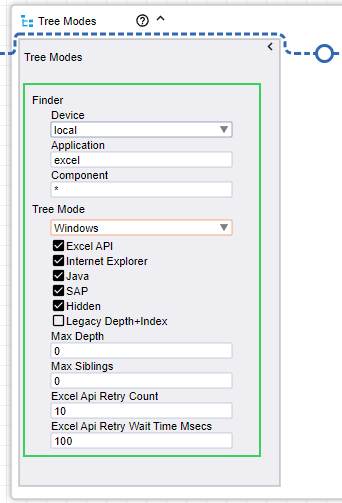
For information about automating applications with the Windows option, see:
Excel API
Use Excel API to turn on extended support for Microsoft Excel, such as to retrieve cells from the spreadsheet.
To work with Excel using this option, do not leave the Excel workbook in Edit mode (the word Edit appears in the Excel program window).
When using Enter Text in Excel on a remote device, exit Edit mode using one of the following methods.
-
Press Enter using the Press Key step.
Excel exits Edit mode and selects the cell directly below the current cell.
-
Press Tab using the Press Key step.
This stops Edit mode and selects the cell to the right of the current cell.
-
Click a different cell.
-
Press F2 using the Press Key step.
Refer to the Microsoft documentation for more information.
Internet Explorer
When you use Microsoft Edge in Internet Explorer mode, it turns on extended Internet Explorer support to retrieve the Document Object Model (DOM) tree.
This option provides a more accurate result in the application tree. Also, RPA provides a built-in Chromium web browser to access websites.
Be aware of the following when using extended Internet Explorer support.
- If extended Internet Explorer support is disabled, the UI Automation gets the object tree from Internet Explorer (this is the same tree that you get using Microsoft's Inspect.exe).
- If extended Internet Explorer support is enabled and the robot detects an Internet Explorer window:
- A piece of Java script is injected that traverses the DOM and creates a JSON representation. This runs in the context of the Internet Explorer page.
- The JSON is placed into an input tag with ID kapowDataElement in the page.
- The robot parses the JSON content and creates the sub-tree from that content.
Java
Use the Java Access Bridge to build the tree for Java applications.
SAP
SAP is handled differently from other Windows applications. Working with SAP depends on scripting API, which might be slow. Turn off SAP support by clearing this option.
Nodes for some elements may be unavailable in the application tree. To make all nodes available in the tree:
-
From the product installation folder, download and save the RegSAPSurrogate.reg file on the computer running the Desktop Automation Service.
The file resides here:
{path}\Tungsten RPA Desktop Automation 2026.1.0.0\DesktopAutomationService\bin
-
Run the file and accept any warnings.
-
Restart the Service agent.
Legacy Depth+Index
Adds the depth and index attributes used in RPA 10.2 to the application tree.
If you have robots created in RPA version 10.2 that use component finders with depth and index attributes, select Legacy Depth+Index for the robots to work in RPA 10.3 and newer releases.
- Max Depth: Sets the maximum nested elements each node shows for all application windows in the view.
- Max Siblings: Sets the maximum sibling elements each node shows for all application windows in
the view.
Specify 0 for no restrictions.
Excel API Retry Count
Specifies the number of retries when accessing the Excel window via Windows API. Increase the number if the Excel response is slow.
Excel API Retry Wait Time
Specifies the time in milliseconds between retries when accessing the Excel window via Windows API.