
Barcode Options dialog box (1D)
This dialog box specifies options for reading and interpreting 1D barcodes in documents. These options are displayed when 2D barcode support is not licensed for QuickCapture Pro.
| Option | Description |
|---|---|
| Read | You can specify the mode in which the barcodes in a document are to be read.
Selecting either of the auto options may slow the process of loading large-size images. |
| Barcode type | Select the type of the barcode to be read. You can select All to read any of the barcode types listed in
this dialog box. The recognition of barcodes of the UPC E type returns Full UPC A Value. For example, if the barcode
is displayed as 01234565, it is recognized as 012345000065.
|
| Direction | Specify the direction in which a barcode is to be read. |
| Maximum length of a barcode | Specifies the maximum length barcode string for 1D variable-length barcodes that are captured in a field. This value cannot be less than the value specified for Minimum length of a barcode. This setting can be between 1 and 63. |
| Minimum length of a barcode | Select the minimum length (between 1 and 63) barcode string for 1D variable-length barcodes that are captured in a field. This value cannot be greater than the value specified for Maximum length of a barcode. This setting can be between 1 and 63. |
| Number of lines of white space above and below the barcode symbol | Set the amount of horizontal one pixel lines of white space that should limit the barcode symbol above and below (concerning the
horizontal barcodes). This option is useful in cases when the barcode is blurred and allows to avoid the situation when a single
barcode is read as two barcodes. For example, this option can help in reading such barcodes: 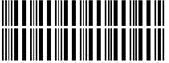
- or - 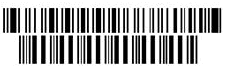
|
| Number of scanned lines per column to skip | Set the amount of horizontal one pixel lines that will be skipped when reading a barcode symbol (concerning the horizontal
barcodes). This option allows to reduce the time of reading a barcode. In case when the barcode is not read properly you can reduce
the amount of pixels to be skipped, however this will take more time to read the barcode. For example, this barcode is read faster with value 120 then with value 50: 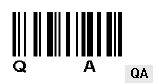
However it is not read when you set value 130 to this option: 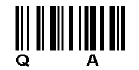
as this value is greater than the bars height. |
| Return check digit | Select this check box to display the check digit when a barcode contains a check digit. For example, when the following barcode is read, the check digit 1 is displayed: 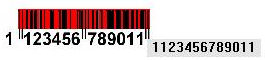
|
| Error check digit | Select this check box to not display the check digit if a barcode contains one. |
| Dilate filter | Select this check box to fill missing pixels when reading a barcode. This can help to recognize indistinct barcodes. You should use this option only when required, because the component may perform excessive dilation that prevents a barcode from being recognized correctly. |