
Data entry with SnapIt
The SnapIt function is used for indexing documents. It combines the following three steps:
- Searching a digitized document.
- Identifying data to be entered in an AutoCapture form.
- Transferring this identified information to index the document with a single click.
In order for SnapIt to work, make sure that:
- AutoCapture Server is running.
- An AutoCapture form is open.
The following example shows how indexing with SnapIt works:
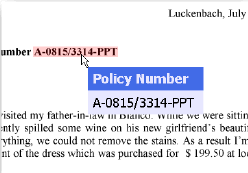
After initiating SnapIt on a digitized document it is searched for any string of characters that match the search pattern (regular expression) defined for the currently selected AutoCapture form field. All matches are highlighted.
When you move the mouse over a highlighted text in the document, the text is displayed in a special window below the pointer, tracking all its movements. This window is the SnapIt Navigator. This window comprises the following three labels:
- Form Field Label
- The top section of the window where the name of the AutoCapture form field currently selected for data entry (in this example it is the 'Policy Number').
- Text Label
- A label that appears below the top section of the window displayed the data that your mouse is currently pointing to (in this example it is 'A-0815/3314-PPT'). You can click to transfer this label's value into the respective AutoCapture form entry field. The next field is selected after the transfer.
- Error Label
- This appears only when the current value does not match the search pattern defined for this field in AutoCapture.
The background color of each label and the font color can be defined by the user (see SnapIt Settings).
To select any amount of text as index data, use the Lasso function. For example, this is useful if you want to select an entire address block. Move the mouse pointer to the top left corner of the address block and drag it to the bottom right corner while holding the left mouse button down. You can also drag this rectangle from the bottom right or any other corner. Once you release the mouse button, the data is transferred to the target application.
For more information, see SnapIt Settings dialog box.