
Line removal
The filter removes horizontal or vertical lines on the images. This filter might be very useful for OCR optimization of printer filled forms with misplaced text. You can choose either to remove vertical or horizontal lines.
Prior to configuration, set appropriate Measure unit (thousandths of inch or pixels).
You can specify what kind of lines QuickCapture Pro will look for to remove.
Line direction can be selected from Remove drop down list. You can select vertical or horizontal lines.
In Dimensions section of the dialog you can specify minimum and maximum line length along with Wall Height and Max Wall Percent values.
Wall Height. Walls are slices of a line that are too wide to be considered parts of the line. Examples of walls include a character that a line passes through or a perpendicular line. If the image contains lines that pass through characters, set Wall Height to be equal to or a little larger than Maximum Line Width.
Max Wall Percent. Stands for maximum number of wall slices (expressed as a percent of the total length of the line) that are allowed. A line consists of wall slices and non-wall slices (see description of Wall Height above). Lines that have a wall percent that is larger than Max Wall Percent will not be removed. For example, consider the line below that is 10 pixels in length, and 1 pixel in height in some places, and five pixels in height in other places.
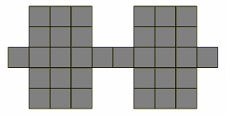
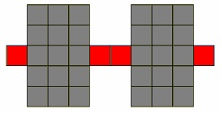
Setting Minimum Length to 10 pixels and Wall Height to four pixels will identify the line below as a candidate for removal. Note that the wall percent for this line is 60% (because six of ten line slices are walls). If Max Wall Percent is 80 then the line will be removed (actually, the pixels marked as red will be removed). If Max Wall Percent is 30, then the line will not be removed.
Optional processing section of the dialog provides Line Variance, Max Gap Length, and Remove Entire Line settings.
Line Variance is amount of width change that is tolerated between adjacent line slices. For example, the following horizontal line is 30 pixels in length (X represents a pixel)
XXXXXXXXXX
XXXXXXXXXXXXXXXXXXXXXXXXXXXXXX
XXXXXXXXXXXXXXXXXXXXXXXXXXXXXX
XXXXXXXXXX
XXXXXXXXXX
If Line Variance is 2 pixels (that is, to tolerate width changes of 2 pixels or less), the first 10 columns and the last 10 columns of the line will be removed. The middle 10 columns will be unchanged. This helps to preserve characters that intersect a line that is being removed.
Max Gap Length is a maximum length of a break or a hole in a line. Use it to remove dotted lines, dashed lines, or lines that have breaks due to scanning.
Remove Entire Line. This option tells the program to remove the entire line, even if the line passes through a character or a wall. Consider the line below.
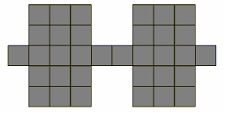
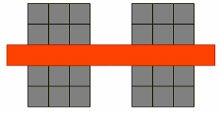
Setting Max Wall Percent as 80 checking Remove Entire Line will remove the red pixels as shown below.
Resulting image modification can be shown in the viewport at the top of the dialog box as Color Selection. To display changes in the resulting image, check Show Changes as Color Selection box and pick the color in the Color Picker dialog that opens by click on the button at the bottom of the dialog.