Work with annotations
Power PDF provides powerful tools on the Comments toolbar for annotating documents.
-
Comment annotations are primarily used for feedback or collaboration, such as adding and replying to notes and text remarks without altering the document content. See Comment tools.
-
Text markups such as highlights and underlines can mark or enhance the content. See Markup tools.
-
Shapes can help draw attention or emphasis to content in your document. See Draw tools.
-
Stamps and attachments are special annotations.
-
Use the Stamps panel to manage stamp templates and add stamps to the document.
-
Use the Attachments panel to manage attachments.
-
Use the Comments panel to manage all other annotations, including stamps added to the document.
-
While comments focus on external input, markups and shapes are more about visually interacting with the content. These tools are available on the Comments toolbar. The Comments panel summarizes all comments and annotations from the active document in table form, including replies.
For detailed steps for editing annotations, see the following topics:
Visit the Defaults page in the Options dialog box to change settings for annotation tool behavior. See Options.
Comment tools
The following annotation tools offer the best features for commenting purposes. Select the comment annotation that best fits your preference regarding page coverage and features. See Add a comment.
| Note | Add movable, expandable notes to the document. Notes have an icon on the page. Double-click a note icon to view the content. You can drag the box or the icon with the Select tool. |
| Text | Enter formatted text directly at the cursor position. You can drag the text to a new position or edit it again. The text block does not have a frame. |
| Text Box | Text boxes are resizable and movable frames with formatted text. |
| Callout | Insert a text box with an arrow to identify an illustration or other point of reference. Both the box and the arrow are movable and resizable. |
Formatting toolbar
If applicable, the context-sensitive formatting toolbar appears while editing text, a comment, or annotation. Besides the font size list, it offers the Bold, Italic, and Text color tools. For the tools listed below, the Font Name list is also available.
Markup tools
Power PDF offers several markup tools detailed below.
Markups refer to existing text or content, and all have a comment box anchored. Double-click a markup to open a comment box. All markups and their replies appear on the Comments panel. For detailed steps, see Use markup tools.
| Highlight | Highlight makes the marked text more visible. It can anchor a comment box. |
| Highlight Area | Highlighting an area works for any PDF document and does not require a PDF with a text layer. |
| Cross-out | The Cross-out tool can help marking text for deletion. |
| Underline | Underlining is similar to highlighting but with a less intense appearance. Underlined text can anchor a comment box. |
| Insert Text | Refers to a position between characters. Anchors a comment box for the text to insert. |
| Replace Text | Same as the Cross-out tool, but automatically offers a comment box for the replacement text. |
Draw tools
The Draw Tool offers various shapes detailed below. Common shape properties are line style, line width, line color, fill color and opacity. Fill color affects only closed shapes and arrowheads.
All shapes have a comment box anchored. Double-click a shape to open a comment box.
|
Line |
|
Arrow |
|
Oval |
|
Rectangle |
|
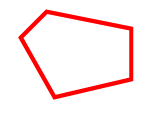
Polygon |
|
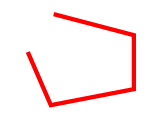
Polygon line |
|
Cloud |
|
Pencil |
|
Eraser The eraser can remove the pencil marks. |