Step 1: Create a process map to handle import events
Use the following steps to create a process map that can be embedded to your main process map to identify whether the document is imported successfully and handle any unsuccessful document import.
- Navigate to and select New.
- Specify a Name for the process map such as Handle Import Events.
- On the Category list, select Default Category.
- Create a process variable, "ErrorMessage" of type String. See Create process variables.
- Create the following three process events: IMPORTRUN, IMPORTDUPLICATE, and CHECKEVENT. See Create a process event.
- Add the following three process flows for the process map:
Create a flow for a successful import event
Use the following steps to create a flow that signifies that the documents are successfully imported.
-
Select the
Start node and on the satellite, select the Activity icon
 .
.
An activity node is added.
- Select the activity node and enter a Name as Successful Import.
- On the Type list, select Synchronization.
- In the Activity properties panel, select the Dependents tab.
- Right-click in the rule editor and select Process events.
- In the events list, select IMPORTRUN.
- In the rule editor, set the condition as IMPORTRUN > 0.
- Select the Successful Import node and on the satellite, select the End icon.
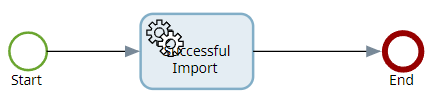
The process map may look similar to the following.
Create flow for duplicate document import event
Use the following steps to create a flow that triggers an event to make sure that duplicate documents are not imported.
-
In the Handle Import Events map, select the
Start node and on the satellite, select the Activity icon
.
An activity node is added.
- Select the activity node and enter Name as Duplicate Import.
- On the Type list, select Synchronization.
- In the Activity properties panel, select the Dependents tab.
- Right-click in the rule editor and select Process events.
- In the events list, select IMPORTDUPLICATE.
-
Select the
Duplicate Import node and on the satellite, select the Activity icon
.
An activity node is added.
- Select the activity node and enter Name as Set Error Message.
- On the Type list, select .Net.
-
Select
Configure.
The Configure .Net activity dialog box is displayed.
- In the Assembly file path box, select Default Category.
- On the Category list, select System Category and then select TotalAgility.Sdk.dll.
- On the Class list, select TotalAgility.Sdk.JobService.
- On the Method list, select UpdateJobVariables.
- In the Value box of the sessionId parameter, select Server variable and then select Default Category.
- On the Category list, select System Category and then select SPP_SYSTEM_SESSION_ID.
- Select for UpdatedVariable[ ].
- In the Id parameter value box, select ErrorMessage.
- Select the Edit icon next to the Value box of the Variable Type parameter and enter 8.
- Select the Edit icon next to the Value box of the Value parameter and enter a custom error message as Terminated due to import duplicate error and then select OK.
-
Select the
Set Error Message node and on satellite, select the Activity icon
.
An activity node is added.
- Select the activity node and enter Name as Terminate Job.
- On the Type list, select .Net.
-
Select
Configure.
The Configure .Net activity screen is displayed.
- Repeat steps 11 to 16.
- Select OK.
-
Select the
Terminate Job node and on the satellite, select the End icon
 .
.
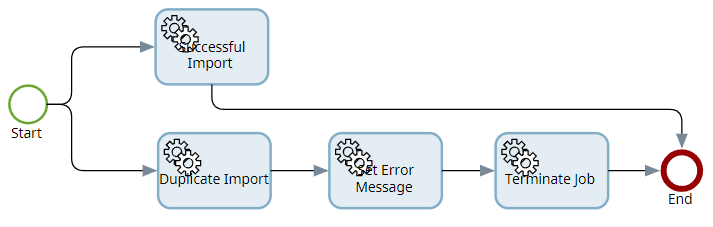
The process map may look similar to the following.
Create flow for timeout
Use the following steps to create a flow so that if no event (IMPORTRUN or IMPORTDUPLICATE) is triggered for a configured timeout, the process moves to the next node in the map.
-
In the Handle Import Events map, select the
Start node and on the satellite, select the Activity icon
.
An activity node is added.
- Select the activity node and enter Name as Timeout.
- On the Type list, select Synchronization.
- In the Activity properties panel, select the Time and cost tab.
- In Triggers, select for Process.
- In Target duration, select After and set the value of Minutes to 30.
- On the Process list, select Raise Event For Duplicate Import. See Create map for raising event.
- Select OK.
- In the Activity properties panel, select the Dependents tab.
- Right-click in the rule editor and select Process events.
- In the events list, select CHECKEVENT.
- In the rule editor, set the condition as CHECKEVENT > 0.
-
Select the
Timeout node and on the satellite, select the End icon
.
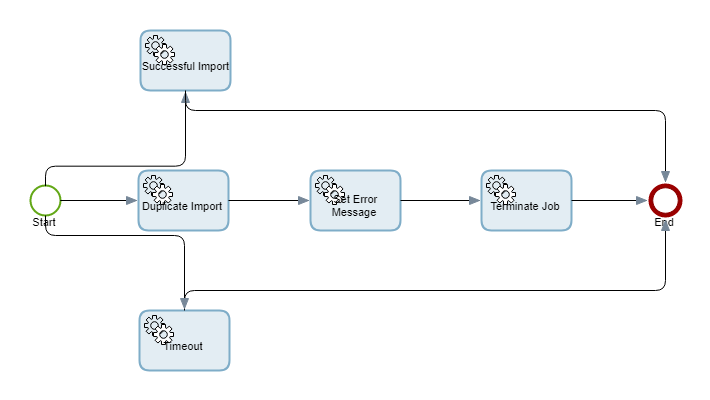
The final process map may look similar to the following.