
Create a new form variable
You can create a form variable on the Variables tab of the form modeling bar.
Alternatively, you can create a form variable while configuring the form actions.
.Create a form variable on the Variables tab of the form modeling bar
-
On the form modeling bar, select
Form variables and then select
New.
The New form variable dialog box is displayed.
-
Enter a unique
Name for the variable, such as CustomerName.
If a form variable has the same name as a form control, the control name takes precedence.
-
On the
Type list, select the type of variable, such as
Decimal. (Default: String)
See the form variable types supported by TotalAgility.
-
Select, enter, or define a
Value for the variable. For example, for the Array, define the number of
columns.
To provide a dynamic value at runtime, leave the Value empty.
-
Do either of the following:
-
To add one variable at a time, select Add and close.
The New form variable dialog box is closed, and the variable is listed under Form variables.
-
To quickly add as many variables as needed without navigating away from the New form variable dialog box, select Add another.
The current variable is added and the New form variable dialog box remains open with clear screen to add another variable. All the variables are listed on the Form variables page.
-
- Save the form.
Create a Data object variable
You can create a data object variable based on a data model (local or global) to use it in forms.
Once created, a data object variable can be used in the same manner as a string; however, the string value needs to be a JSON string. You can either use the entire variable or drill-down and use data model fields.
When debugging a form that is using a data object variable, the value is displayed as text and can be edited like a string value.
You cannot delete a data object variable if it is in use within the form.
-
In the
New form variable dialog box, enter a unique
Name for the variable.
By default, the name of the variable becomes the ID of the variable; however, you can change the ID if needed.
- On the Type list, select Data object. (Default: String)
-
On the
Value list, select a data model (global or local) or a field from a data
model.
For more information on how to use fields within a data object variable, see Access fields available within a data object variable.
-
Select
Add.
The variable appears on the Form variables list page.
- Select Save.
Create a Date variable
You can set the Date variable value in a form either by selecting the required date and time using the calendar picker or by selecting fx and using the @Today macro to get the current date or past/future date. For example, to set the date as 5 days from the current date, set the value as @Today+5.
At runtime, when the form loads, the value of the variable is set to the current date or current date + (plus) or - (minus) the number of days specified (if any).
To create a date variable:
- In the New form variable dialog box, enter a unique Name for the variable.
- On the Type list, select Date. (Default: String)
-
For
Value, do either of the following:
-
Select the Calendar picker and then select the required date and time.
-
Select fx.
By default, @Today macro appears in the Value box. Use @Today macro to get the current date, or a past/future date by adding or subtracting the number of days. For example, specify the value as @Today+5. At runtime, the value of the Date variable is set to the current date + (plus) or - (minus) the number of days specified (if any).
-
-
Select
Add.
The date variable appears on the Form variables page.
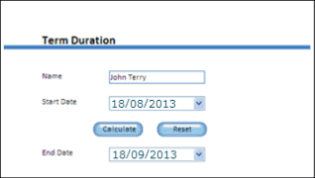
To calculate the end date of a term based on the start date and the term duration, create a form variable that holds the value of the duration (in this case, one month). Configure an event on the button to add the start date and the duration and display the result.
Create a form variable directly while configuring the form actions
When creating or modifying a form action if you require a new form variable for a field, you can create it in the same action dialog box.
- Select the field for which you want to add a new form variable.
- On the pop-up, select the Form variable tab and then select .
- Enter a name and type for the form variable and select Add and close or Add another as required.
How to Manage form variables.