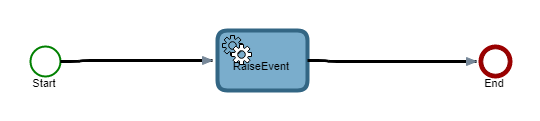
Step 2: Create a map for raising event
Use the following steps to create a process map that checks for the actual event triggered and if no event is triggered for a configured timeout, moves the process to the next node.
- Navigate to and select New.
- Specify a Name as Raise Event For Timeout.
- On the Category list, select Default Category.
-
Select the
Start node and on the satellite, select the Activity icon .
An activity node is added.
- Specify a Name for the activity as Raise Event.
- On the Type list, select .Net.
-
Select
Configure.
The Configure .Net activity screen is displayed.
- In Assembly file path, select TotalAgility.Sdk.
- In Class, select TotalAgility.Sdk.JobService.
- In Method, select RaiseEvent.
- In sessionId, select Server variables and then select SPP_SYSTEM_SESSION_ID.
- In eventName, enter CHECKEVENT.
- In sourceType, enter Map.
- Select OK.
-
Select the
Raise Event node and on the satellite, select the End icon
 .
.
- Save and release the map.
The final map may look similar to the following.