
Rule editor
A rule editor is used to create a rule, condition, or enter a script or code.
It is used in many areas within TotalAgility Advanced Studio, such as decisions, preconditions, branching rules, Expression node, Script activity, Calculation rule action, and more.
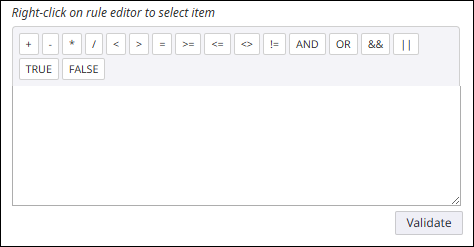
Operators and keywords
The rule editor includes a toolbar that provides quick access to commonly used operators and keywords. You can easily view and insert these operators and keywords into your rule to build rules faster, reducing typing mistakes and avoiding the need to reference documentation while authoring rules. The toolbar appears in the rule editor only when functions/predicates are supported.
The toolbar displays the following:
-
Arithmetic (+, -, *, and /) operators for building mathematical expressions, such as calculations or numeric comparisons.
-
Comparison (<, >, =, >=, <=, <>, and !=) operators to compare values (for example, checking whether a value is greater than a threshold).
-
Logical (AND, OR, &&, and /) operators to combine multiple conditions into a single expression.
-
Boolean (TRUE and FALSE) keywords to insert Boolean values when constructing or evaluating conditions.
When you right-click in the rule editor, the following items are available that help define the rule.
The items depend on where the rule is created. For example, when configuring a Calculation rule or Display rule action, the rule editor lets you define the rule using form controls and process or server variables, but predicates are not available. When configuring an Expression or Condition activity, all of the above items are available in the rule editor.
Example:
In an invoice processing workflow, a decision node can use IsGreaterThanZero(invoiceAmount) to ensure only positive amounts are approved, while IsEmail(contactEmail) checks for a valid email address before sending notifications.
To define a condition text, such as Credit Approved?=true in a Decision node, do the following:
- Right-click in the rule editor.
- Select the process variable, Credit Approved?
- Use the keyboard to add "=" and then type true.
- Select Validate to check if the condition is valid. A message indicates whether the syntax is valid.