
Home
On installing Tungsten TotalAgility, Advanced Designer Home is the default web page that loads when you log in to TotalAgility.
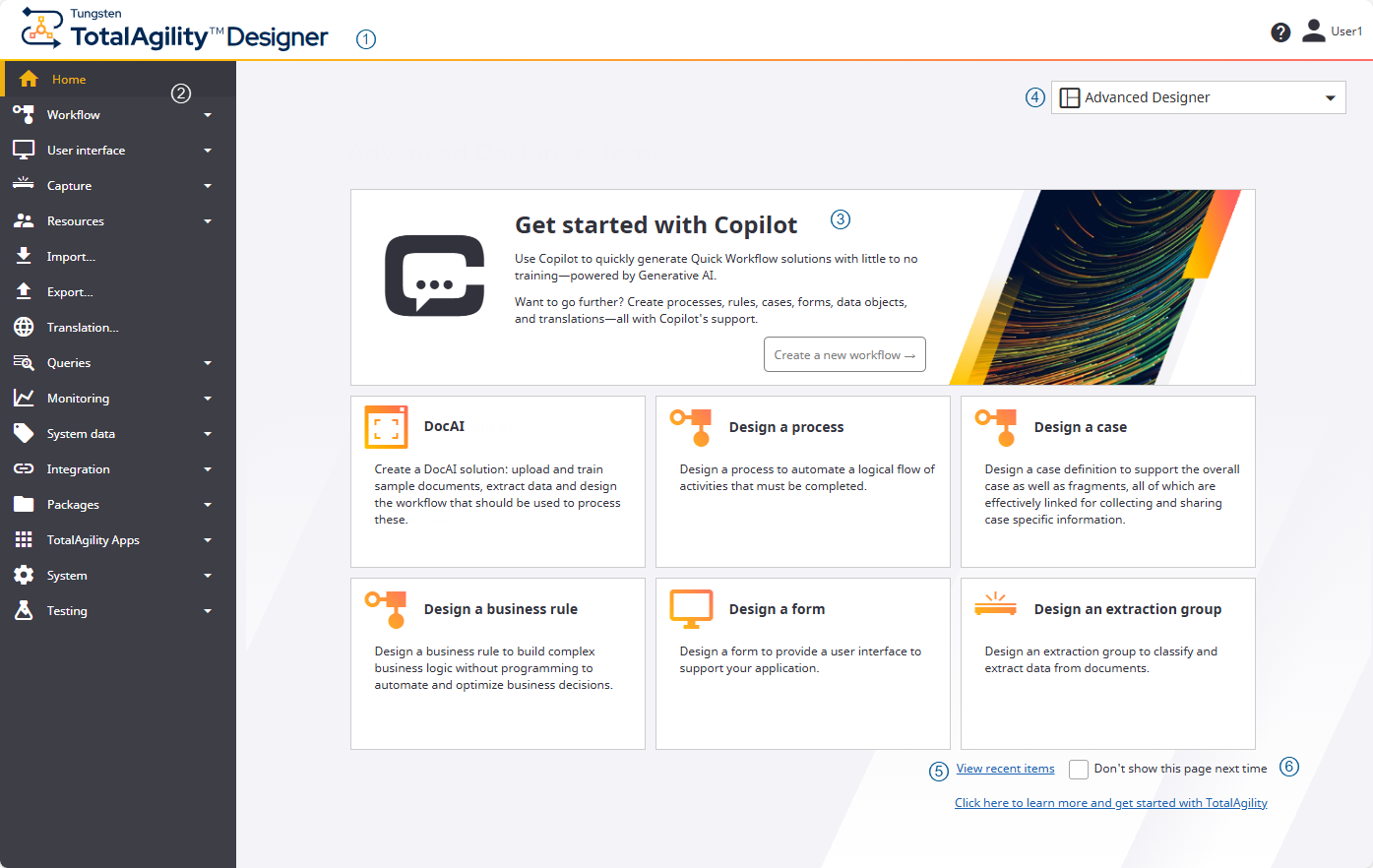
The Home page includes the following elements.
| 1 |
Header bar |
The header bar contains the following items.
|
||||||||||||||||
| 2 |
Navigation bar |
A vertical list of links that appears on the left side of every interface window. The navigation bar includes menus and submenus to design, import and export, and manage items. |
||||||||||||||||
| 3 |
Cards |
The links to the items are available as cards for easy access. Click the following links to navigate to the required menu and configure the items, such as process, case and more.
|
||||||||||||||||
| 4 |
Design environment list |
A list of different design environments is available on the top right of the screen. You can switch between different environments as needed.
After opening a Designer if you switch to the other designer view, the latest designer is saved in database as the default designer. From that point on, all designer links (Advanced Designer, DocAI Studio, and Quick Apps) will redirect to this default designer home page. Additionally, if multiple designers are open in different browser tabs, after refreshing the browser tabs, all tabs displays the default designer home page. You must have access permissions to "Designer", to open the Quick Apps or DocAI Studio link. For more information, see "Access control list" in Access settings. |
||||||||||||||||
| 5 |
View recent items |
Opens the Recent items page. |
||||||||||||||||
| 6 |
Don't show this page next time |
If selected, you are taken directly to the "Recent items" page every time you navigate to the Home page and every time you subsequently log on. Your preference is automatically added to your profile. See Edit profile. |