Add an Image to a table column
Lets you use an image in a table column. For example, display a
customer's balance status based on balance limits:
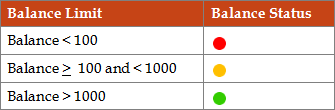
To display the balance, create a DB Query action that is executed when the form loads. Set the table column to Image type and map the column to the corresponding column in the database.
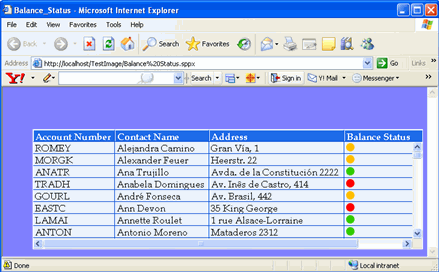
When you deploy the site and open it in the browser, the table
displays images in the column that has the control type set to Image.
- On the Extended Properties page of a table, click Columns.
- On the Data Type list, select String.
- On the Column Type list, select Image.
-
In the
Load Image from Store
box, select either option:
-
No: Enter a image name /URL in the Image box. (Default: No)
Note For on-premise TotalAgility, the image needs to reside in <Installation location>\Kofax\TotalAgility\Agility.Server.Web\Forms\Images. -
Yes : Consume an existing image or enter the image name. (Default: No)
Note The name must match the name in the database for the image to display at runtime.
-
-
Click
Add
 .
.
- Click Close.