Use a Checklist
The following example illustrates the use of a checklist control within a TotalAgility form. In a Review Process, a writer creates a document and a reviewer reviews it.
-
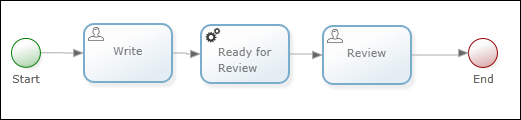
Create a process map with the following details:
Item Description Process name Review Process Add three activities -
Write
-
Ready for Review
-
Review
Create a process variable
(Ensure that the required checklist template is already created.)
-
Checklist of Checklist type
-
Job ID of System type
Assign variables to activities -
Write: Checklist variable as output variable
-
Ready for Review: Checklist variable as selected variable and Job ID mapped to Job ID
-
Review: Checklist variable as input and output variable
-
- Release the process map.
-
Build the following
TotalAgility
forms using the Review Process map:
Form Type Other Details Logon Use the Manual Logon option. Work Queue Keep all standard columns. Take Activity Select all activities within the process. - Open the site in the browser using the Logon form. The Work Queue form appears.
-
Click
OK. The Write take
activity page appears.
Note A checklist that uses the checklist control appears.
-
Select the check box and click
OK.
The Ready for Review page appears. The checklist variable is updated and the state is set to ready for review.
-
Click
OK.
The Review page appears. The checklist reappears. However, only two columns are displayed because the checklist variable passed into the checklist control identified that it has been set as ready for review. The first column displays the previous values and is unavailable, and the second column displays the new editable column.
Note The checklist control uses the XML contained in the checklist and updates this in an appropriate format.The reviewer completes the checklist.