
Login with AutoStore only
If the device is installed with AutoStore only, the Unified Client for Brother does not control access to the device.
Follow steps below to log in to the Unified Client for Brother:
- Start the device.
-
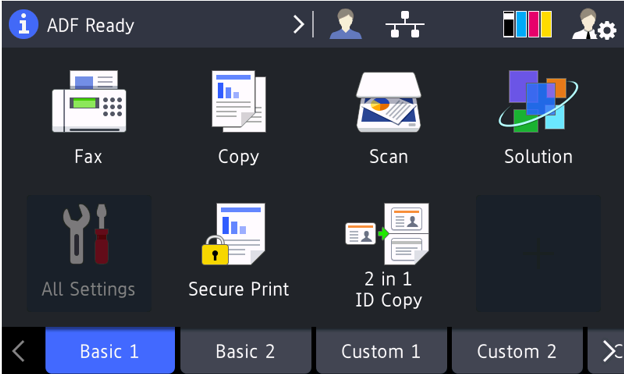
The default first screen of the Brother device is displayed:
-
Go to the Solution Screen.
If there are more than one menu configured on the device, select Tungsten Unified Client from the list of solution items displayed on the Solutions Screen. If Tungsten Unified Client is the only menu, Launcher Screen will be displayed right after you select the Solution Sreen.
-
In case Windows/Custom Script authentication is configured for your AutoStore capture workflows, an
Identification Screen with prompts for username, password and domain will be displayed as below:
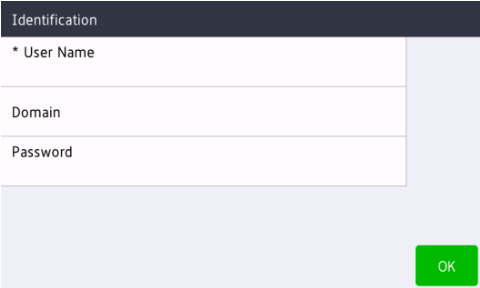 The fields displayed are decided by your selection of Windows or Custom Script. For more information on authentication, refer to Configuring authentication.Click each field to enter the input. If the identification fails, a message will be displayed:
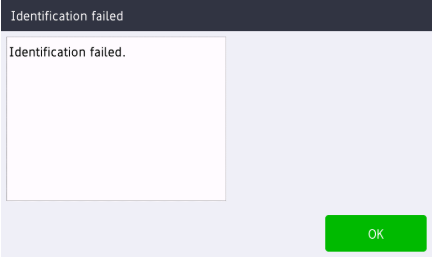 Click OK or press the Back button to go back to the Identification Screen or Login Screen, depending on your configuration.
 -
Go to the Solutions Screen by clicking the Next icon on the
Home Screen:
- If Tungsten is the only application configured on the device, the Launcher Screen will be displayed without further actions.
- If there are more than one applications configured on the device, the Solutions menu items will be displayed. Select Tungsten Unified Client to continue.
You can switch back and forth between the native applications and the Tungsten Unified Client:
-
Go to the Home Screen to use native applications.
-
Go to the Solutions Screen to use the Unified Client application.