
View Settings Window
This window allows you to determine the view of your folder columns. You can simply re-arrange the sequence of the columns with the mouse by means of drag & drop.
In the View Settings window you can define the columns to be shown. Open this window through View Settings in the column header menu or View Settings in the Folder menu.
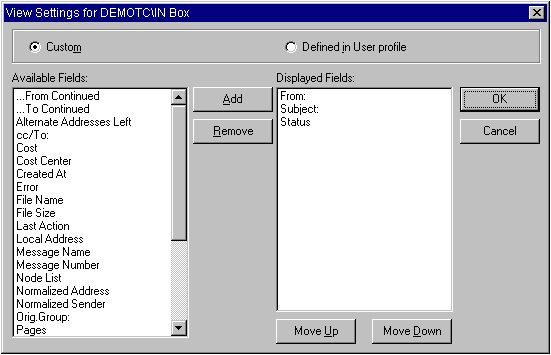
Items of the window:
| Custom | Choose this selection to make an individual set of fields. |
| Defined in User Profile | Choose this selection to use one of
the pre-defined sets of fields.
The parameters Extended Folder View and Tech User determine the view used. Different views are only available for the Inbox and the Outbox. |
| Add | Adds a selected field to the Displayed Fields list. |
| Remove | Removes a selected field from the Displayed Fields list. |
| Move Up | Moves a selected item up in the Displayed Fields list. |
| Move Down | Moves a selected item down in the Displayed Fields list. |
If Custom is selected all fields remaining in the Available Fields list are still presented for filtering in the Filter window. Fields in the Used Fields list are presented on top, fields in the Available Fields list are presented at the end in the Filter window. This is different to the Defined in User Profile behavior. Here only the fields presented in the folder view are available for filtering.
If fields combined with a status icon are moved from the leftmost position to any other position, the icon always remains on the far left.
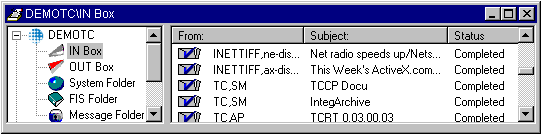
If a Custom view is active, dragging the column header with the mouse to the new position can also change the column order. This is not possible for a User Profile Defined view.