
Address Book Window
The Address Book window lets you address your outgoing messages quickly and easily. You can also edit existing recipients and create new ones. Open this window by clicking the Check Address button on the toolbar.
This window also opens when you specify an incomplete or unknown address in the recipient field of the Compose Message window.
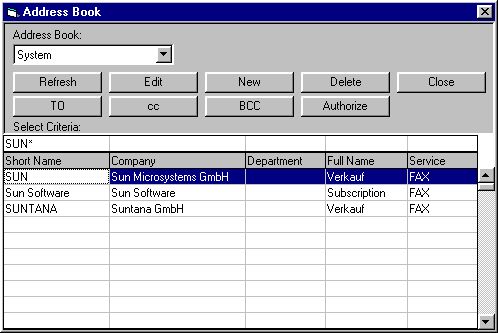
The four buttons—To, cc, bcc, and Authorize, determine the delivery type.
For a detailed explanation of these four delivery types, see Addressing Messages.
To add a recipient to an open message, follow these steps:
- Select the required address book from the Address Book drop down list.
- Select a recipient from the list by clicking once.
-
Click one of the four delivery type buttons
To,
cc,
bcc or
Authorize.
The recipient is copied to the Recipient list along with the delivery type you selected. An alternative is to double-click a recipient to copy him/her to the list with the default To delivery type. You can send your message to as many recipients as you want simply by repeating these steps.
You might want to use Search Criteria to filter out some addresses when the address books become too large. Double-click into the line just above the column headers (in our example, one of those fields shows “SUN*”). As shown in the example above, a trailing asterisk stands for any string at the end of the field. The search is not case sensitive.