
Attaching Files
You can use this feature to add objects such as binary files or images to a message. With certain kinds of files, you can attach both binary and image attachments of the same file to your message. Fax recipients get only the image and local users get both attachments. Local users can view and print the image component of the message received even if they don't have the application in which the message was created.
Follow these steps to attach a file:
- Select File from the Attach menu.
-
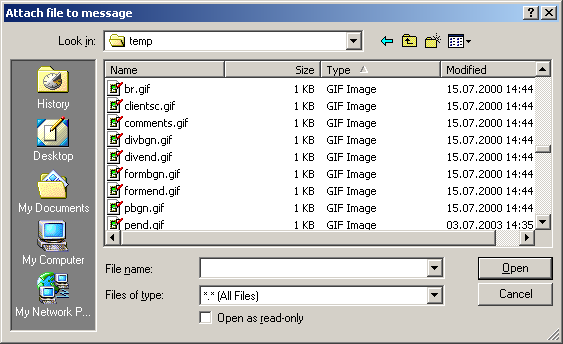
The
Attach File To Message
window opens, where you can select the file that you want
to attach to the message. If you want to attach multiple files hold down the
CTRL key while selecting the file names with
the mouse. After you have selected the files click the
OK button. A single file can be selected by
double-clicking it.
-
The Attach window opens for each selected file and you can select
how to attach the file. The possible formats depend on the content of the file
(e.g. a text file can be attached as text or as file). To attach the file click
the
OK button.
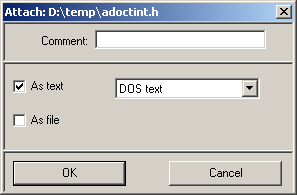
You can attach some files As File, As Fax, or both. With text files the choice As Text appears instead of As Fax. If you select a message from a folder, you will bypass the Attach window completely and the message is attached.
Note If Unicode is not enabled on your KCS, you can only attach Unicode text to your message as a file.