
How to add a system manager to a tenant
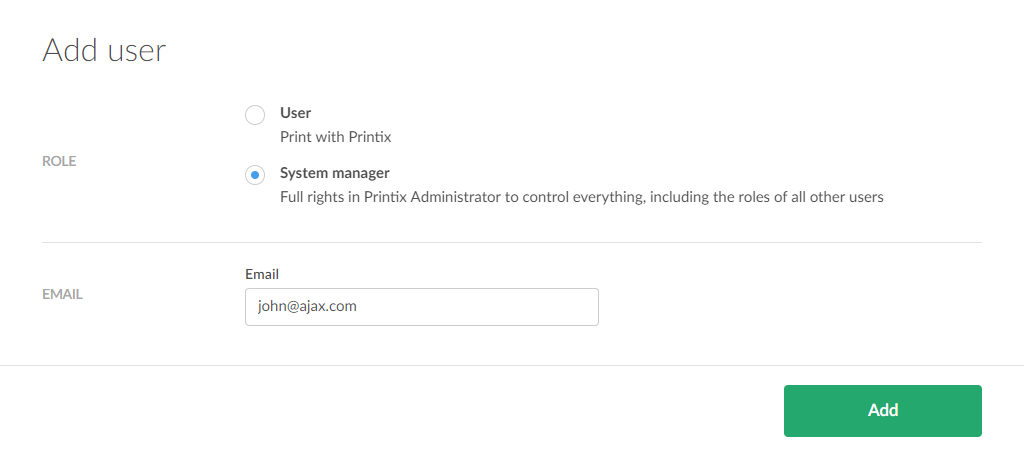
If you did not add a system manager when the tenant was created, or if you need to add additional users with the system manager role, follow these instructions.
- Open the Tenant properties.
-
Select the tenant name (Xray Services or xray.printix.net) to open the
Printix Administrator
for this tenant.
You are signed in automatically.
-
Open the
Users
 page.
page.
-
Select
Add user
 .
.
- Change the Role of the user to System manager.
- Enter the user's email address.
-
Select
Add.
The user receives an email with the subject Welcome to Printix.
-
If the email does not arrive within a few minutes, ask the user to check the spam/junk mail folder.
-
On the Users page, the invited user is listed at the top with a question mark (?) until the registration is complete.
-
The invitation is valid for 72 hours.
-
Select
 and
Info to see when the invitation expires.
and
Info to see when the invitation expires.
-
Invited user signs in with a Microsoft account
An invited user with a Microsoft account performs these steps to sign in:
- Open a web browser and enter the Printix Home (xray) followed by /admin.
-
Select
Sign in with Microsoft.
The user also receives an email with the subject Get started with Printix with links to the Printix Client and the Printix App.
Invited user signs in with a Google Workspace account
An invited user with a Google Workspace account performs these steps to sign in:
- Open a web browser and enter the Printix Home (xray) followed by /admin.
-
Select
Sign in with Google.
The user also receives an email with the subject Get started with Printix with links to the Printix Client and the Printix App.
Invited user signs in with another account
Other invited users perform these steps to sign in:
-
Open the email with the subject
Welcome to
Printix and select
Get started to register.
After a successful registration, the user is prompted to Download Printix Client. If the user's role is System manager, the user is prompted to sign in to the Printix Administrator.
The user also receives an email with the subject Get started with Printix with links to the Printix Client and the Printix App.