
How to create a tenant
What Printix functionality does the customer want to use? You can use our checklist to record this.
-
Select
Create tenant
 to create a new tenant.
You can do this in the scope of:
-
The partner (Ajax).
-
The reseller (Alfa Analytical). A partner may have chosen to select Disable tenant creation for a reseller, and thereby, prevent the reseller's access to Create tenant.
The tenant starts with a 1-month trial for free.
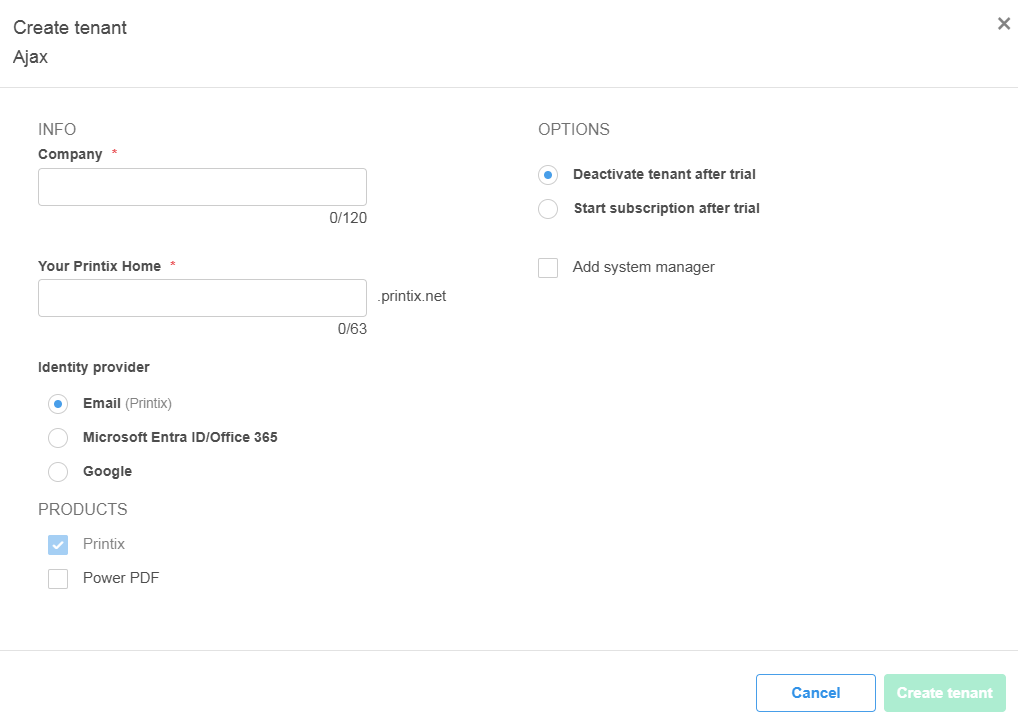
The Create tenant dialog box appears.
-
- In the Info section, enter your Company.
-
Enter
Your
Printix Home.
It does not need to be the same as the email domain (acme). However, because the text is used in your Printix web address, you can use only: A-z, 0-9, -.
-
Select an
Identity provider.
Available choices:
-
Email: Users sign in with their email (Printix account).
-
No additional configuration is required.
-
If you choose to Add system manager, the user must select Forgot password? the first time, and then read the email with the subject Reset password instructions and select Reset password.
-
Optional setup of third-party identity providers (Okta and OneLogin) is done in Printix Administrator.
-
-
Microsoft Entra ID/Office 365: Users sign in with their Microsoft work or school account.
-
You are prompted to enter your Microsoft hosted email domain (acme.com).
-
If you choose to Add system manager, the user must Sign in with Microsoft (assuming the user has a Microsoft account).
-
Printix supports multiple Microsoft Entra directories per tenant.
-
-
Google: Users sign in with their Google Workspace account (not @gmail.com).
-
You are prompted to enter your Google hosted email domain (acme.com).
-
If you choose to Add system manager, the user must Sign in with Google (assuming the user has a Google account).
-
Printix supports multiple Google domains per tenant.
-
-
Vertical: Users sign in with their Vertical account.
-
You are prompted to enter your Vertical customer SID.
-
If you choose to Add system manager, the user must select Sign in with another method and then Sign in with Vertical (assuming the user has a Vertical account).
-
-
-
In
Product, select
Printix,
Power PDF, or both.
By default, only Printix is selected.
-
If you select only Printix:
-
All Power PDF settings are hidden in Printix Administrator.
-
Only Printix software is available on the software download page.
-
-
If you select only Power PDF:
-
All Printix settings are hidden in Printix Administrator.
-
Only Power PDF is available on the software download page.
-
-
If you select both Printix and Power PDF:
-
Both Power PDF and Printix can be deployed to a tenant.
-
All options are available in Printix Administrator.
-
All software is available on the software download page.
-
The checkboxes you select cannot be cleared after the tenant is created. However, if you only select one checkbox, you can also select the other after the tenant is created.
-
-
In
Options, select what should happen after the trial:
-
Deactivate tenant after trial
Unless subscription is started during the trial period, the tenant is deactivated after the trial, and after another month, the tenant is deleted automatically.
-
Start subscription after trial
Invoicing starts automatically when the trial period has ended.
-
-
Optionally, select
Add system manager. You can also wait to
add a system manager.
-
Enter your Email.
-
Enter your Full name.
-
No email is sent to the added system manager.
-
If you selected Microsoft Entra ID/Office 365, the added system manager can sign in with Microsoft and their Microsoft work or school account.
-
If you selected Google, the added system manager can sign in with Google and their Google Workspace account (not @gmail.com).
-
If you selected Email, the added system manager must select Forgot password? the first time, and then read the email with the subject Reset password instructions and select Reset password.
-
If the email does not appear within a few minutes, check the spam/junk mail folder.
-
Subsequently, the system manager can sign in with email.
-
If the system manager already has a Printix account, the password does not need to be reset.
-
-
-
- Select Create tenant to create the Printix Home for the new tenant.
Configure a tenant
Open Printix Administrator for the new tenant to proceed with the configuration as described in the Printix Implementation Help.
You who created the tenant is listed as the subscription email receiver. We recommend that you configure the following in Printix Administrator:
-
Email message signature
On the Settings
 page, you can change the signature to include contact
details for your Help Desk. By default, this is populated with the name and email address of the user (you) who created the tenant.
You can replace this text with something else.
page, you can change the signature to include contact
details for your Help Desk. By default, this is populated with the name and email address of the user (you) who created the tenant.
You can replace this text with something else.
-
Accept Printix for all users
If you selected Microsoft Entra ID as the Identity provider, ensure that Printix is accepted for all users, so the automatic sign-in to Printix Client works on Microsoft Entra joined Windows 10 and 11 computers. You must have the global administrator role in Microsoft Entra ID to do this. You can enable groups. Subsequent deletion or modification of the used global administrator Microsoft Entra ID account does not affect the already consented application privileges.