
How to sign in
-
Visit
partner.printix.net.
If your partner portal is not hosted on our default data center, visit partner.{datacenter}.printix.net instead.
Example: partner.us.printix.net -
To sign in, select a sign-in method:
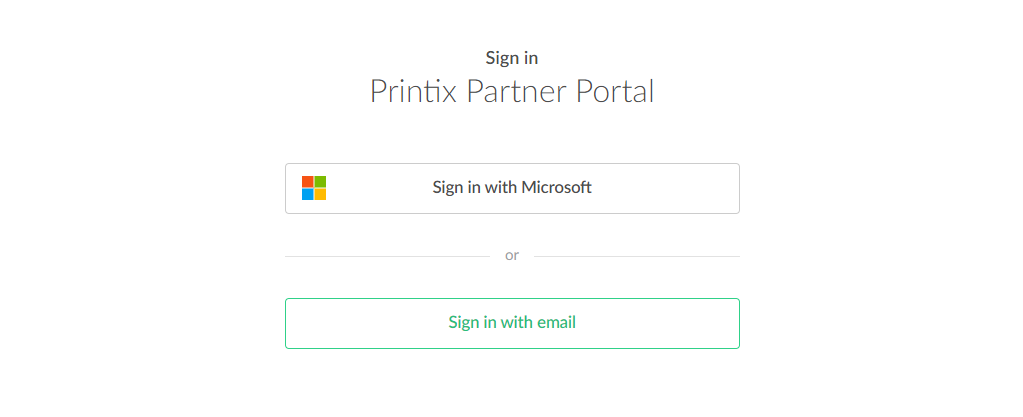
If you have issues while signing in, see Sign-in issues. If you forgot your password, see How to reset your password.
Sign in with Microsoft
Sign in with Microsoft will only work after you have been added as a user, that is, you are listed in the Users tab.
-
On the Microsoft sign-in page:
-
Enter your work or school account.
-
Enter your password.
-
- Select Sign in.
-
If prompted, select
Accept to grant permissions to Printix.
If you see the check box Consent on behalf of your organization, it is because you have the global administrator role in Microsoft Entra ID, and the Printix Partner Portal has not yet been accepted for all users. Select Consent on behalf of your organization so Printix can have access to the specified resources for all users in your organization. No one else will be prompted.
Sign in with email
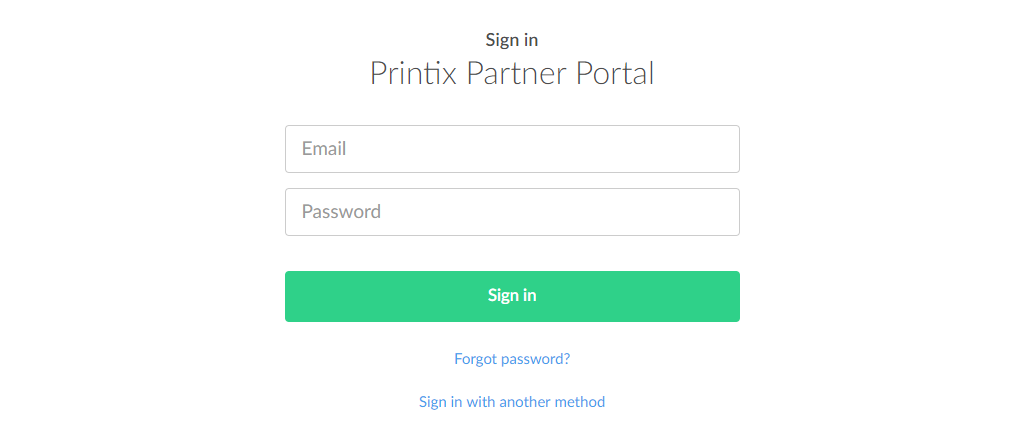
If you do not have a Microsoft account and have to sign in with email, you must first contact partner.printix@tungstenautomation.com.
-
Sign in with your
Printix
account:
-
Enter Email.
-
Enter Password.
If this is the first time you sign in, you must select Forgot password to set your password.
-
-
Select
Sign in.
The Code page appears.
-
Enter the
Code.
The code is a 6-digit number from your two-factor authenticator, for example, your Google Authenticator or Microsoft Authenticator on your phone.
- Select Send.