
How to enable Printix Go for a tenant
Printix Go is enabled for all
Since 6 July 2022, Printix Go has been enabled for all existing and new tenants.
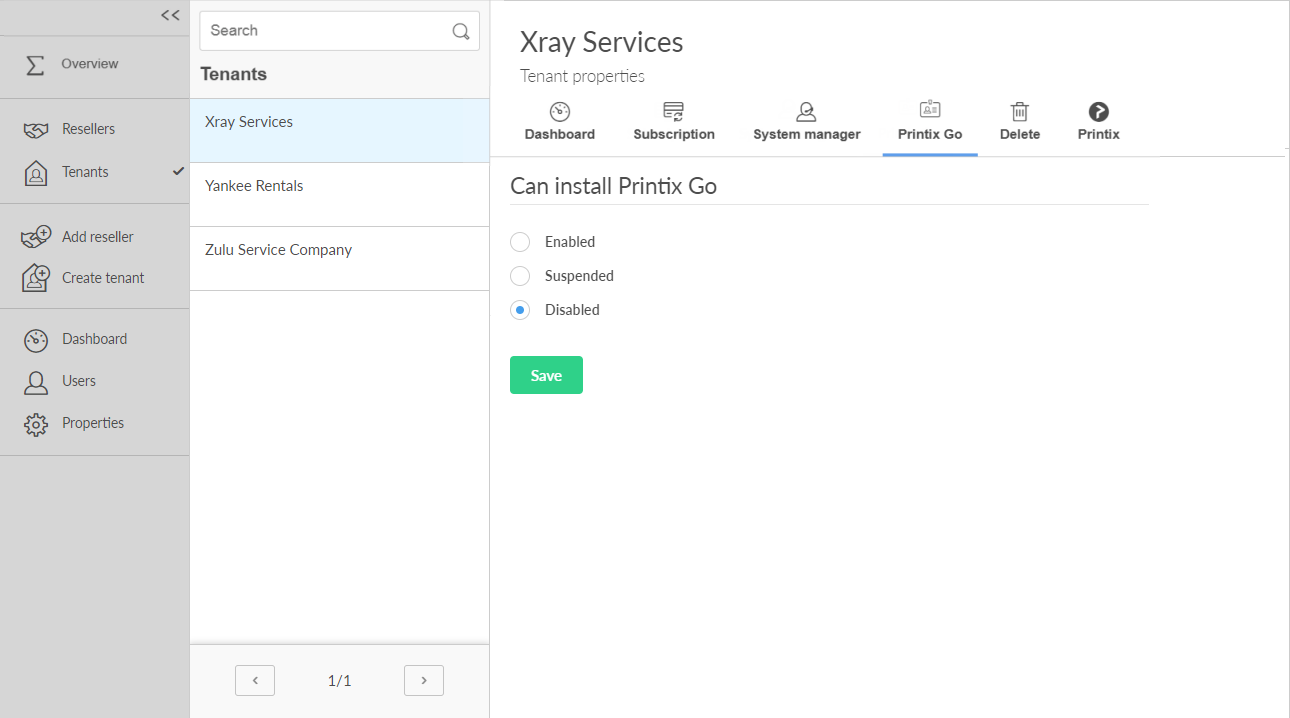
- Open the Tenant properties page.
- Select the Printix Go tab.
-
Select
Enabled.
-
Enabled
Select this to enable the Printix Go tabs in Printix Administrator and allow Printix Go to be installed on printers. Printix Go on a printer can only be used with one Printix Home. If multiple companies need to use the same printer, another option could be to add multiple Microsoft Entra directories or multiple Google domains.
-
Suspended
Select this to suspend further installations of Printix Go on printers, and only allow uninstallation on printers. After Printix Go has been uninstalled from printers, you can select Disabled.
-
Disabled
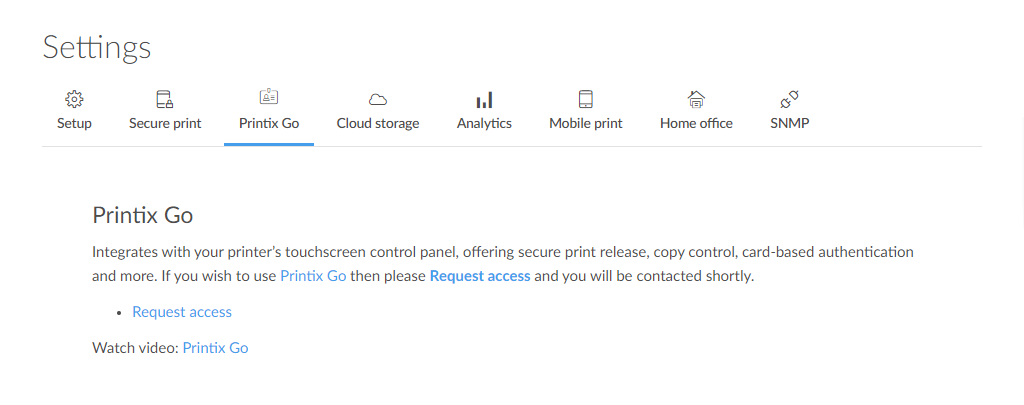
This is the default. In Printix Administrator, the Printix Go tab on the Printer properties page and the Settings page explains that access to Printix Go can be requested.
-
-
Select
Save.
-
If users need to enter only an ID code to sign in to Printix Go enabled printers, contact Product Support so we can change the setting Require PIN code for sign in with ID code. This is for security reasons.
-