In-person signing session
There are typically two scenarios when in-person signing might make sense to be used.
- When the signer is physically present and would like to e-sign the documents immediately without the need to open an email
- Sending an email invitation to the signer is not possible. For example the signer does not have an email address, computer, or an internet connection.
In-person signing allows one or more persons to review and/or sign the documents with the assistance of the signing host (the account holder). The participants of the signing session need to be physically present. The signing host will facilitate but not necessarily participate in the signing session. The signing host will oversee that control of the signing device is passed on to the active signer.
There are no additional prerequisites when preparing a signing package for in-person signing.
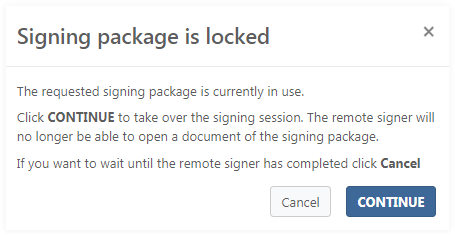
The In-person signing session can be started from the Signing packages page.
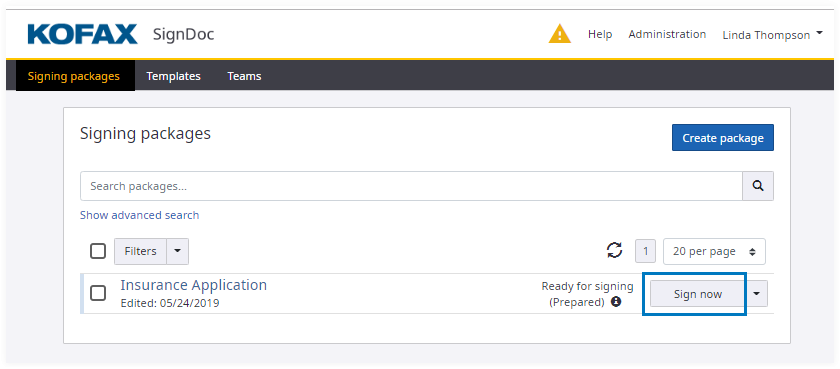
On the Signing package details page in Recipients tab there are the following ways to start in-person signing session:
- Common
Sign now button to start new signing session for multiple signers. In-person
signing session can be started for multiple recipients, which have not finished the signing process in a signing package prepared
for signing.
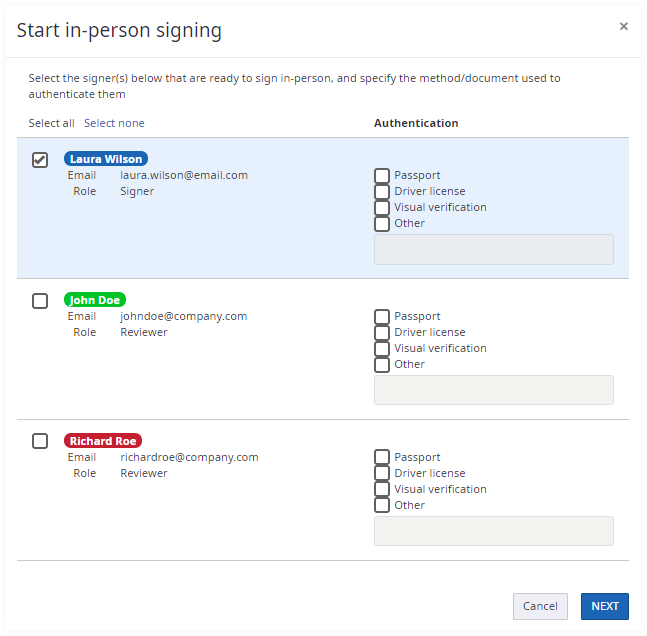
- Sign now button for a selected signer to start new signing session for single
signer.
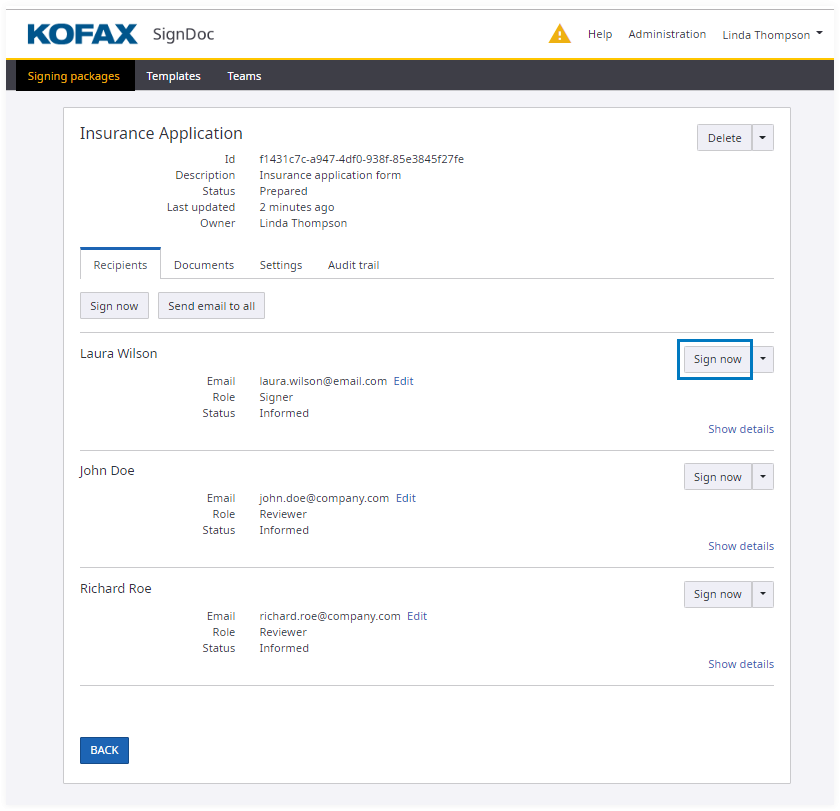
When the Sign now button is clicked, the dialog is displayed with selected recipient(s).
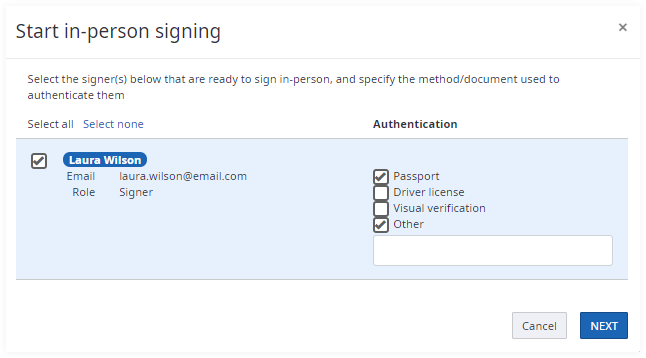
The authentication method must be specified for every selected signer.
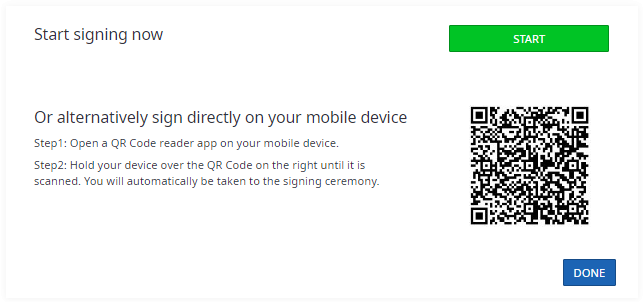
After the signers are selected, by clicking NEXT a new modal dialog appears containing the QR code and a START button which starts the in-person signing process.
You can open the common signing session on your mobile device using the QR code.
The wizard will guide you through the in-person signing process. The participants of the signing session will take turns completing their part. It is the signing host duty to ensure control of the signing device is passed on to the active signer.
Instructions for the signing host
Select one or more participants for the in-person signing session. You will need to manually authenticate the signers before you can start the in-person signing session. Select one or more authentication mechanisms for each of participant. You can also add a text comment in the Other field.
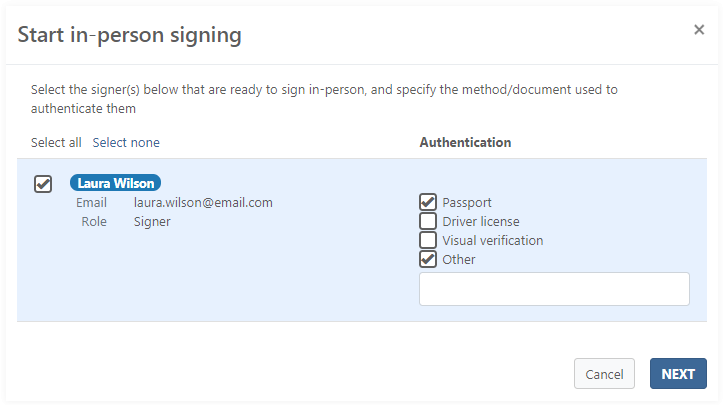
Disclaimer. Any information entered in the Other field will be stored as plain text, and will be visible in the audit trail.
Special handling of the signing method using a signature image
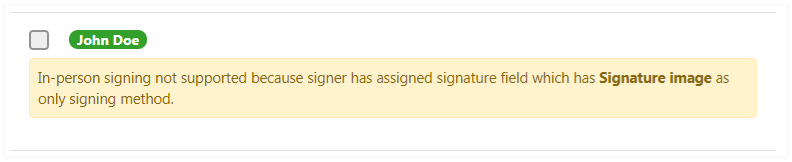
The signing method Signature image is only allowed for the signer which is also the current user who starts the in-person signing session. For all other signers the signing method Signature image is filtered out from the list of signing methods.
Therefor a signer is excluded from in-person signing if he has a signature field which has Signature image as only signing method.
Welcome page for the in-person signing session
This page shows the necessary steps to sign packages. An additional description for each step is provided in the Instructions panel.
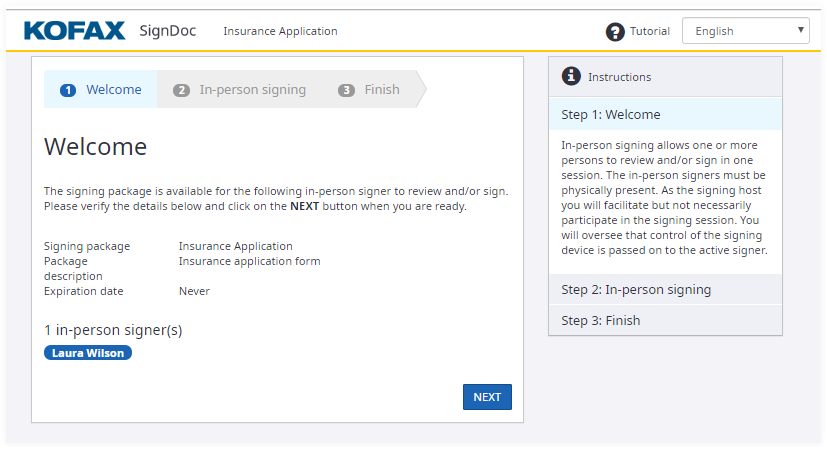
After verifying the details click NEXT to start the in-person signing session.
Changing user interface language during the signing session
The default language which the application sets automatically depends on the locale settings of the browser. You can change the current language using the drop-down box located at the right upper corner of the application:
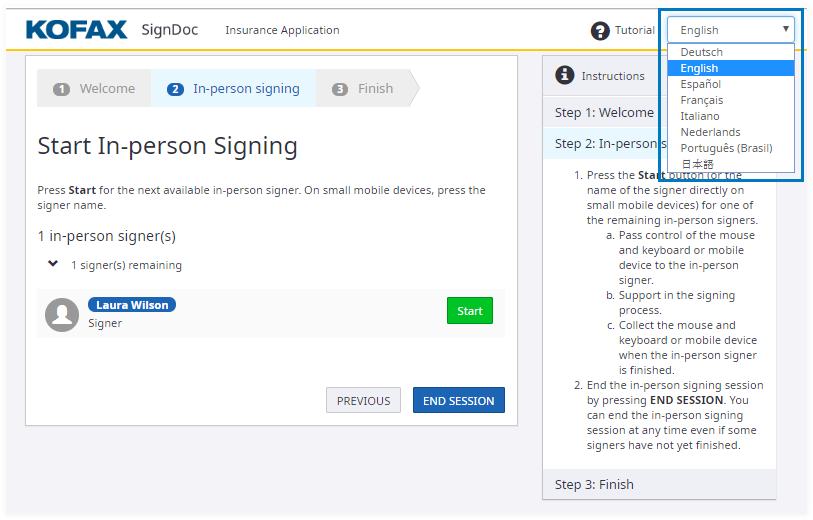
Click Start to continue.
The next step requires the signer to Agree with electronic signing.