Remote signing session
Receive signing request
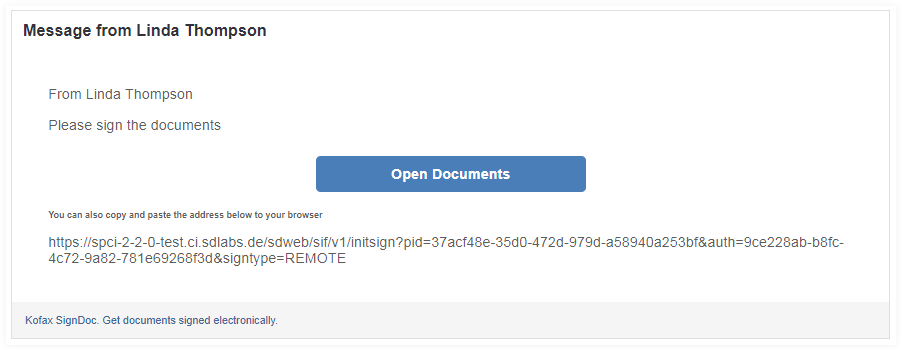
The recipients first experience with SignDoc Standard is an email informing them about the request that documents need their review or signatures.
The email is sent from SignDoc Standard on behalf of the sender (the user organization). The email contains:
- information about the sender (sender name)
- a message from the sender in the email body
- a secure personalized link to
SignDoc Standard
to open the document
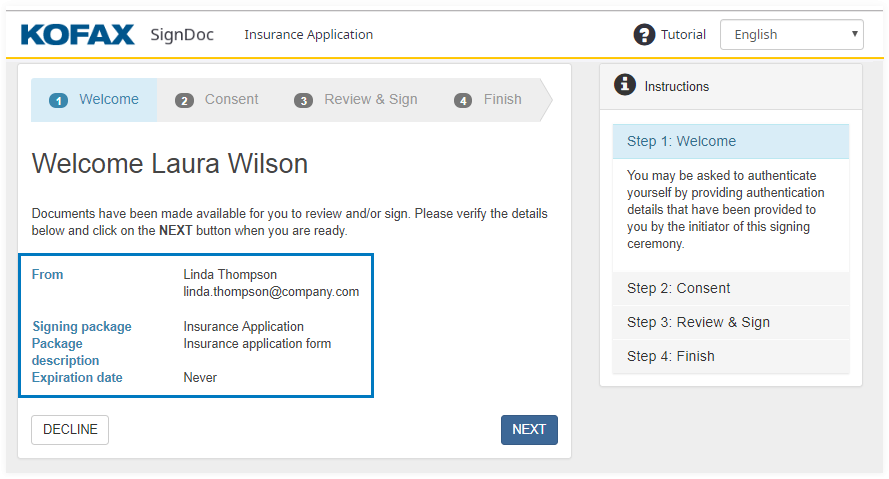
Welcome page for the remote signing session
When the recipient clicks the link or Open Documents the SignDoc Standard guided signing and review process starts. This page informs the recipients about:
- who requested reviewing or signing
- what is requested to review and sign
- expiration date
- request from sender for recipients authentication
The application will check if a preferred language is set for the signer and use that language for the signing session. If the preferred language is not set it will determine the language of the user interface from the default language used in the user's browser and fallback to English if that's not possible.
Authentication options
- None
The recipient can directly go to the next page. The e-sign consent form will be displayed.
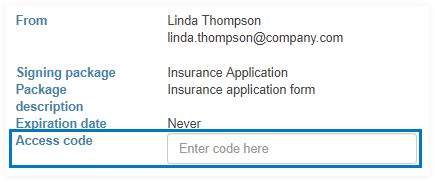
- Access code
If defined by the sender the recipient must be authenticated before the next page with the e-sign consent form will be displayed.
SignDoc Standard offers authentication based on access code. The recipient will enter the code in the field next to Access code.
The package creator may have used SignDoc Standard to automatically send the SMS containing the access code to the recipient. This SMS is only sent when the signing session is started.
If authentication fails a message is shown.
- External authentication
If defined by the sender the recipient must be authenticated by an external authentication provider. When clicking NEXT a confirmation dialog is displayed which contains some information about the external authentication process.
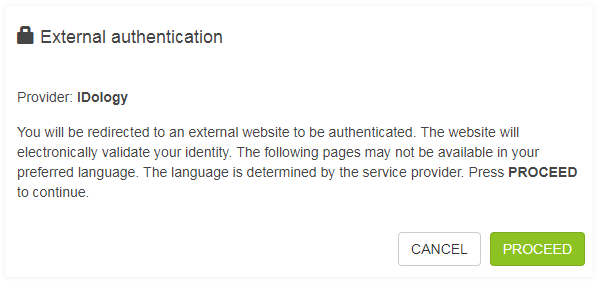
When clicking PROCEED the recipient is forwarded to the webpage of the external authentication provider. After finishing the external authentication process the recipient is taken back to his remote signing session.
The next step requires the signer to Agree with electronic signing.