Signing settings
On the Signing settings page an administrator can set preferences and configurations for this account that are specific to the actual signing of documents.
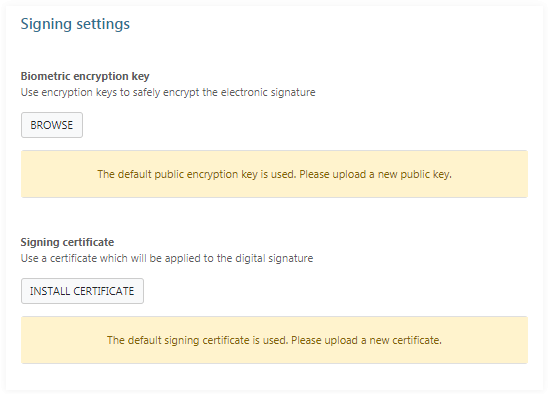
Biometric encryption key
This is the encryption key that will be used to encrypt biometric signature data whenever it is captured during the signing process. Generally, such data is only captured when using specific hardware signature tablets during the signature capture process. Ideally, you should upload the public key for your company here, and take all precautions to put the private key in safekeeping. This will allow you to encrypt signature data such that only the person with access to the private key will be able to decrypt it at a later time (if necessary).
To upload the public key click BROWSE and select the public key file from your local computer.
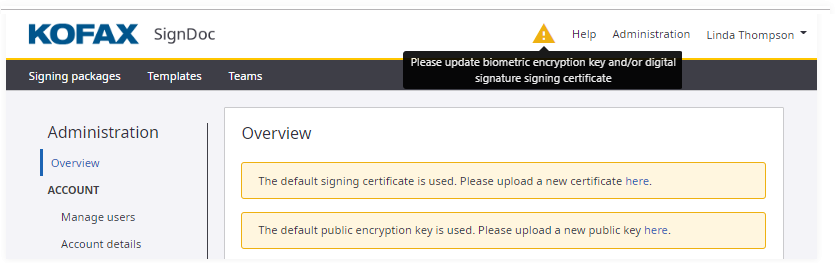
If no biometric key is set here, a default biometric key will be used, and a warning will appear at the top of each SignDoc Standard page instructing the administrator to update the biometric key.
Signing certificate
This is the digital signing certificate that will be used for each SignDoc Standard signature placed in a document. By clicking INSTALL CERTIFICATE you will be provided with a dialog that will allow you to browse the local computer’s file system to select and upload the digital certificate. Once uploaded, the selected certificate will be used for all signing ceremonies.
SignDoc requires a PKCS#12 certificate store file, that contains exactly one certificate, for signing and verifying a signature. As key usage extension digital signature and/or non-repudiation have to be enabled.
The possibility to select your own signing certificate allows an administrator to ensure that a certificate’s credentials match the account holder’s. This is particularly important for the final signed documents. When inspecting signed documents, the certificate selected here will be displayed and the document will be shown as having been signed by the owner of the certificate.
If no certificate is selected, a default self-signed certificate will be used, and a warning will appear at the top of each SignDoc Standard page instructing the administrator to update the signing certificate.
- The certificate password dialog in the Manage Client accepts as maximum 127 characters.
- An already uploaded signing certificate cannot be replaced immediately with the same certificate. You have to delete the certificate first otherwise an error occurs.