Personalize an account
You can personalize the account to allow users to identify the account owners organization.
The personalization is visible to both the package owners and signing package recipient. Using the personalization options you can set logos, headers, footers.
Personalization settings
To personalize an account you need to login with a user with account administrator privileges.
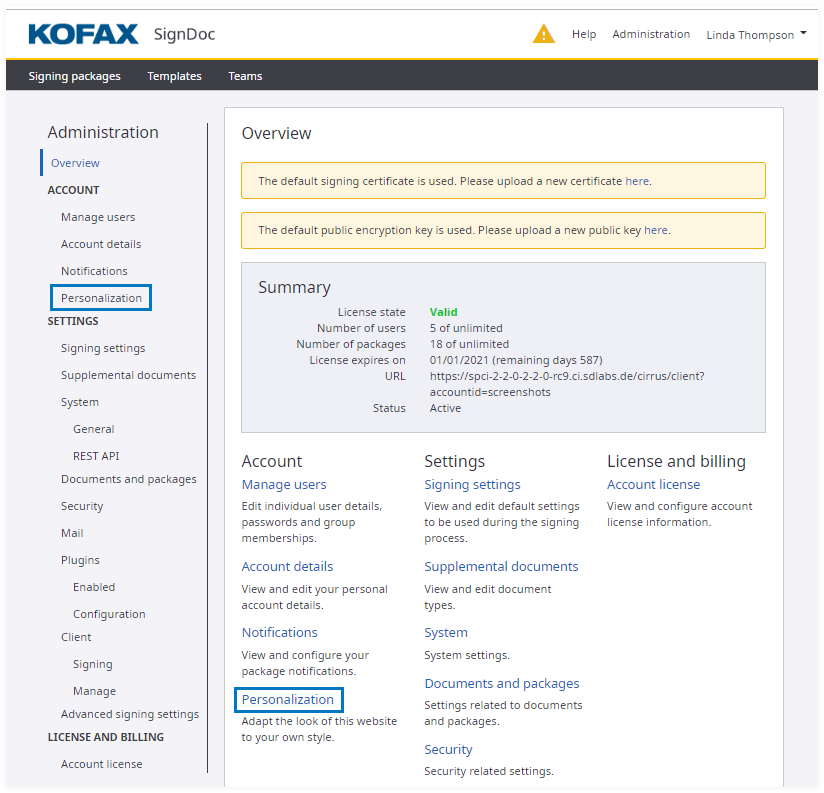
In the application header click Administration. Now you can access the settings for personalizing an account in the Overview page under the Account section by clicking Personalization. Alternatively you can click Personalization in the left navigation bar.
 The
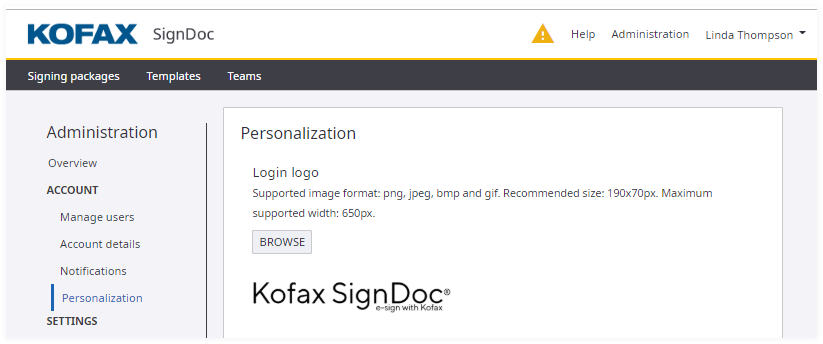
Personalization page contains the settings for logos, headers, and footers
including colors and links. In the preview area the result of the setting is displayed to confirm that the changes are as expected.
The
Personalization page contains the settings for logos, headers, and footers
including colors and links. In the preview area the result of the setting is displayed to confirm that the changes are as expected.
 After an adjustment has been made click one
of the buttons at the end of the page:
After an adjustment has been made click one
of the buttons at the end of the page:

- The APPLY button changes the values immediately and displays the results.
- Clicking the CANCEL button discards the current changes.
- The Reset to default button resets all the personalization values to the values from the system configuration.
Logos
With the option Login logo you can change the logo of the login screen. To do so you can click BROWSE to browse and locate the preferred image.
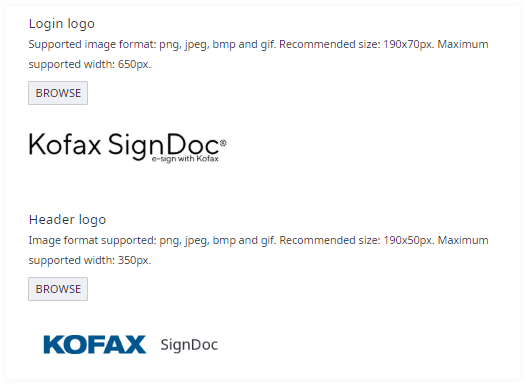
You can personalize the appearance of the header with the Header logo option in the following locations:
- SignDoc Standard main pages: Manage Packages, Teams, Account Administration, Prepare Package etc.
- The signing wizard
- Emails
To change the logo click BROWSE and locate the preferred image.
Headers
The option Header foreground color changes the color of the text in the application header.
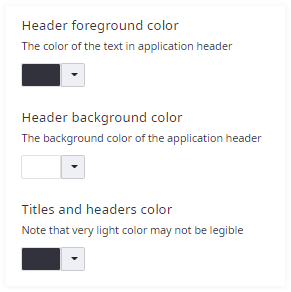
Select the colors using the color palettes. Another way for entering colors is typing the hexadecimal, RGB or HSL code. Click the arrow up or arrow down icon in the color box to select the input mode.
The changes will take effect after confirming the settings.
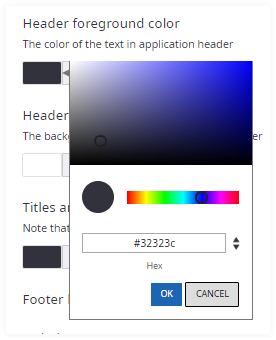
You can change the background color of the application with the option Header background color.
Titles and headers in various locations within SignDoc Standard can be changed with the option Titles and headers color.
Footer
The footer can be customized for all account pages. This includes:
- SignDoc Standard main pages; Manage Packages, Teams, Account Administration, Prepare Package etc.
- The signing wizard
The links in the footer can be changed with the option Footer links. Add multiple links by clicking Add link to create a new link in the footer. Fill in your preferred information in the Display text and URL fields.
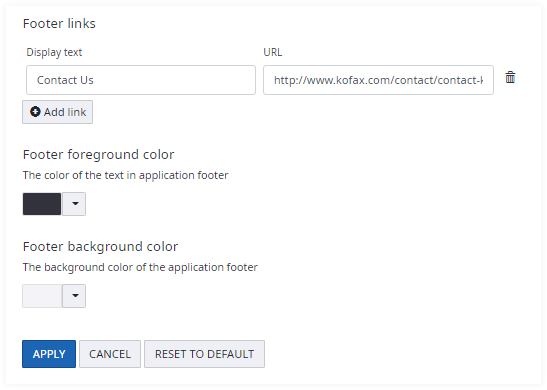
The option Footer foreground color changes the color of the text in the application footer.
You can change the background color of the footer with the option Footer background color.
After an adjustment has been made click APPLY at the end of the page to view the results. Clicking Reset to default will reset all the personalization values to the initials.